
If you ever get a CAB file on your Windows 11 computer and need to install it, this guide will help you do it easily. Don’t worry if you’re not a tech expert — we’ll keep things simple and clear!
What Is a CAB File?
A CAB (short for cabinet) file is like a zipped folder that holds one or more files inside it. These files are compressed (made smaller) so they take up less space. Windows and some device makers use CAB files to send updates or drivers for your computer.
Think of it as a package with several things inside, all squished together to save space.
How to Install a CAB File in Windows 11
There are different ways to install CAB files. Here are the easiest methods:
1. Using Command Prompt
Command Prompt is a tool where you type commands to tell your computer what to do.
- Open Command Prompt as Administrator (this means running it with special permissions).
- Type the command below, but replace
FULL_PATH_TO_CAB_FILEwith the full location of your CAB file. For example, if your CAB file is in Downloads, it might look like this:C:UsersYourNameDownloadsfile.cab.
dism /Online /Add-Package /PackagePath:"FULL_PATH_TO_CAB_FILE"
Example:
dism /Online /Add-Package /PackagePath:"C:UsersRichardDownloadsWindows10.0-KB5018851-x64.cab"
After running the command, you should see a message that says the installation was successful.
2. Using Windows PowerShell
PowerShell is similar to Command Prompt, but a bit more powerful.
- Open PowerShell as Administrator.
- Type this command, again replacing
FULL_PATH_TO_CAB_FILEwith your file’s path:
Add-WindowsPackage -Online -PackagePath "FULL_PATH_TO_CAB_FILE"
Example:
Add-WindowsPackage -Online -PackagePath "C:UsersRichardDownloadsWindows10.0-KB5018851-x64.cab"
Once done, you’ll get a success message.
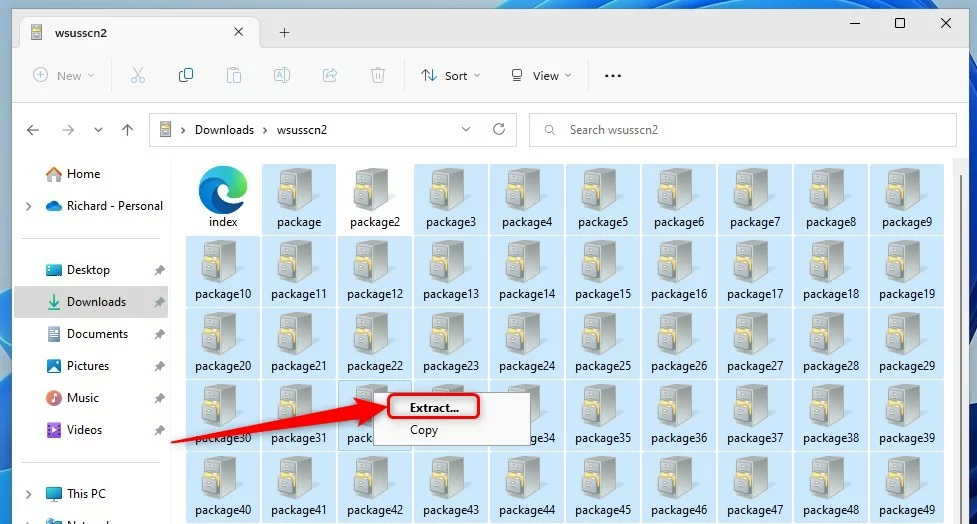
3. Extract and Install CAB Files Using File Explorer
Sometimes, CAB files contain device drivers (special software that helps your computer parts work). If you want to install just one driver from the CAB file, you can first extract (unzip) the files and then install the driver you want.
- Open File Explorer (the folder icon on your taskbar).
- Find your CAB file and double-click it to open.
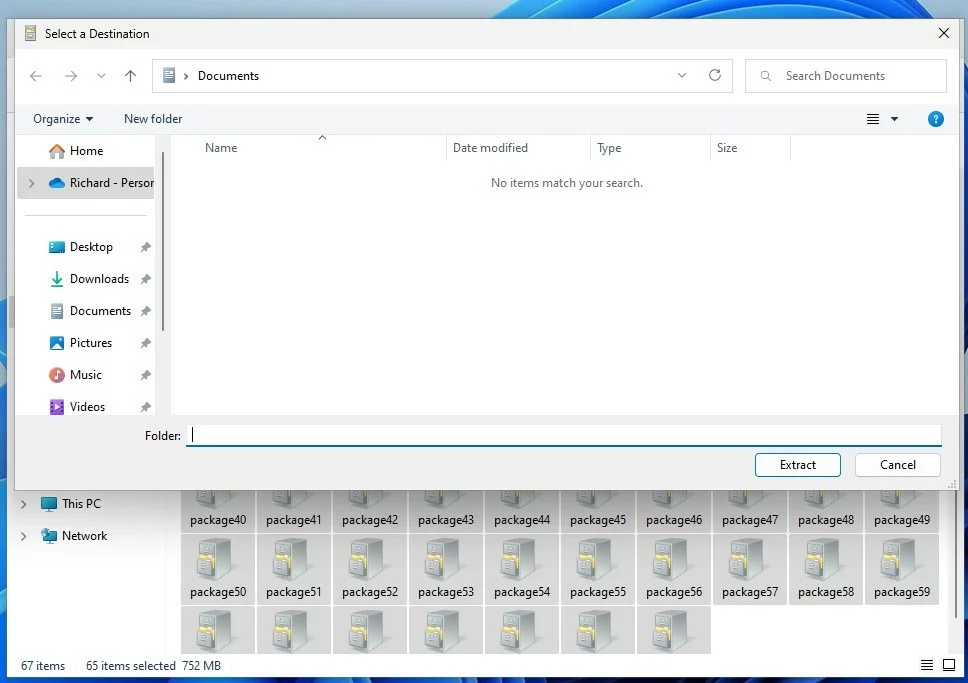
- Select all the files inside, right-click, and choose Extract All.
- Pick a folder where you want to save the extracted files, then click Extract.
After extracting, you can install drivers using Device Manager. For a simple guide on installing drivers, check out this post: How to install device drivers in Windows 11.
Summary
- CAB files are compressed packages with updates or drivers for Windows.
- You can install them using Command Prompt or PowerShell, by typing simple commands.
- If you only want certain drivers, you can extract CAB files using File Explorer and install just what you need.
- Helpful links and pictures make the process easier to follow.
Helpful Links & Resources
- Microsoft official info about CAB files
- How to open apps as administrator in Windows 11
- How to open Command Prompt in Windows 11
- How to open PowerShell in Windows 11
If you have questions or want to share your experience, feel free to leave a comment below!

Leave a Reply Cancel reply