How to install Bludit CMS with Nginx on Ubuntu 24.04


Bludit CMS with Nginx on Ubuntu 24.04 runs a fast personal website or blog without needing a heavy database. Bludit is a flat-file content management system that stores your pages and posts as simple text files instead of using MySQL.
Ubuntu 24.04 LTS pairs with the Nginx web server to handle visitors quickly while using very little memory on your server. This lightweight setup works well for simple portfolios and small sites that need fast load times.
Install Nginx using `sudo apt install nginx`, then install PHP with `sudo apt install php-fpm php-mysql` and other necessary modules. Download and extract Bludit to `/var/www/`, set permissions with `sudo chown -R www-data:www-data /var/www/bludit`, and configure an Nginx server block for your site.
Install Nginx HTTP server on Ubuntu
Nginx web server setup on Ubuntu 24.04 requires the standard package manager to download and run the service. You can install Nginx for your Bludit CMS Nginx Ubuntu setup by opening the terminal and running the update and install commands to get the server working on your system right away.
To do that, open the Ubuntu terminal and run the commands below to install the Nginx web server.
sudo apt update
sudo apt install nginx
Once Nginx is installed, the commands below can start, stop, and enable the Nginx web server to start automatically when your server boots up.
sudo systemctl stop nginx
sudo systemctl start nginx
sudo systemctl enable nginx
You can test the Nginx web server by opening your web browser and browsing to the server’s localhost or IP address.
http://localhost
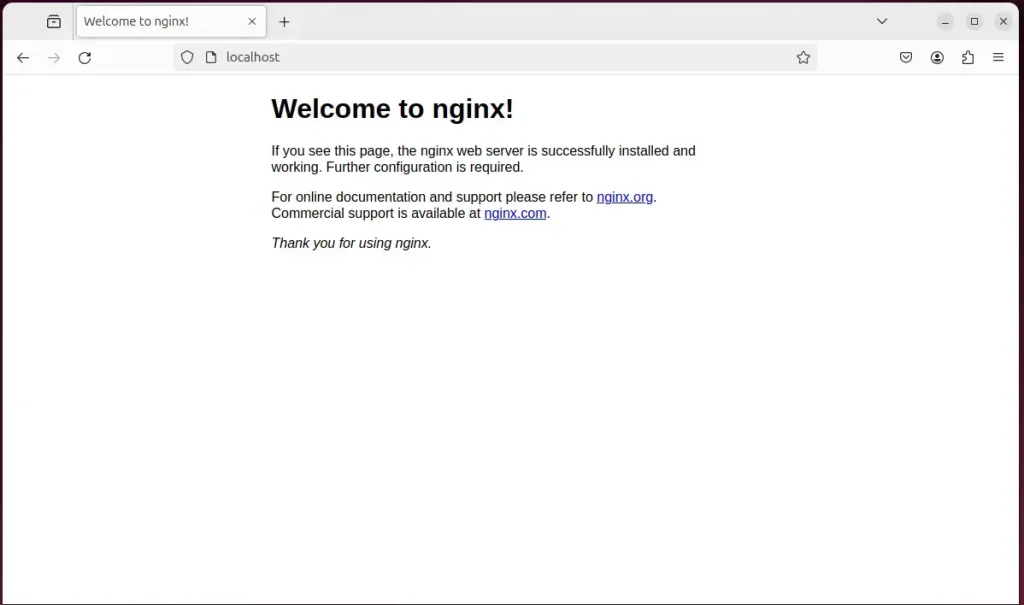
When you see the Welcome to nginx!, it means the Nginx HTTP server is successfully installed.
Additional help on installing Nginx on Ubuntu is in the link below.
Install PHP on Ubuntu Linux
PHP installation for Bludit CMS Nginx Ubuntu requires downloading the processor along with the specific extensions the flat-file system needs to operate. You can set up PHP and its required modules by running the package manager command in your terminal to prepare your environment for the website files.
Then, run the commands below to install the latest PHP version.
sudo apt install php-fpm php-intl php-mysql php-curl php-cli php-zip php-xml php-gd php-common php-mbstring php-xmlrpc php-bcmath php-json php-sqlite3 php-soap php-zip
Additional help on installing PHP
Download Bludit files
Bludit file download and setup on your Bludit CMS Nginx Ubuntu server requires grabbing the latest release package from the official source. You can fetch the archive directly to your web directory, unpack the contents, and set the correct permissions so your Nginx server can load the site.
To always install the latest version, check the download page for Bludit. Get the download link and download the archived package to your computer. Then, extract it.
First, navigate to the /tmp/ directory and download the Bludit files. Next, move the content into the Bludit folder in the Nginx root directory.
This will allow the Nginx web server to interact safely with the files, ensuring a secure environment for your Bludit installation.
cd /tmp/
wget https://www.bludit.com/releases/bludit-3-16-2.zip
sudo unzip bludit-*.zip -d /var/www/
sudo chown -R www-data:www-data /var/www/bludit
Once you have completed all the above steps, continue configuring the Nginx web server below to serve the Bludit content.
Run the commands below to create a Nginx virtual host file for Bludit.
sudo nano /etc/nginx/sites-available/bludit.conf
Then, copy and paste the content block below into the Nginx server block.
server {
    listen 80;
    listen [::]:80;
    root /var/www/bludit;
    index  index.php;
    server_name  bludit.example.com;

    access_log /var/log/nginx/example.com.access.log;
    error_log /var/log/nginx/example.com.error.log;

    location / {
        try_files $uri $uri/ /index.php?$args;
    }

    location ~ .php$ {
         include snippets/fastcgi-php.conf;
         fastcgi_pass unix:/var/run/php/php8.3-fpm.sock;
         fastcgi_param SCRIPT_FILENAME $document_root$fastcgi_script_name;
         include fastcgi_params;
    }

    location ^~ /bl-content/databases/ { deny all; }
    location ^~ /bl-content/workspaces/ { deny all; }
    location ^~ /bl-content/pages/ { deny all; }
    location ^~ /bl-kernel/*.php { deny all; }

}
Save the file.
You run commands to enable the Nginx virtual host for Bludit CMS and restart the Nginx server. This action makes your Bludit CMS site accessible on the internet. For example, use `sudo ln -s /etc/nginx/sites-available/bludit.conf /etc/nginx/sites-enabled/` to create a link for the virtual host, and then `sudo systemctl restart nginx` to restart the Nginx server.
sudo ln -s /etc/nginx/sites-available/bludit.conf /etc/nginx/sites-enabled/
sudo systemctl restart nginx
Setup Let’s Encrypt SSL/TLS for Bludit
Let's Encrypt SSL certificate setup for your Bludit CMS Nginx Ubuntu website secures your traffic with free HTTPS encryption. You can configure the security certificate using the Certbot tool to automatically update your Nginx server blocks and protect user data.
Please read the post below for additional resources on installing and creating Let’s Encrypt SSL certificates for Nginx.
How to set up Let’s Encrypt SSL certificate for Nginx on Ubuntu Linux
Once you have restarted the Nginx web server, open your browser and browse to the server hostname or IP address defined in the Nginx server block.
http://bludit.example.com
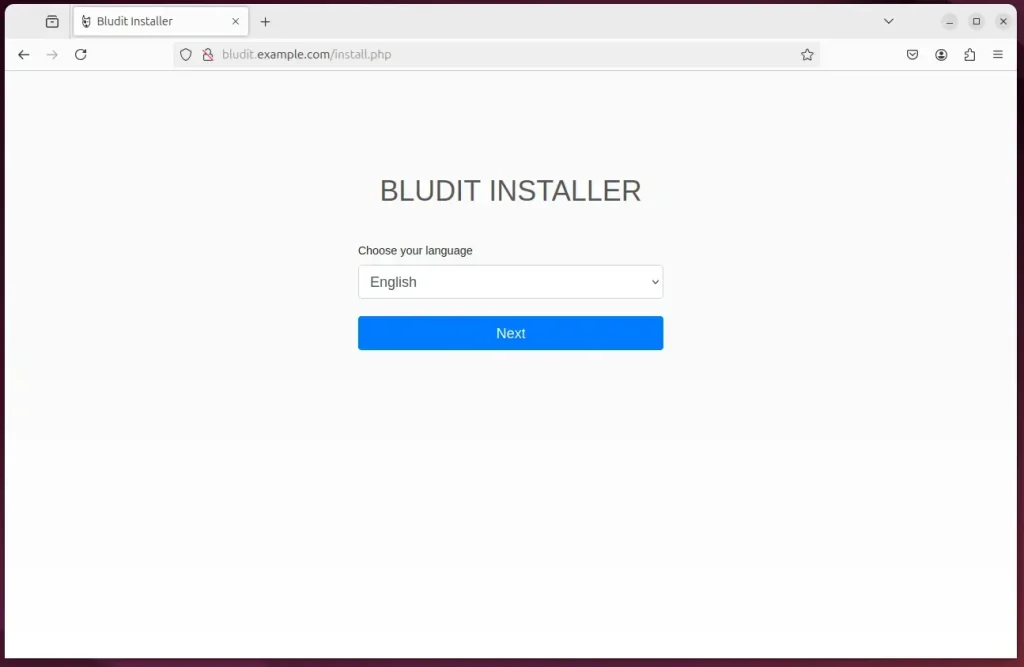
A Bludit installation wizard page should appear. Select the installation language and continue.
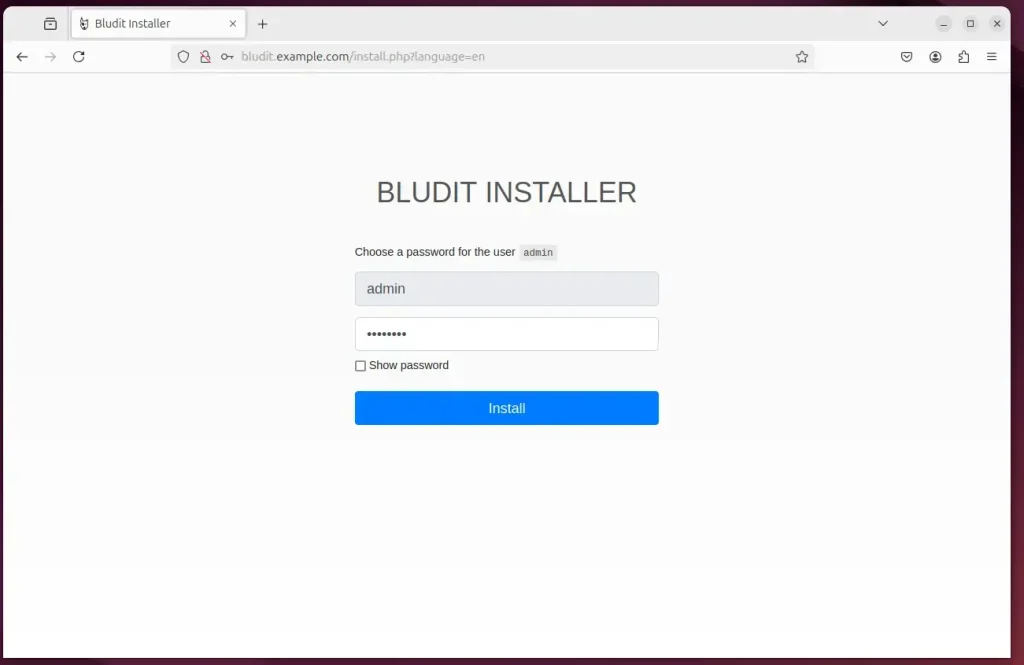
Create an admin account and continue.
Bludit should be installed and ready to use.
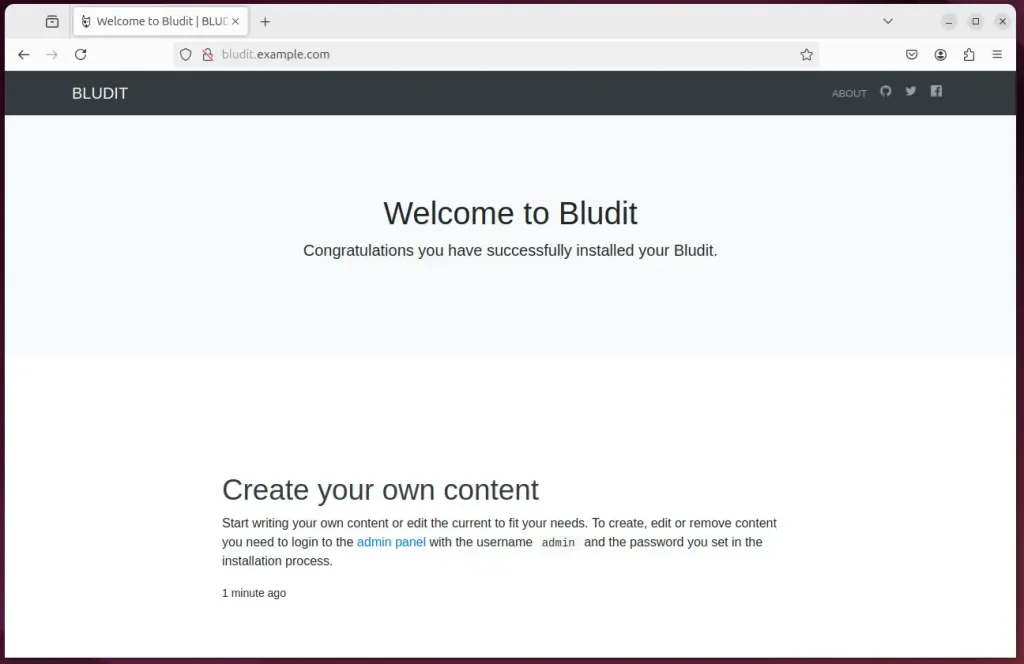
That should do it!
Conclusion:
Installing Bludit CMS with Nginx on Ubuntu 24.04 provides you with a robust and efficient content management system. Here are the key takeaways:
- Bludit CMS offers a user-friendly interface and fast performance due to its flat-file architecture.
- Nginx is a high-performance web server that handles high traffic while utilizing resources efficiently.
- The installation process includes setting up Nginx PHP and configuring it to work seamlessly with Bludit.
- Let’s Encrypt for SSL/TLS ensures that your site is secure and trustworthy for visitors.
- Following these steps allows for a reliable and easily manageable website that can scale with your needs.
With Nginx, PHP, and a database installed on Ubuntu 24.04, you possess the necessary components to build your Bludit CMS site. Happy blogging!
Was this guide helpful?

About the Author
Richard
Tech Writer, IT Professional
Richard, a writer for Geek Rewind, is a tech enthusiast who loves breaking down complex IT topics into simple, easy-to-understand ideas. With years of hands-on experience in system administration and enterprise IT operations, he’s developed a knack for offering practical tips and solutions. Richard aims to make technology more accessible and actionable. He's deeply committed to the Geek Rewind community, always ready to answer questions and engage in discussions.


No comments yet — be the first to share your thoughts!