How to Hide Task View on Windows 11 Taskbar

You hide the Task View button on your Windows 11 taskbar by adjusting a single setting in the Personalization menu.
Task View provides a visual overview of all your open applications and virtual desktops, allowing you to switch between them easily. If you prefer a cleaner taskbar and don’t actively use Task View, removing its icon is a simple personalization step.
This process specifically targets the Task View button, making your taskbar appear less cluttered. It won’t disable the functionality; you can still access Task View by pressing the ⊞ Win+Tab shortcut. This tutorial focuses on removing the icon, which is a quick change for Windows 11 users seeking a streamlined desktop.
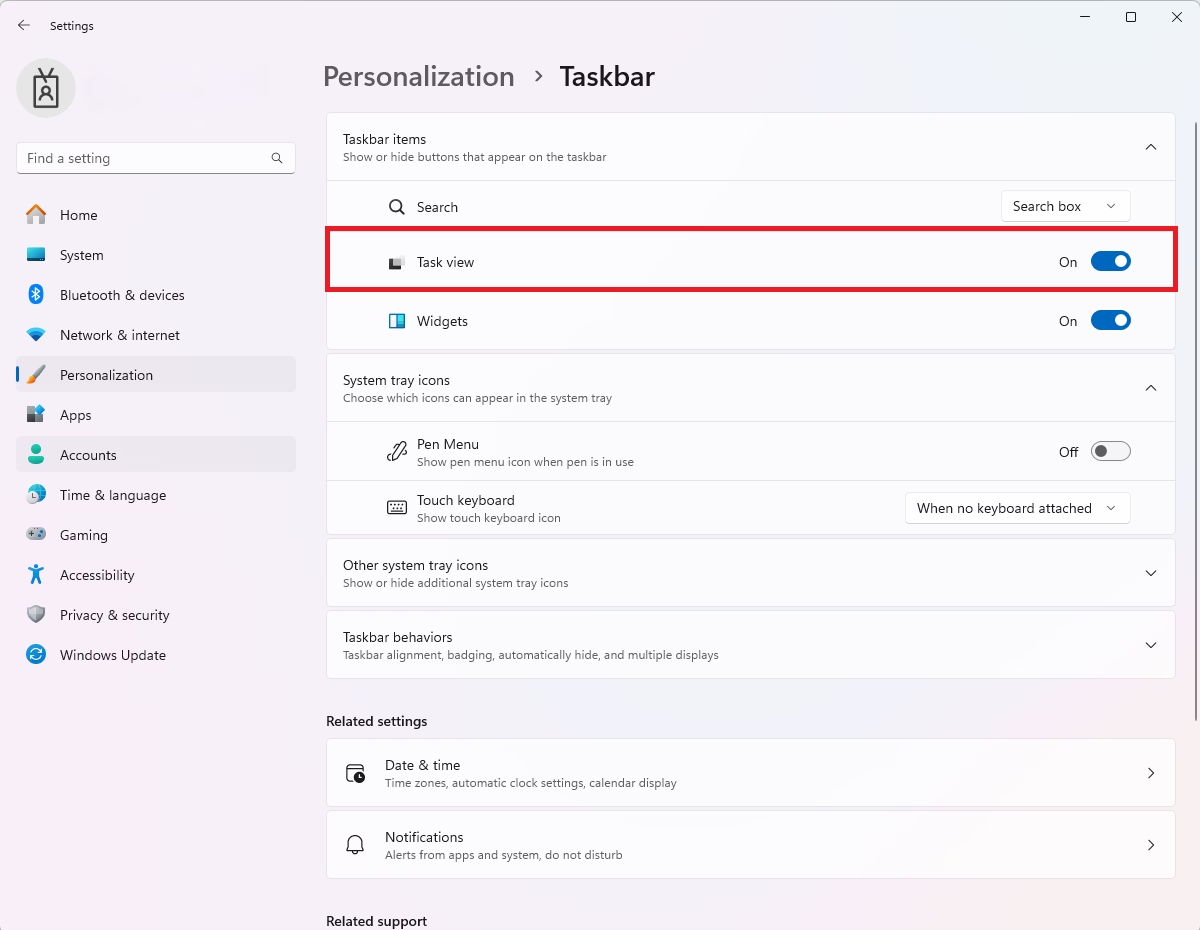
Open Settings by pressing Windows key + I, then go to Personalization, Taskbar, and turn the Task view toggle Off. You can still access Task View by pressing Windows key + Tab.
How to hide Task View from the Taskbar
Let’s hide the Task View button through Windows Settings. Use the Windows key + I shortcut to open Settings. Navigate to Personalization and select Taskbar. Locate the Task view toggle and switch it to Off.
Accessing Virtual Desktops without the button
Even if you hide the button, you can still use virtual desktops. Press the Windows key + Tab on your keyboard to open the interface. This keeps your workflow fast without needing a permanent icon on your taskbar.
Advanced: Using the Registry Editor
You can hide the Task View button on your Windows 11 taskbar by making a small change in the system’s Registry Editor.
1. Press Windows key + R, type `regedit`, and press Enter.
2. Go to the following path: HKEY_CURRENT_USER\Software\Microsoft\Windows\CurrentVersion\Explorer\Advanced
3. Look for a DWORD value called `ShowTaskViewButton`.
4. Double-click it. Set the value to 0 to hide the button, or 1 to show it.
Enterprise Management via Group Policy
If you manage many computers for a company, you can hide the Task View button on all of them using Group Policy.
1. Open the Group Policy Editor (gpedit.msc).
2. Go to: Computer Configuration\Administrative Templates\Windows Components\Windows Taskbar
3. Locate Remove the Task View button and set it to Enabled.
Automation with PowerShell
You can automate this change across your network using a simple script. You’ll need administrator privileges for this.
Set-ItemProperty -Path "HKCU:\Software\Microsoft\Windows\CurrentVersion\Explorer\Advanced" -Name "ShowTaskViewButton" -Value 0
Summary
Hiding the Task View button on your Windows 11 taskbar can make it look tidier, and you have a few ways to do it.
Can I disable the ⊞ Win+Tab keyboard shortcut?
Yes, you can disable the ⊞ Win+Tab keyboard shortcut that opens Task View, though it’s generally not recommended for most users.
How do I hide Task View for all users on a domain?
To hide Task View for all users on a domain, use the Group Policy Management Console. Navigate to the Windows Taskbar policy settings under Administrative Templates and enable the policy titled ‘Remove the Task View button’. This will apply the restriction to all computers within the selected organizational unit.
Was this guide helpful?

About the Author
Richard
Tech Writer, IT Professional
Richard, a writer for Geek Rewind, is a tech enthusiast who loves breaking down complex IT topics into simple, easy-to-understand ideas. With years of hands-on experience in system administration and enterprise IT operations, he’s developed a knack for offering practical tips and solutions. Richard aims to make technology more accessible and actionable. He's deeply committed to the Geek Rewind community, always ready to answer questions and engage in discussions.

[…] 11. The Taskbar in Windows 11 is centered on the screen and shows the Start menu, Search, Task View, Widgets, Teams Chat, File Explorer, Microsoft Edge, and Microsoft Store buttons by […]
[…] way to add multiple desktops is to use the Task View feature. To do that, hover your mouse over the Task View icon, then using the desktop preview, select New desktop button to add a […]
[…] Menu Icon, which opens the Start menu; the Search Icon, which lets you search for files; and the Task View Icon, which enables you to see all open windows and virtual desktops, the Widgets Icon provides quick […]