How to Add or Remove the Sign-In Screen Power Button in Windows 11

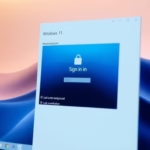
You can add or remove the power button from the Windows 11 sign-in screen by configuring a specific policy setting.
This power button on the sign-in screen controls access to options like shutdown, sleep, and restart before you log into your user account.
On a standard Windows 11 installation, this power button is visible by default, offering quick access to these functions.
Hiding it can prevent unauthorized users from shutting down or restarting your PC if it’s left unlocked.
You can hide or show the Windows 11 sign-in screen power button using either the Local Security Policy (secpol.msc) or the Windows Registry (🗝️HKEY_LOCAL_MACHINE\SOFTWARE\Microsoft\Windows\CurrentVersion\Policies\System). Configure the “Shutdown: Allow the system to be shut down without having to log on” policy or the “shutdownwithoutlogon” registry value to Disabled or 0 to hide it, or Enabled or 1 to show it.
Customizing the Start Menu Power Button
You can easily choose which power options, like Sleep or Shut down, appear in your Windows 11 Start menu to make it more convenient for you.
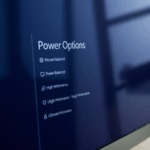
1. Open Control Panel and go to Hardware and Sound > Power Options.
2. Click Choose what the power buttons do.
3. Click Change settings that are currently unavailable (Requires Admin Privileges).
4. Check the boxes for the options you want to see in the menu.
Changing Physical Power Button Behavior
You can change what happens when you press the physical power button on your Windows 11 PC, deciding if it should Sleep, Shut down, or do nothing at all.
In the same Power Options menu, use the dropdowns next to When I press the power button to select your preferred action for both battery and plugged-in states.
Troubleshooting Power Button Issues
If your Windows 11 power button is missing from the Start menu, it’s often because of a bad power plan or a setting that’s turned off, but you can try the troubleshooter or check Fast Startup.
Summary
Managing your Windows 11 power button settings lets you control your sign-in screen and Start menu convenience, giving you full command over your PC’s power.
Why is the power button missing from my 🪟 Windows 11 Start menu?
The power button may disappear due to a system policy restriction or a corrupted power plan. You can often restore it by resetting your power plan to default settings in the Control Panel or by checking for pending Windows updates that resolve known UI bugs in the Start menu.
How do I change what the physical power button does on my laptop?
To change what your laptop’s physical power button does in Windows 11, go to Control Panel, then Power Options, and pick ‘Choose what the power buttons do’ to select actions like Sleep or Shut down.
Can I add Hibernate to the 🪟 Windows 11 power menu?
Yes, you can add the Hibernate option to your Windows 11 power menu by going into Power Options, clicking ‘Choose what the power buttons do’, and checking the Hibernate box under Shutdown settings.
Was this guide helpful?

About the Author
Richard
Tech Writer, IT Professional
Richard, a writer for Geek Rewind, is a tech enthusiast who loves breaking down complex IT topics into simple, easy-to-understand ideas. With years of hands-on experience in system administration and enterprise IT operations, he’s developed a knack for offering practical tips and solutions. Richard aims to make technology more accessible and actionable. He's deeply committed to the Geek Rewind community, always ready to answer questions and engage in discussions.
No comments yet — be the first to share your thoughts!