How to Show or Hide Image Backgrounds in Paint App on Windows 11

Let’s walk through how to hide or show image backgrounds in the Paint app on Windows 11.
Open the Layers panel by clicking the Layers button. Use the eye icon next to the background layer or press Ctrl+Shift+H to toggle its visibility. You can also right-click the background layer and select “Hide background” or “Show background.
What is Paint?
The Paint app is a basic image editing program that comes with Windows. It lets you create and edit images using tools like brushes, pencils, erasers, and fill options.
Why Show or Hide Image Backgrounds?
Hiding image backgrounds in Paint helps your main subject pop and keeps private details in the background safe. It’s useful when the background is distracting or contains sensitive information you don’t want to share. This simple trick makes your edited images cleaner and more focused.
Why would you want to do this? Here are two common reasons:
- The background is distracting. Hiding it makes the main subject stand out more.
- The background has sensitive information. Hiding it protects your privacy.
How to Show or Hide an Image Background
Showing or hiding an image background in Paint is easy once you open the Layers panel. Just click the Layers button in the top ribbon to get started. This panel lets you control which parts of your image are visible, making it simple to hide or show backgrounds.
Open the Paint app on your computer.
Step 2: Open the Layers Panel
Click the Layers button in the ribbon, which is that bar of tools at the top.
Step 3: Show or Hide the Background
Once the Layers panel is open, you can use one of three methods below:
Method 1: Keyboard Shortcut
Press Ctrl + Shift + H to quickly show or hide the background.
Method 2: Use the Eye Icon
Find the bottom tile in the Layers panel and click the eye icon to toggle the background on or off.
Method 3: Right-Click Menu
Right-click the bottom tile in the Layers panel and select either ‘Hide background’ or ‘Show background’.
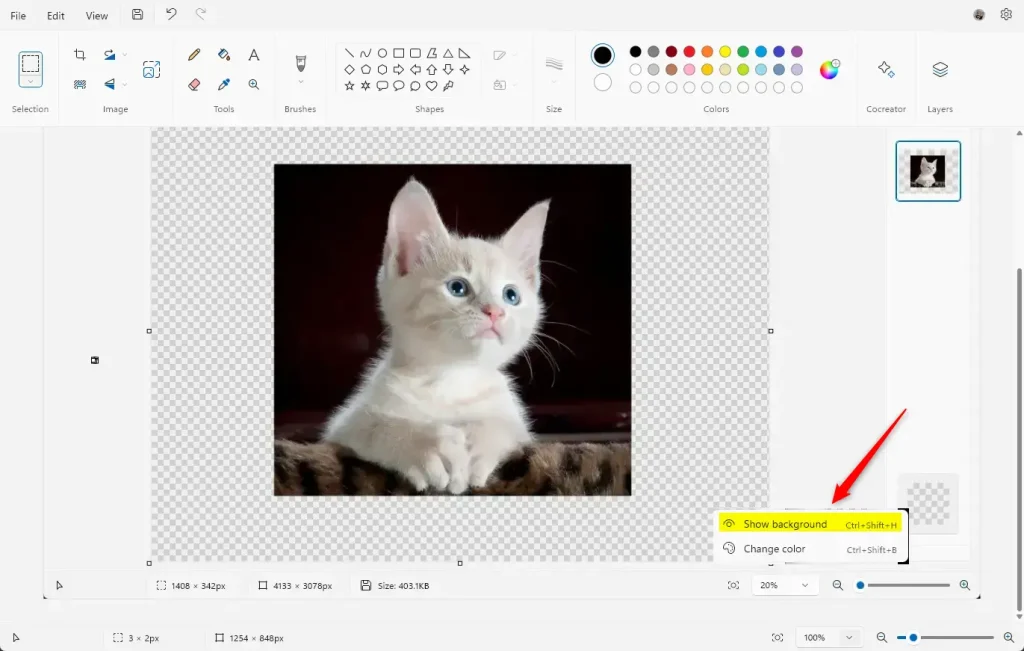
That’s it! Your background is now hidden or shown.
Summary
Windows 11’s Paint app lets you easily hide or show image backgrounds to improve focus or privacy, with a quick keyboard shortcut (Ctrl+Shift+H) or the Layers panel for more options.
Was this guide helpful?

About the Author
Richard
Tech Writer, IT Professional
Richard, a writer for Geek Rewind, is a tech enthusiast who loves breaking down complex IT topics into simple, easy-to-understand ideas. With years of hands-on experience in system administration and enterprise IT operations, he’s developed a knack for offering practical tips and solutions. Richard aims to make technology more accessible and actionable. He's deeply committed to the Geek Rewind community, always ready to answer questions and engage in discussions.




No comments yet — be the first to share your thoughts!