
You get the latest Microsoft Edge update in Windows 11 by checking for updates directly within the browser itself.
Microsoft Edge is a web browser developed by Microsoft that is built on the Chromium open-source project. Keeping it updated ensures you have the latest security patches and performance improvements.
Edge usually updates automatically, but you can force a manual check in seconds. This ensures you’re running the most current version, which is crucial for security and a smooth browsing experience.
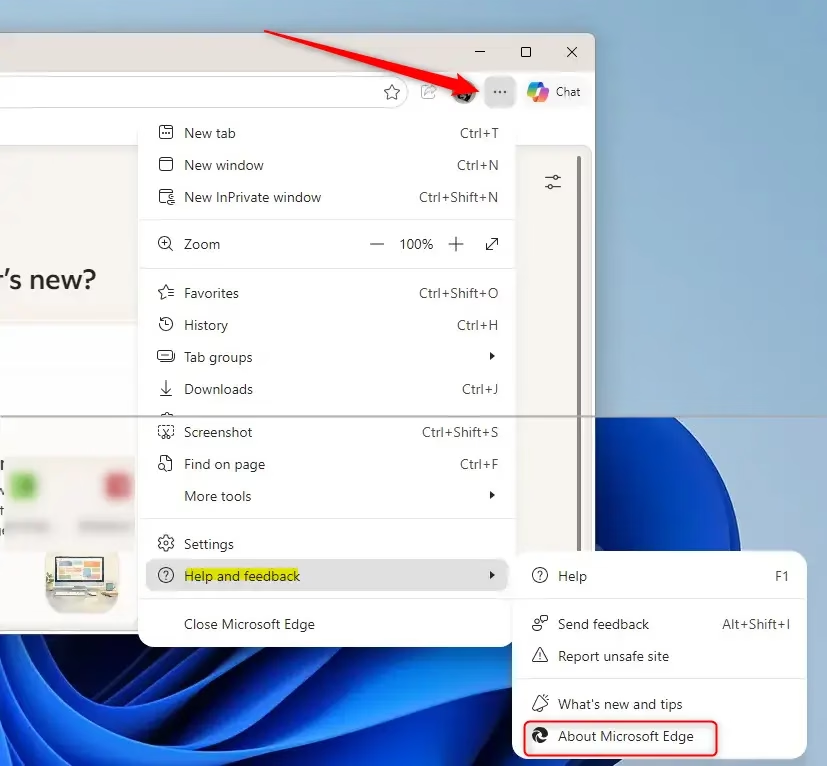
To initiate the update, simply open Edge, click the three dots in the top-right corner, select “Help and feedback,” and then click “About Microsoft Edge.” The browser will then scan for and install any available updates.
Check for Edge Updates Inside the Browser
Your Edge browser usually checks for updates automatically, but you can also check manually.
- Open Microsoft Edge. Find the blue and green Edge icon and click it.
- Go to Settings. Look for three dots in the top-right corner of the browser. Click them. Then click Settings from the list.
Tip: You can type
edge://settings/helpinto the address bar and press Enter to go straight to the settings page. - Find Help and Feedback. On the left side of the Settings menu, click on Help and feedback.
- Click About Microsoft Edge. Now click on About Microsoft Edge.
- Let Edge check for updates. Edge will look for updates. If it finds one, it will download it. You will see a progress bar if it’s a big download.
- Restart to finish. After the update downloads, you will need to restart Edge. Click Restart. This will close Edge and open it again with the new version.
Warning: Save any work you have open in Edge before you click Restart. Closing and reopening the browser will close all your tabs.
Update Edge Through Windows Update
Sometimes, Microsoft Edge updates are part of your regular Windows updates. This means your browser can get security fixes without you doing anything extra.
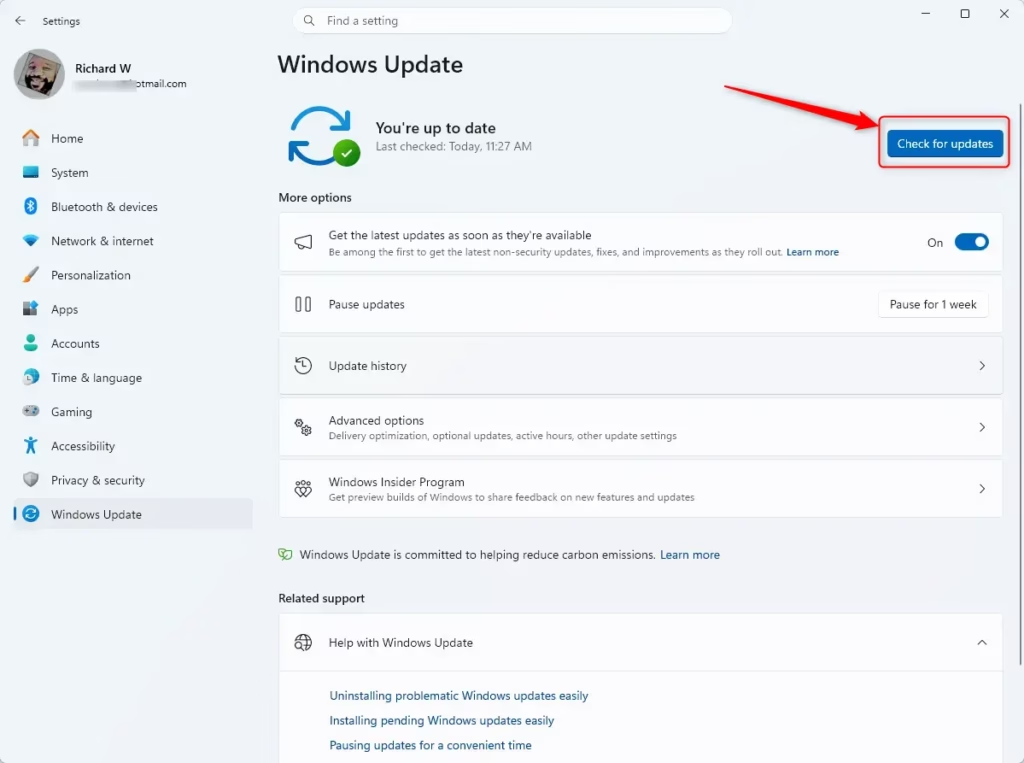
- Open Windows Settings. Press the Windows key + I on your keyboard. Or, click the Start button and then click the gear icon (Settings).
- Go to Windows Update. In Settings, click on Windows Update (on Windows 11) or Update & Security (on Windows 10).
- Check for Updates. Click the Check for updates button. Windows will look for updates, including any for Microsoft Edge.
- Install and Restart. If Windows finds updates, it will download them. Then, you will be asked to install them. If an Edge update is found, it will install with the other updates. You might need to restart your computer to finish all updates.
Good Practice: It’s a good idea to check for Windows Updates often. This keeps your whole computer safe and running well. It also helps you get browser updates without checking Edge separately.
Download and Install the Latest Edge Manually
What if you can’t update Edge through the browser or Windows Update? You can download the newest version of Microsoft Edge directly from Microsoft’s website. This is a good backup plan. Your saved favorites, passwords, and settings will stay the same.
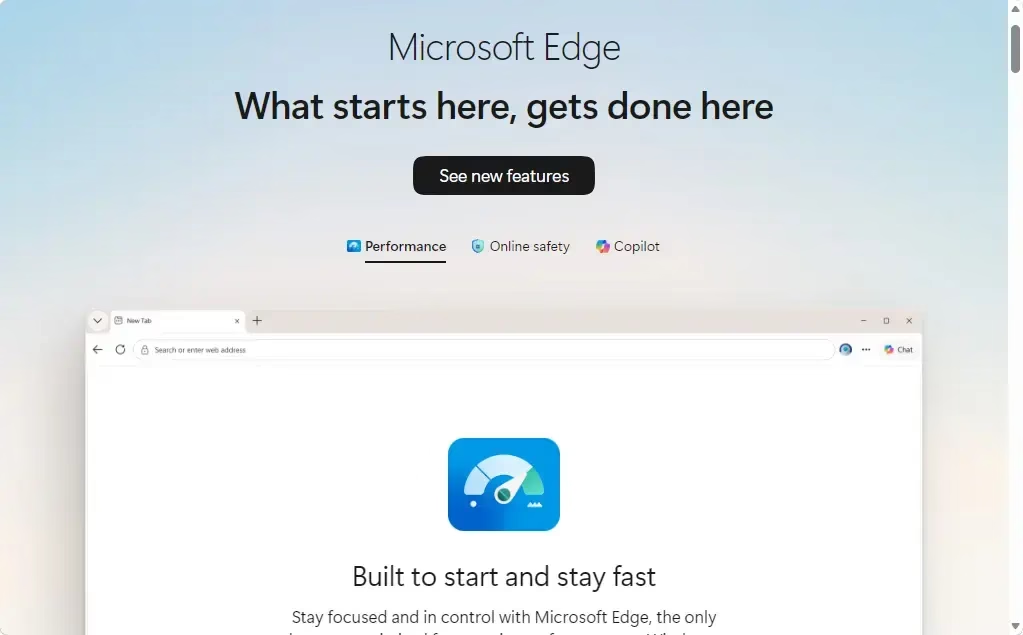
- Go to the Microsoft Edge Download Page. Open any web browser and go to
https://www.microsoft.com/edge. Press Enter. - Find the Download Button. Look for a button that says “Download Edge” or “Download now.” Make sure you choose the right version for your Windows computer.
- Run the Installer. After the download finishes, find the downloaded file. It’s usually in your “Downloads” folder. Double-click it to start the installer. Windows might ask for permission. Click “Yes” or “Allow.”
- Admin Privilege Required: You may need administrator rights to run the installer.
- Follow the Instructions. The installer will show you what to do. Just follow the steps on the screen. Edge will install or update.
- Restart if Needed. You might need to restart Edge or your computer to finish the update.
Reference:
https://support.microsoft.com/en-us/edge/getting-the-latest-microsoft-edge-update-just-got-easier
Summary
Updating Microsoft Edge is important for security and performance. You can update Edge directly from the browser’s settings menu, through Windows Update, or by downloading the latest version from the Microsoft website. Each of these methods makes sure you have the most up-to-date and secure version of your browser.
Was this guide helpful?

About the Author
Richard
Tech Writer, IT Professional
Richard, a writer for Geek Rewind, is a tech enthusiast who loves breaking down complex IT topics into simple, easy-to-understand ideas. With years of hands-on experience in system administration and enterprise IT operations, he’s developed a knack for offering practical tips and solutions. Richard aims to make technology more accessible and actionable. He's deeply committed to the Geek Rewind community, always ready to answer questions and engage in discussions.




No comments yet — be the first to share your thoughts!