How to Encrypt Files in Windows 11

This guide will show you easy steps to lock (encrypt) or unlock (decrypt) your files-and-folders-in-windows-11/" class="sal-link" rel="noopener" target="_blank" data-sal-id="36859">files and folders in Windows 11. This keeps your private information safe.
What is Encryption?
Encryption means changing your files into a secret code that only your computer can understand. This helps protect your files if someone else tries to open them.
Why encrypt your files? If your computer is lost or stolen, encrypted files stay private and safe.
What happens when you encrypt a folder? Any new files you put inside will automatically be locked too.
Important Things to Know
This feature is not available on Windows 11 Home Edition. You need Windows 11 Pro or higher.
Some files cannot be encrypted. These include compressed files (ZIP), system files, main folders, or files that Windows needs to run.
How to Lock or Unlock Files and Folders Using Properties
The easiest way to encrypt or decrypt files and folders is using the Properties menu.
Steps to Encrypt (Lock) a File or Folder:
- Find the file or folder you want to protect.
- Right-click on it and click Properties.
- In the General tab, click the Advanced… button.
- Check the box that says Encrypt contents to secure data.
- Click OK to close the Advanced Attributes window.
- Click OK or Apply in the Properties window.
- Choose if you want to encrypt just this folder or file, or also everything inside it. Then click OK.
Image: Right-click your folder or file and choose Properties.
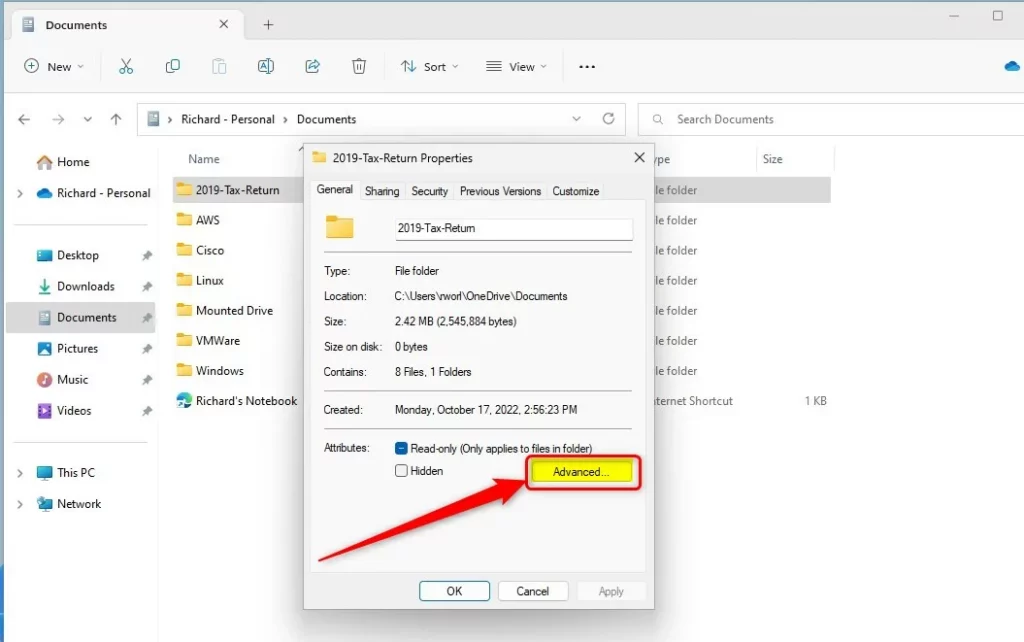
Image: Click the “Advanced” button.
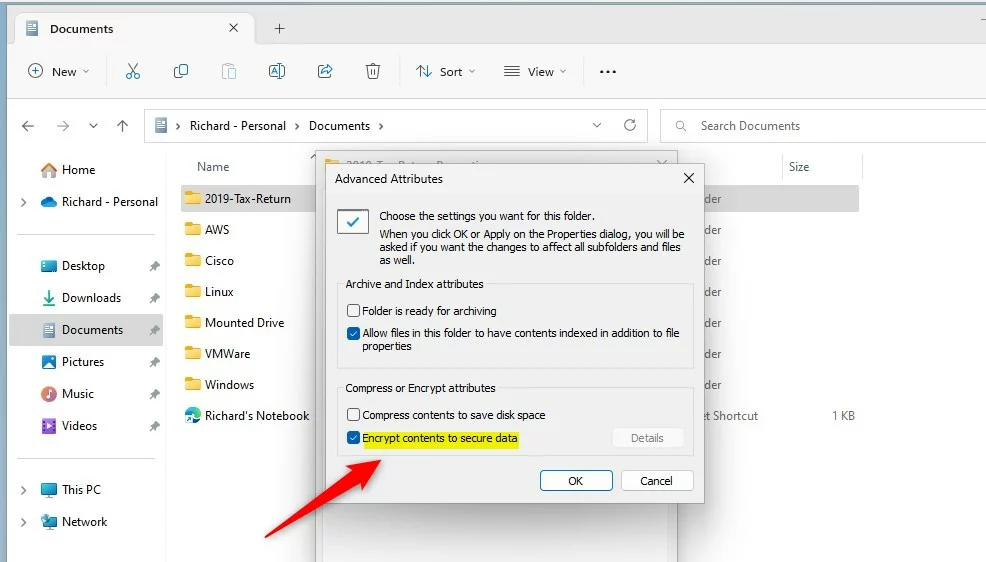
Image: Check “Encrypt contents to secure data”.
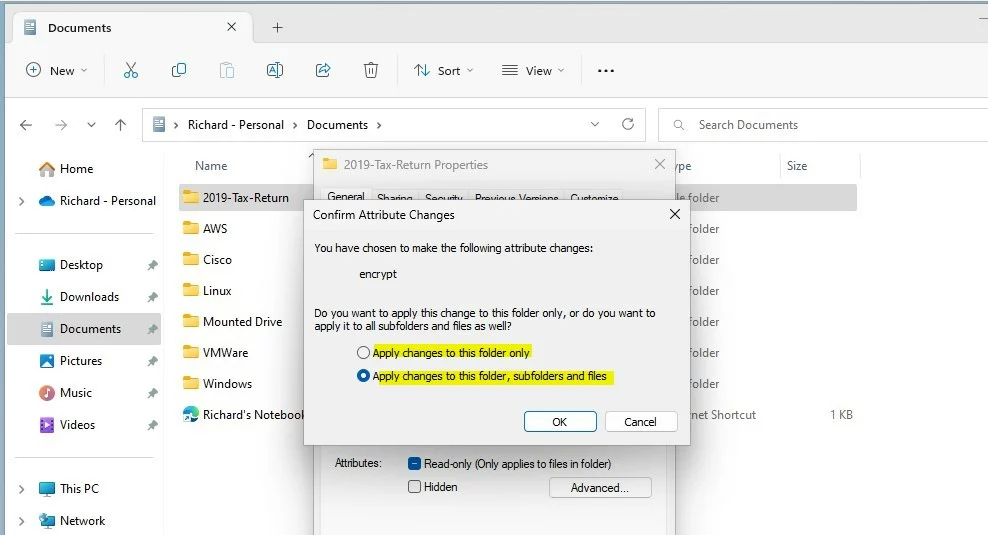
Image: Choose if you want to encrypt just the folder or also subfolders and files.
How to Decrypt (Unlock) a File or Folder
Do the same steps above. But in step 4, uncheck the box instead of checking it.
How to Lock or Unlock Files and Folders Using Commands
You can also lock or unlock files and folders using a command screen called Windows Terminal, PowerShell, or Command Prompt.
To Open Windows Terminal:
To Encrypt (Lock) a File
Use this command:
cipher /e "FullFilePathHere"Replace FullFilePathHere with your file’s location. For example:
cipher /e "C:\Users\UserName\SecretDocument.txt"To Decrypt (Unlock) a File
Use this command:
cipher /d "FullFilePathHere"Example:
cipher /d "C:\Users\UserName\SecretDocument.txt"To Encrypt (Lock) a Folder and Everything Inside
Use this command:
cipher /e /s:"FullFolderPathHere"Example:
cipher /e /s:"C:\Users\UserName\SecretDocument"To Decrypt (Unlock) a Folder and Everything Inside
Use this command:
cipher /d /s:"FullFolderPathHere"Example:
cipher /d /s:"C:\Users\UserName\SecretDocument"Summary
- Encryption helps keep your private files safe from others.
- You can encrypt or decrypt files easily using Properties or commands.
- Encrypting files is a good idea if your computer is lost or stolen.
- If you have Windows 11 Home, encryption with this method is not available. Consider upgrading to Windows 11 Pro.
- Stay safe and protect your data!
Was this guide helpful?
100% of readers found this helpful (1 votes)

About the Author
Richard
Tech Writer, IT Professional
Richard, a writer for Geek Rewind, is a tech enthusiast who loves breaking down complex IT topics into simple, easy-to-understand ideas. With years of hands-on experience in system administration and enterprise IT operations, he’s developed a knack for offering practical tips and solutions. Richard aims to make technology more accessible and actionable. He's deeply committed to the Geek Rewind community, always ready to answer questions and engage in discussions.




No comments yet — be the first to share your thoughts!