How to Enable or Disable Turn On Do Not Disturb with Focus Session in Windows 11

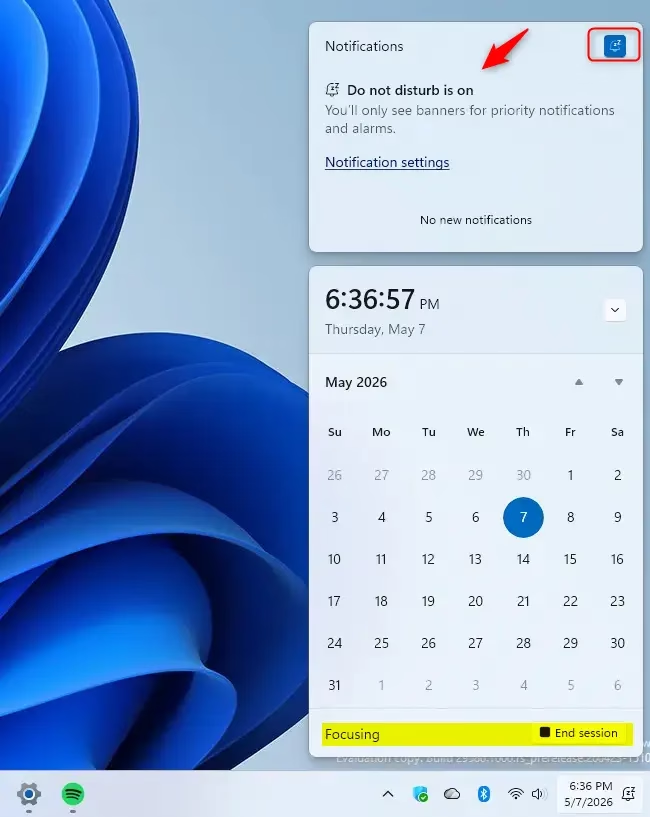
When you start a session, your computer enters a special mode. It automatically turns on Do Not Disturb to hide notifications. It also opens a timer on your screen. You can link your Microsoft To Do lists to see your tasks. You can even play music through Spotify to stay in the zone. When the timer ends, your computer returns to normal settings.
How to Enable or Disable Turn On Do Not Disturb with Focus Session in Windows 11
Follow these steps to change your settings:
1. Open Settings by pressing the Windows key + I on your keyboard.
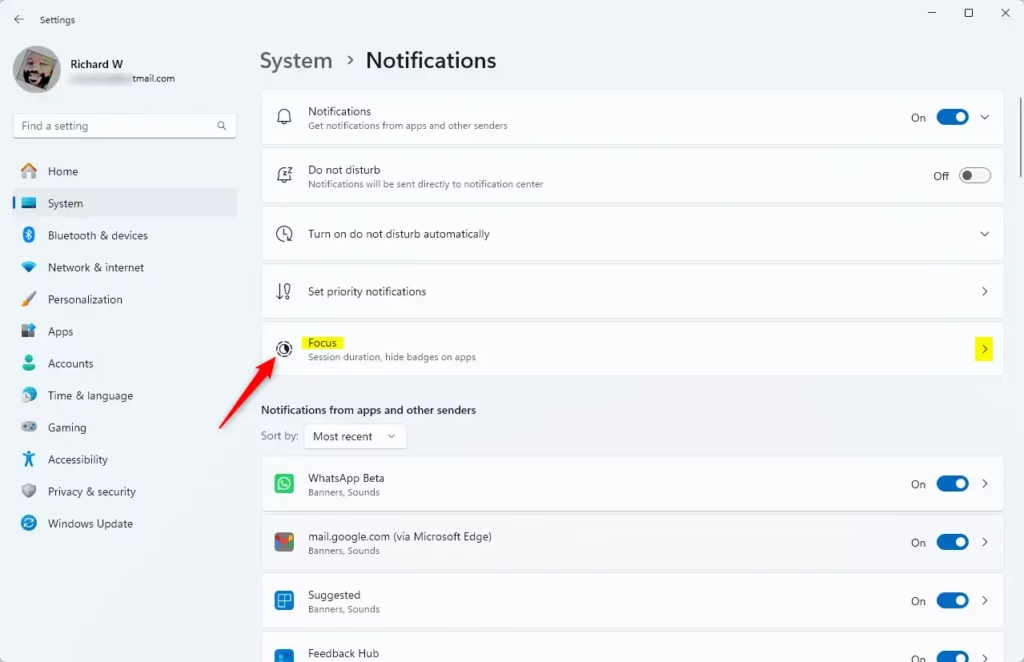
2. Click System on the left menu, then select Focus on the right.
3. Find the option labeled Turn on do not disturb. Check the box to turn it on, or uncheck it to turn it off.
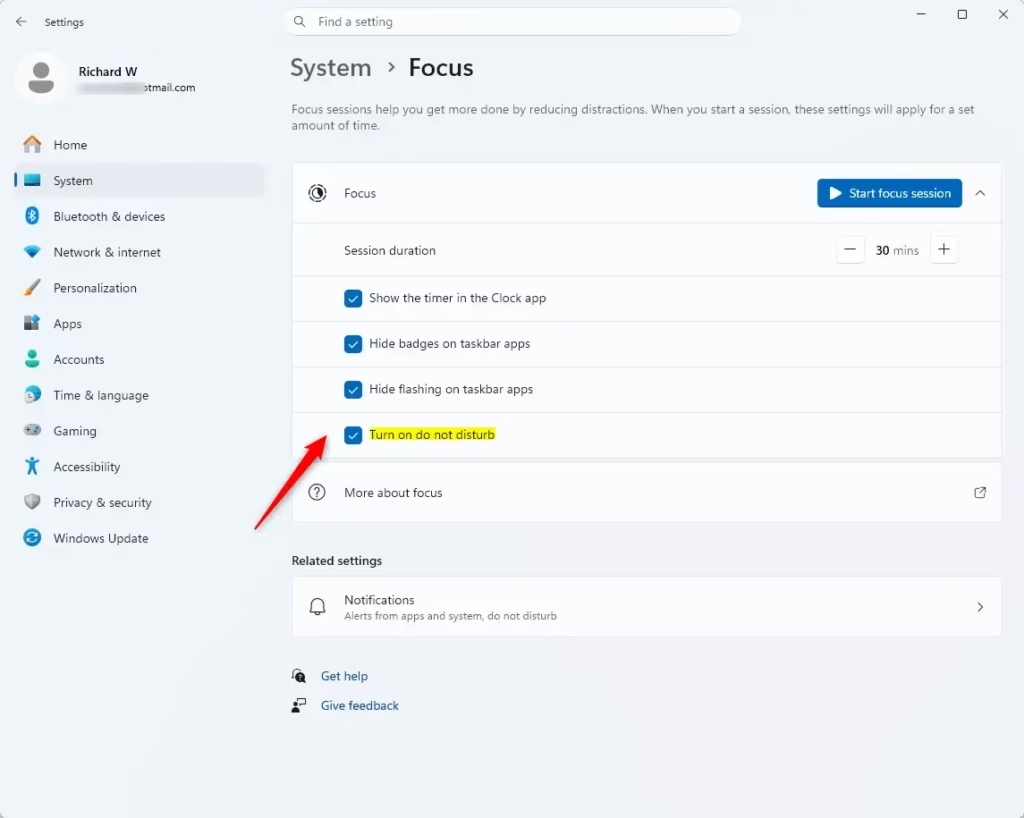
Note: If you are currently in a session, this setting will be grayed out. You must end your session first to change this.
Comparing Focus Mode vs. Manual Do Not Disturb
| Feature | Focus Mode | Manual Do Not Disturb |
|---|---|---|
| Timer | Yes | No |
| Task Integration | Yes | No |
| Automatic Start | Yes | No |
| Notification Blocking | Yes | Yes |
Configuring Priority Notifications
You might want to see important alerts even while in Focus mode. Go to Settings > System > Notifications > Do not disturb. Here, you can select Priority notifications. This allows specific apps or people to break through your silence.
Integrating Microsoft To Do and Spotify
The Clock App in Windows 11 is the hub for these tools. Open the Clock App from your Start menu. Click the Focus sessions tab. You can sign in to your Microsoft account to see your Microsoft To Do tasks. You can also link your Spotify account to play focus-friendly playlists directly from the timer window.
Summary
Focus sessions are a powerful way to boost productivity in Windows 11. By automatically enabling Do Not Disturb, you can work without constant interruptions. You can customize your experience by linking your task lists and music apps. Remember to configure your priority list so you never miss truly urgent messages while staying focused.
References
Can I customize the duration of a Focus session?
Yes. Open the Clock app and go to the Focus sessions tab. You can click the plus or minus buttons next to the timer to adjust the duration. You can also set break intervals to ensure you stay refreshed throughout your work session.
How do I stop a Focus session early?
If you need to finish your session before the timer runs out, simply click the Stop button on the Focus timer window. Your computer will immediately exit the focus state, and your normal notification settings will resume automatically.
Do notifications still appear in the Notification Center during Focus?
Yes, they do. While Do Not Disturb prevents pop-ups and sounds from interrupting you, all incoming alerts are saved. You can view them at any time by opening the Notification Center in the bottom right corner of your taskbar.
Was this guide helpful?


Leave a Reply Cancel reply