How to Enable or Disable the Touch Keyboard in Windows 11

You enable or disable the touch keyboard in Windows 11 through the Settings app’s Personalization or Accessibility menus.
The touch keyboard is an on-screen input method designed for touchscreens and tablets, offering a familiar typing experience without a physical keyboard. You can toggle its automatic appearance or manually summon it when needed.
This handy feature can be configured to pop up automatically when you sign in or when a device is in tablet mode, but you can easily change these settings if it becomes intrusive. For instance, if you only use a stylus or find it appearing unexpectedly on your desktop PC, you’ll want to adjust its behavior.
We’ll guide you through the simple steps to gain full control over when and how the touch keyboard functions in your Windows 11 environment.
What is the Touch Keyboard?
Think of the touch keyboard as a digital keyboard on your screen. It’s not a real keyboard you can touch. It’s a software feature that helps you type when you don’t have a regular keyboard. It’s great for touchscreens. You can tap to write messages, enter passwords, or fill out forms.
Controlling When the Touch Keyboard Appears
Windows 11 lets you decide how and when this on-screen keyboard shows up. The main way to manage it is through an icon in your taskbar’s system tray (the area near your clock). By changing settings for this icon, you control the touch keyboard.
1. Never Show the Touch Keyboard Icon (and Disable It)
If you don’t use the touch keyboard much, you can hide its icon. This stops the touch keyboard from appearing automatically.
- Close the touch keyboard if it’s open. Look for an ‘x’ or a keyboard icon and tap it.
- Access Taskbar Settings: Right-click on an empty part of your taskbar. Click “Taskbar settings.” You can also go to Settings > Personalization > Taskbar.
- Find the Touch Keyboard Option: Scroll down to the “Notification area” or “System tray icons” section. Find “Touch keyboard.”
- Set to “Never”: Click the dropdown menu next to “Touch keyboard” and choose “Never.”

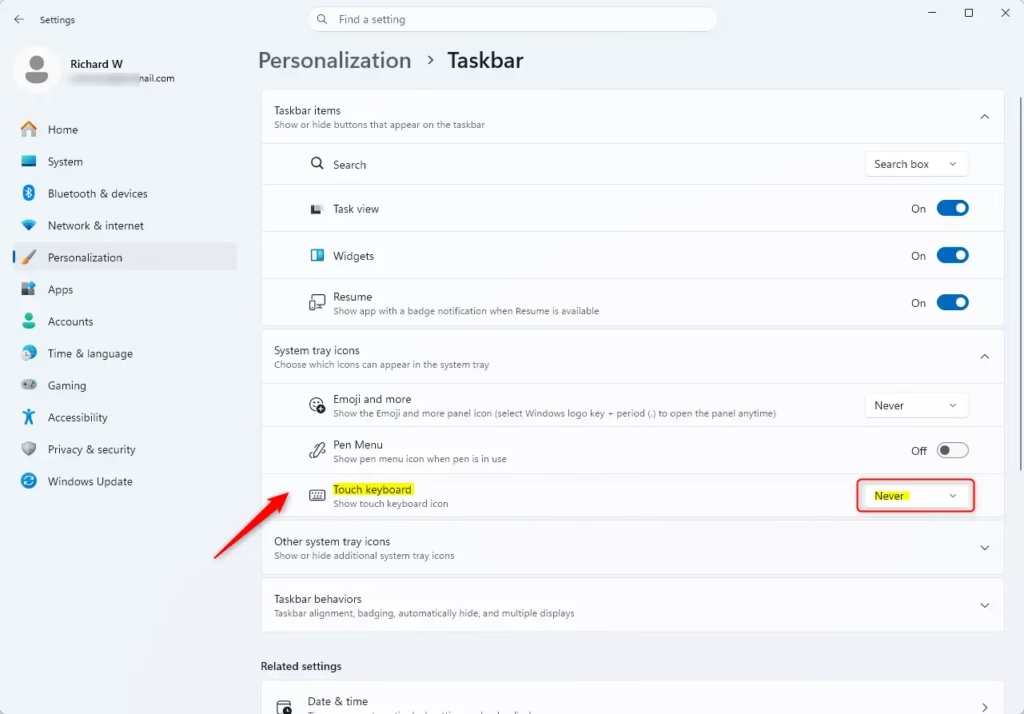
What happens now: The touch keyboard icon will vanish from your taskbar. The touch keyboard won’t pop up on its own. You will need to turn it on manually if you want to use it again.
Warning: If you disable the touch keyboard this way and you use a device without a physical keyboard (like a tablet), you might not be able to type. Make sure you want this before you do it!
2. Always Show the Touch Keyboard Icon
Maybe you use the touch keyboard a lot. You want to click it easily whenever you need it. This setting keeps the icon visible all the time.
- Access Taskbar Settings: Right-click on your taskbar and choose “Taskbar settings.” Or, go to Settings > Personalization > Taskbar.
- Locate the Touch Keyboard Setting: In the “Notification area” or “System tray icons” section, find “Touch keyboard.”
- Set to “Always”: Change the dropdown menu next to “Touch keyboard” to “Always.”
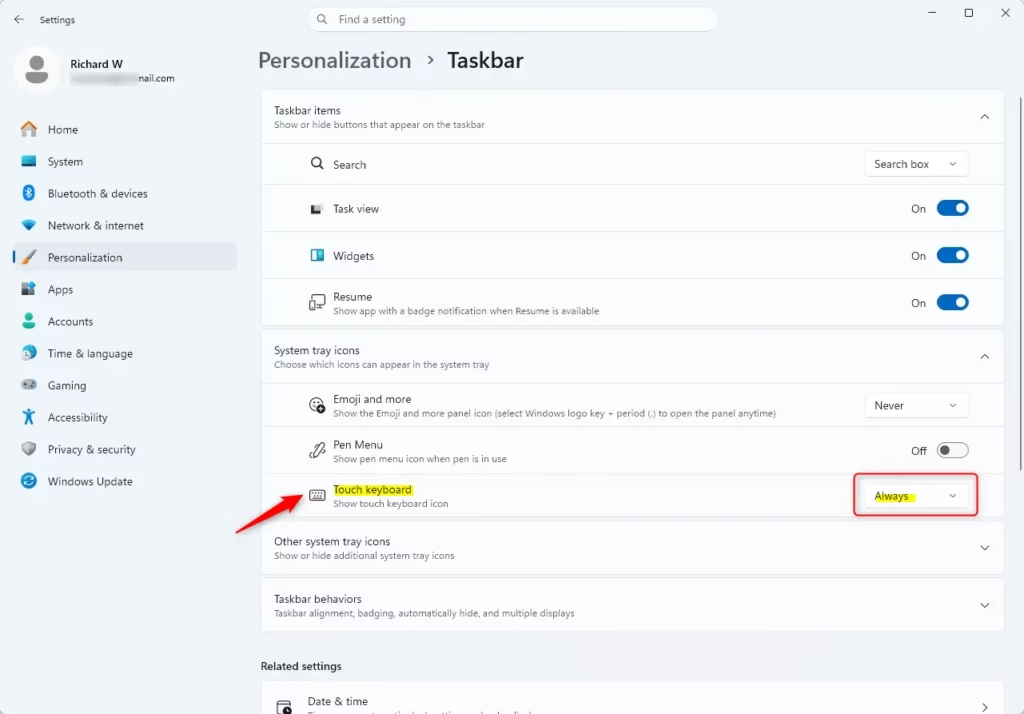
What happens now: You will always see the touch keyboard icon in your system tray. Clicking it will open the touch keyboard right away. It’s ready whenever you need it.
Practical Tip: This is good if you switch between a physical keyboard and your touchscreen often. You can quickly get the touch keyboard when your physical keyboard isn’t nearby.
3. Show the Touch Keyboard Only When No Keyboard is Attached
This is a good setting for many people, especially with 2-in-1 devices. Windows will show the touch keyboard icon only when it thinks you might need it. This means when no physical keyboard is connected.
- Open Taskbar Settings: Right-click the taskbar and select “Taskbar settings,” or go to Settings > Personalization > Taskbar.
- Find the Touch Keyboard Option: Look for “Touch keyboard” under the “Notification area” or “System tray icons” settings.
- Set to “When no keyboard attached”: Select this option from the dropdown menu.
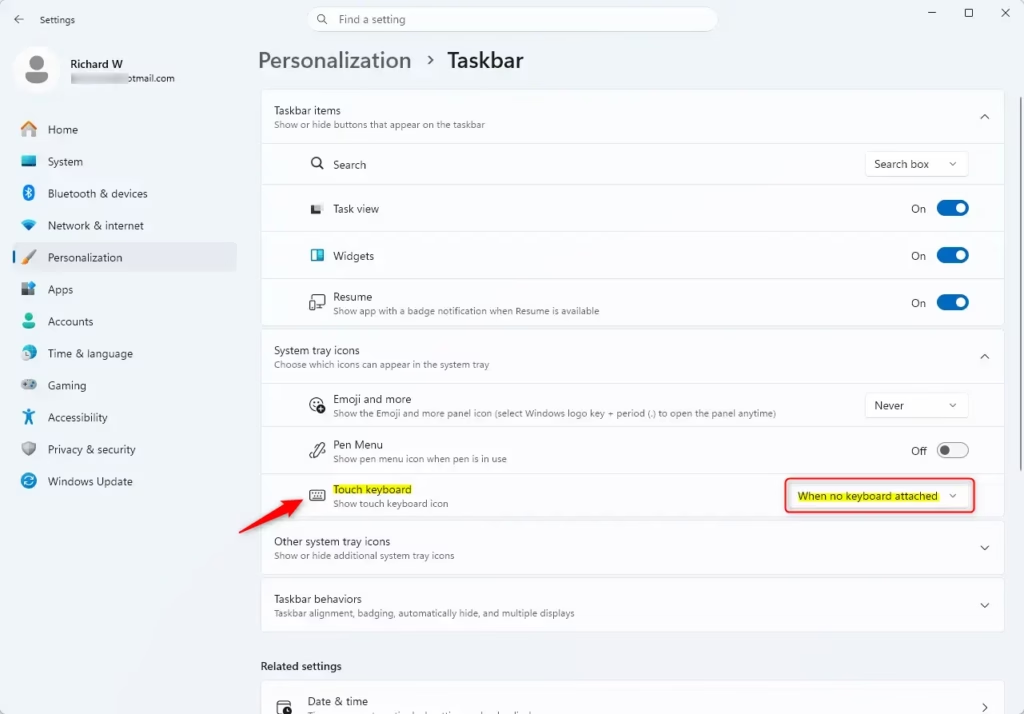
Helpful Hint: This setting is great for laptops that can fold or detach their keyboards. When you use the device as a tablet, the touch keyboard becomes available. When you reattach the keyboard, it hides itself.
Summary
The Windows 11 touch keyboard can be changed to work the way you want. You can hide it, keep it always visible, or have it appear only when you need it. By adjusting settings in Taskbar and Typing options, you can control it. Experiment to find what works best for you.
How do I enable touch keyboard on Windows 11?
To enable the touch keyboard in Windows 11, right-click the taskbar and select 'Taskbar settings.' Under 'Taskbar corner icons,' toggle 'Touch keyboard' to 'On.' You can then tap the keyboard icon in the system tray to open it.
How do I disable the touch keyboard in Windows 11?
To disable the touch keyboard in Windows 11, right-click the taskbar, choose 'Taskbar settings,' and then 'Taskbar corner icons.' Toggle 'Touch keyboard' to 'Off.' This prevents the keyboard icon from appearing and stops the keyboard from showing automatically.
How to enable and disable touchscreen on Windows 11?
To enable or disable the touchscreen on Windows 11, search for 'Device Manager.' Expand 'Human Interface Devices,' right-click your touchscreen device, and select 'Enable device' or 'Disable device.' This action controls the entire touchscreen functionality.
How to enable disable keyboard keys in Windows 11?
To enable or disable specific keyboard keys in Windows 11, use the 'Ease of Access keyboard settings.' You can turn on 'Filter Keys' to ignore brief or repeated keystrokes or 'Sticky Keys' to press modifier keys one at a time. Access these via Settings > Accessibility > Keyboard.
Was this guide helpful?

About the Author
Richard
Tech Writer, IT Professional
Richard, a writer for Geek Rewind, is a tech enthusiast who loves breaking down complex IT topics into simple, easy-to-understand ideas. With years of hands-on experience in system administration and enterprise IT operations, he’s developed a knack for offering practical tips and solutions. Richard aims to make technology more accessible and actionable. He's deeply committed to the Geek Rewind community, always ready to answer questions and engage in discussions.


No comments yet — be the first to share your thoughts!