Enable Tap to Click in Ubuntu Linux: A Step-by-Step Guide


Tap to click in Ubuntu Linux lets you select items on your screen with a light touch on your laptop touchpad instead of pressing down hard. This built-in setting works on Ubuntu 22.04 LTS and newer releases to save wear and tear on your hardware.
You can turn on this feature in a few clicks through your main system settings. Once active, your touchpad responds to a quick tap just like a smartphone screen.
Access System Settings, then click Mouse & Touchpad. Toggle the Touchpad to On if it’s not already, then toggle Tap to Click to On. This enables clicking by tapping your touchpad.
How to turn on or off tap to click on Ubuntu Linux
Tap to click Ubuntu settings let you tap your touchpad to select items without physically pressing down. You can turn this feature on or off in a few seconds by opening the Settings app, going to the Mouse & Touchpad menu, and switching on the Tap to Click option so your laptop responds to light finger taps.
Configuring this takes only a few moments.
Ubuntu gathers your system settings and user accounts in one central hub.

Alternatively, click the System menu in the top-right corner of your desktop.
On the System menu, select Settings, as shown below.

Click on the Mouse & Touchpad tile in the Settings app to open that section.
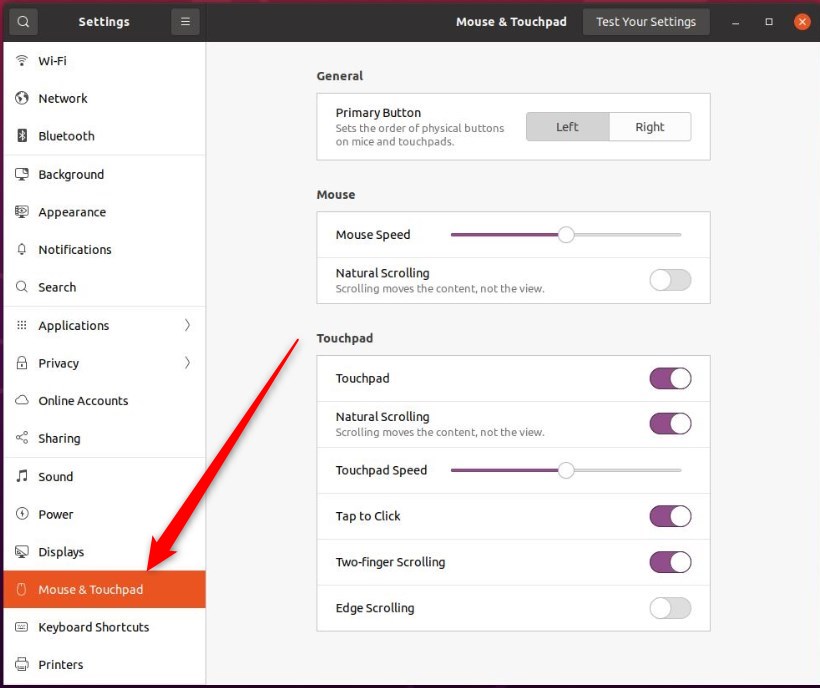
In the System Settings, navigate to the Mouse & Touchpad panel. Under the Touchpad section, you can turn the Touchpad button to On. This activates the sensor, letting a single tap mimic a physical mouse click, a feature available in Ubuntu version 22.04 and later.
Touchpad settings need to be enabled before you can configure other options for it.
With the touchpad enabled, toggle the Tap to Click button to the On position.
To turn it off, flip the button to Off.
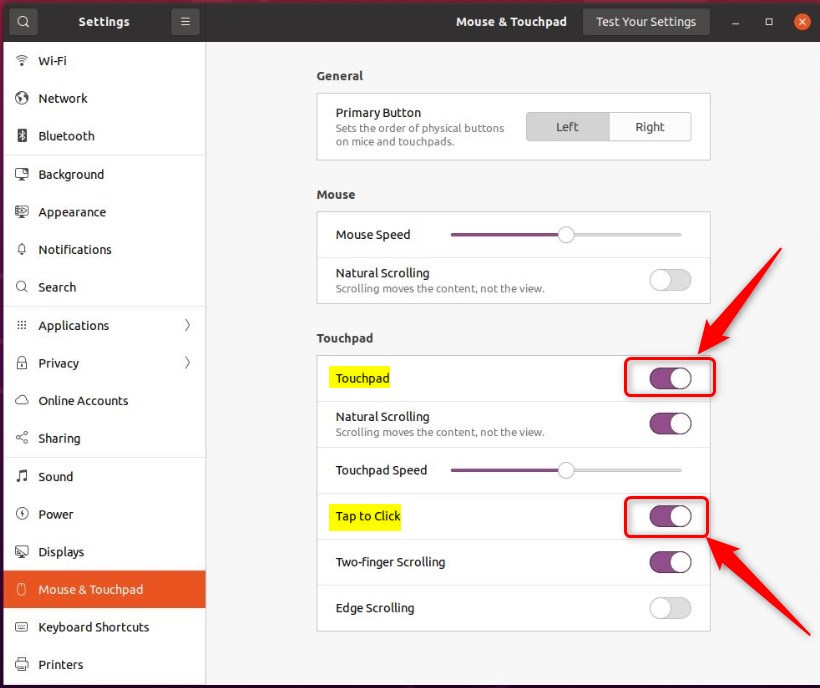
That completes the setup, meaning you can now close the Settings app.
Conclusion:
- Enabling or disabling Tap to Click in Ubuntu Linux allows you to conveniently perform various touchpad actions without needing separate hardware buttons.
- Access the centralized System Settings panel in Ubuntu Linux to toggle the touchpad and Tap to Click settings on or off.
- Following the outlined steps will enable users to tap to click, tap twice to double click, and double tap to drag items, enhancing the touchpad functionality in Ubuntu Linux.
Was this guide helpful?

About the Author
Richard
Tech Writer, IT Professional
Richard, a writer for Geek Rewind, is a tech enthusiast who loves breaking down complex IT topics into simple, easy-to-understand ideas. With years of hands-on experience in system administration and enterprise IT operations, he’s developed a knack for offering practical tips and solutions. Richard aims to make technology more accessible and actionable. He's deeply committed to the Geek Rewind community, always ready to answer questions and engage in discussions.




No comments yet — be the first to share your thoughts!