Enable/Disable Suggested Replies in Phone Link App

You enable or disable Suggested Replies in the Windows Phone Link app to control smart text message responses.
Suggested Replies uses AI to offer quick response options directly within the Phone Link interface for your connected Android or iOS device.
This feature streamlines your communication by providing contextually relevant replies, letting you answer texts without picking up your phone. As of Phone Link version 1.23051.129.0, it offers a convenient way to manage messages while you multitask on your PC.
You can keep this feature active if you appreciate faster messaging, or turn it off if you prefer typing your own responses manually.
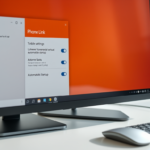
Open the Phone Link app, click the gear icon for Settings, navigate to the Features tab, and toggle the switch for Suggested replies in the Additional settings section. This allows you to enable or disable AI-generated text response options.
How to turn Suggested replies on or off
You can easily turn suggested replies on or off in the Phone Link app anytime you like.
Close the settings page when you are finished.
Summary
This guide showed you how to manage the ‘Suggested replies’ feature in the Phone Link app. By using the settings menu, you can decide if you want your computer to suggest text responses for you, helping you save time while you work on your PC.
What is a suggested reply?
Suggested Replies are pre-written, tappable response options that appear directly within RCS (Rich Communication Services) messages. These replies give recipients a fast and convenient way to interact with a message by tapping a button instead of typing a response.
Was this guide helpful?

About the Author
Richard
Tech Writer, IT Professional
Richard, a writer for Geek Rewind, is a tech enthusiast who loves breaking down complex IT topics into simple, easy-to-understand ideas. With years of hands-on experience in system administration and enterprise IT operations, he’s developed a knack for offering practical tips and solutions. Richard aims to make technology more accessible and actionable. He's deeply committed to the Geek Rewind community, always ready to answer questions and engage in discussions.



No comments yet — be the first to share your thoughts!