

This article describes steps to turn on or off the new feature in Windows build 25247 that allows users to show or hide seconds in the system tray clock in Windows 11.
Windows 11 can be set up to show the taskbar and system tray on multiple monitors. Windows can also be configured to show various time zones in the system tray.
The “Show seconds in system tray clock” feature in Windows allows users to display or hide seconds in the system tray clock. With this feature enabled, the clock in the system tray will show the current time, including seconds, making it easier to keep track of time more accurately.
Starting with the most recent DEV builds, you can now turn on or off, showing seconds in the system tray clock in Windows 11.
How to turn on or off show seconds in the system tray clock on Windows 11
As mentioned above, starting with the most recent DEV builds, you can now turn on or off, showing seconds in the system tray clock in Windows 11.
Here’s how to do that in Windows 11.
This feature will not be available to all current public versions of Windows 11, and not all systems enrolled in the Microsoft Insider Preview program will also see it.
However, it may eventually be available to all shortly.
To change this setting, open the Windows Settings app.
Click on the Start menu -> and select Settings.

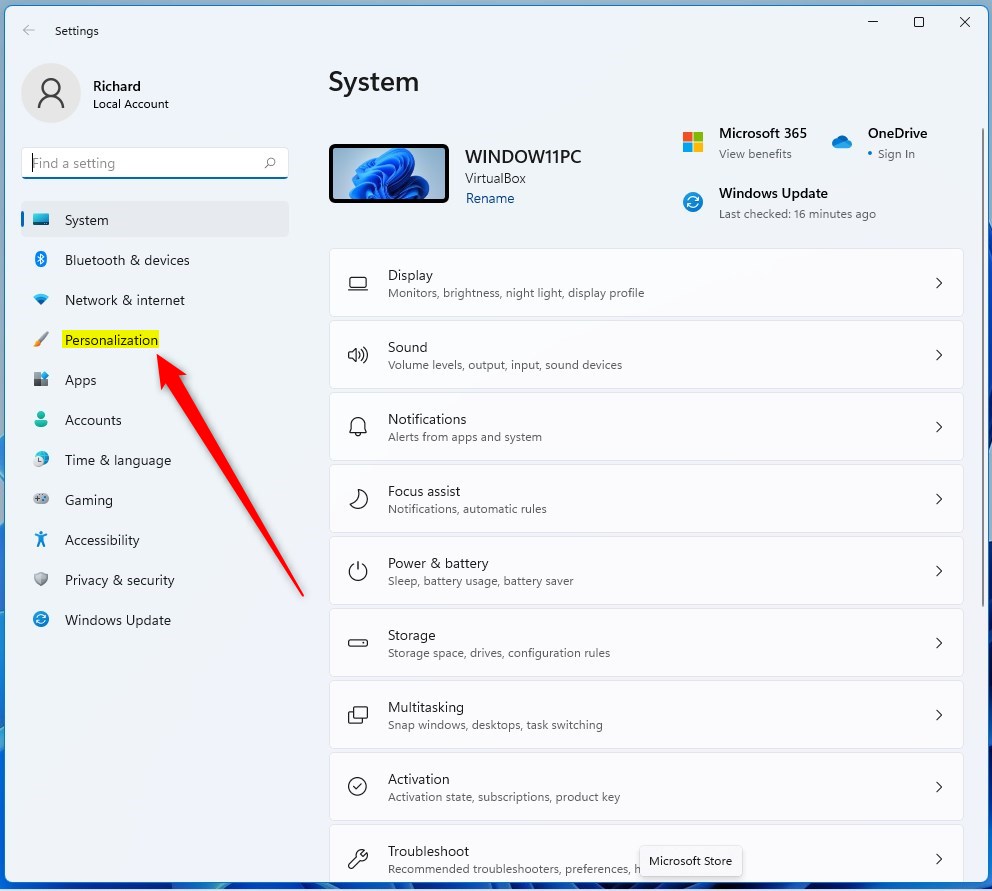
In the Settings app, click the Personalization button on the left.
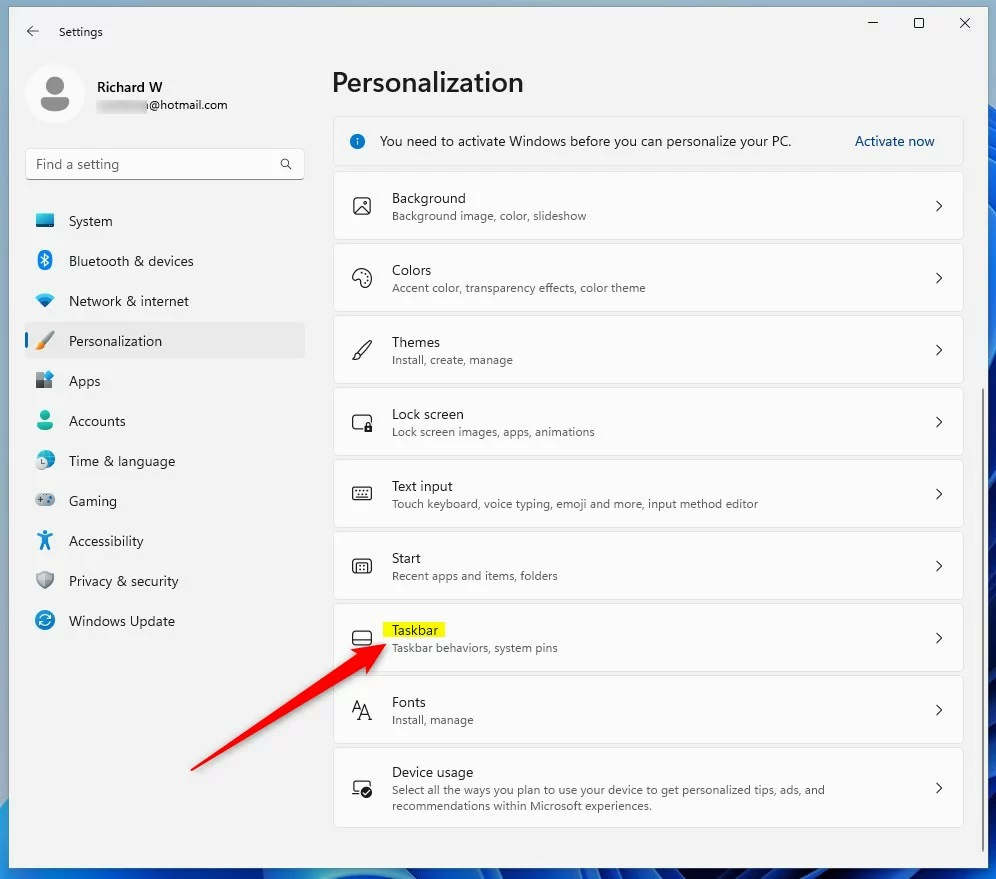
On the right, click the Taskbar tile to expand.
On the Personalization -> Taskbar settings pane, click on Taskbar behaviors to expand. Next, select the Show seconds in the system tray clock on the expanded tile as highlighted below.
Check the box to enable the seconds to be shown in the system tray clock. Uncheck the disable showing seconds in the system tray clock.
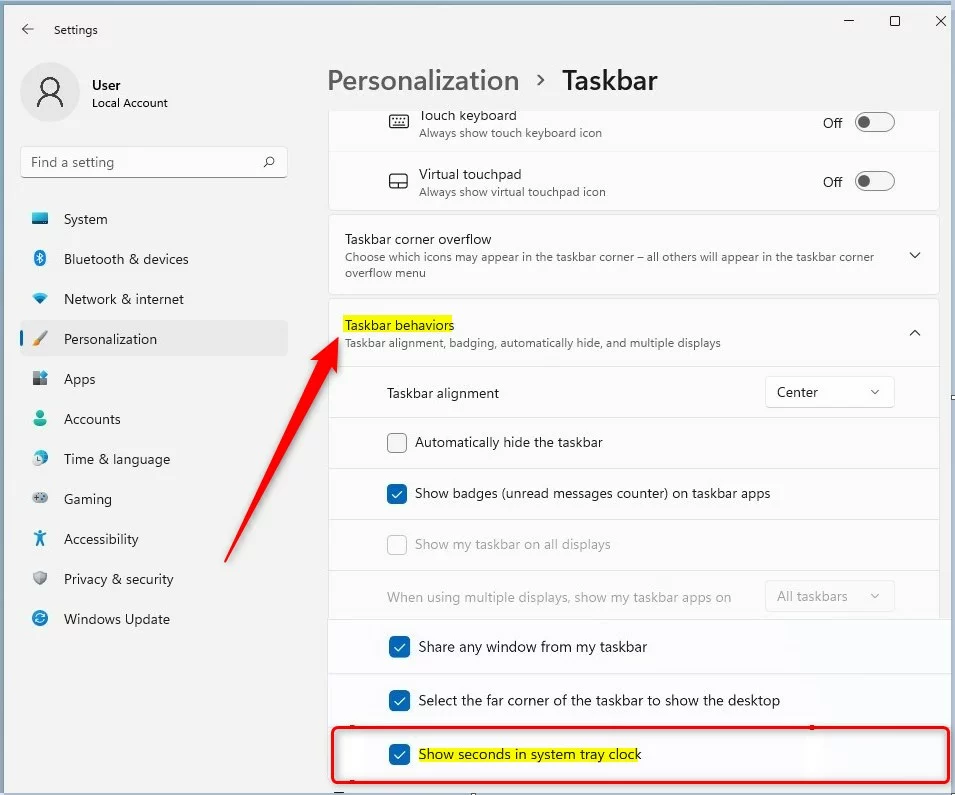
Close the Settings app.
How to show or hide seconds in the system tray clock in Windows 11 via Windows Registry
If you can’t make the changes above using the Windows Settings app and can’t use the Local Group Policy Editor, you can use the Windows Registry instead.
Open the Windows Registry, and navigate to the folder key path below.
HKEY_CURRENT_USERSoftwareMicrosoftWindowsCurrentVersionExplorerAdvanced
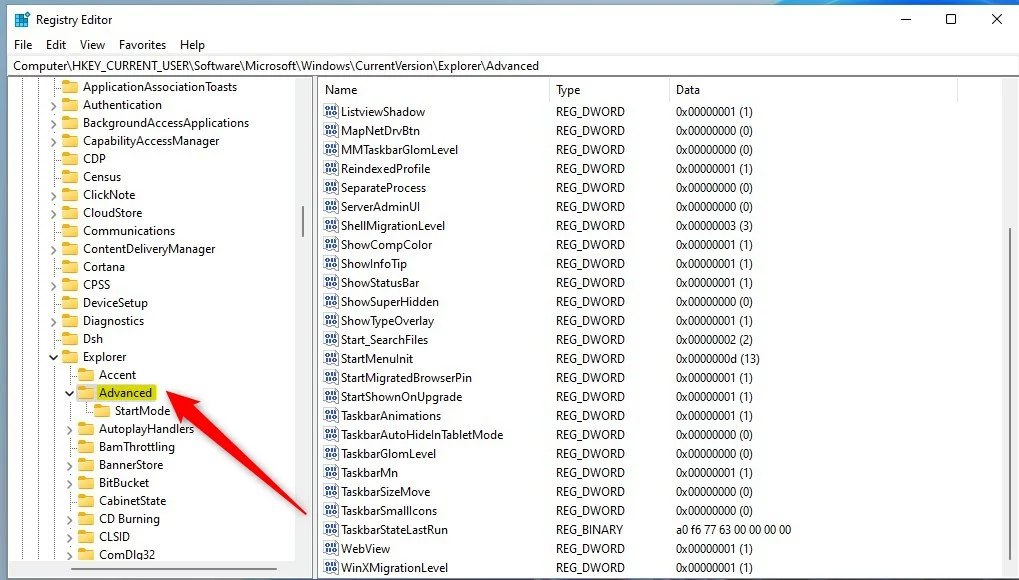
On the right pane of the Advanced folder key, double click the “ShowSecondsInSystemClock.” If you don’t see the value, right-click and select New -> DWORD (32-bit) Value. Type a new key named ShowSecondsInSystemClock.
Value data 1 will show the seconds in the system tray clock. If you type 0, the seconds will be hidden from the system tray clock.
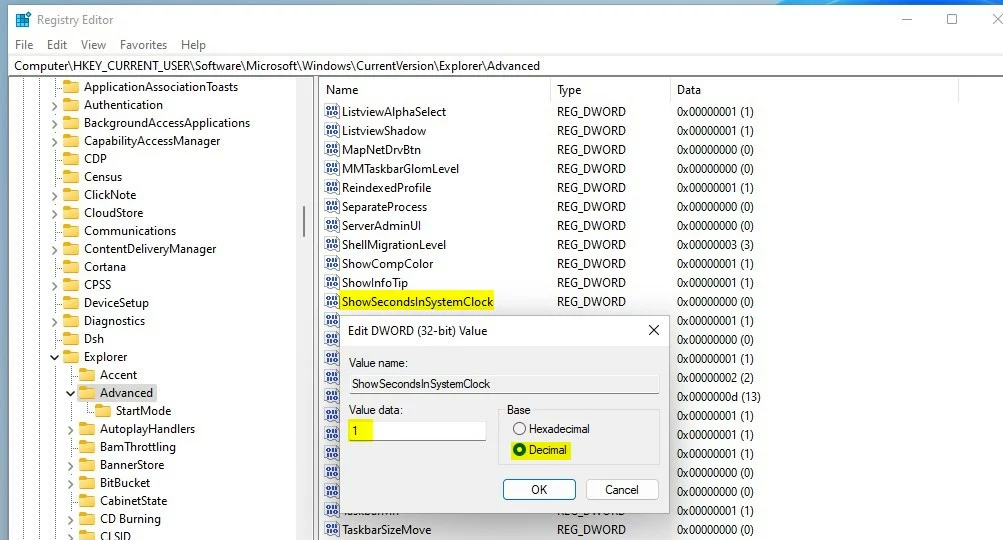
You can close the Windows Registry app.
That should do it!
Conclusion:
- Enabling or disabling the display of seconds in the system tray clock in Windows 11 is now possible with the latest DEV builds.
- Users can achieve this through the Windows Settings app or by making changes in the Windows Registry.
- The provided steps offer a simple guide to either show or hide the seconds in the system tray clock to cater to individual preferences.
- Please use the comment section below the post for any feedback or additional information.



Leave a Reply Cancel reply