How to Enable or Disable Search Suggestions in Windows 11 Copilot

This guide explains how to turn search suggestions on or off in the copilot-app-from-windows-11/" class="sal-link" rel="noopener" target="_blank" data-sal-id="39730">Copilot app on Windows 11.
Copilot is an AI assistant built into Windows. It helps you change computer settings and work across different apps using simple conversation. For computers that have Copilot, a new Copilot button will appear on the Taskbar. button will appear. You can open it by clicking that button or by pressing the Windows key + C on your keyboard.
Recent Windows updates have changed Copilot to work like a standard app. This means it can be pinned to the taskbar, resized, moved, or snapped to the side of your screen just like any other window.
By default, Copilot shows you suggestions as you type. If you find these distracting, you can turn them off.
Why change this setting?
Some users find predictive text helpful, while others prefer to type without interruptions. Changing this setting lets you customize your AI experience to match your typing style.
What happens when done?
Once you save your changes, Copilot will stop or start showing search suggestions as you type, depending on whether you checked or unchecked the box.
How to change search suggestions
You do not need special access for these steps. Anyone logged into the computer can change this setting.
- First, open the Copilot app.
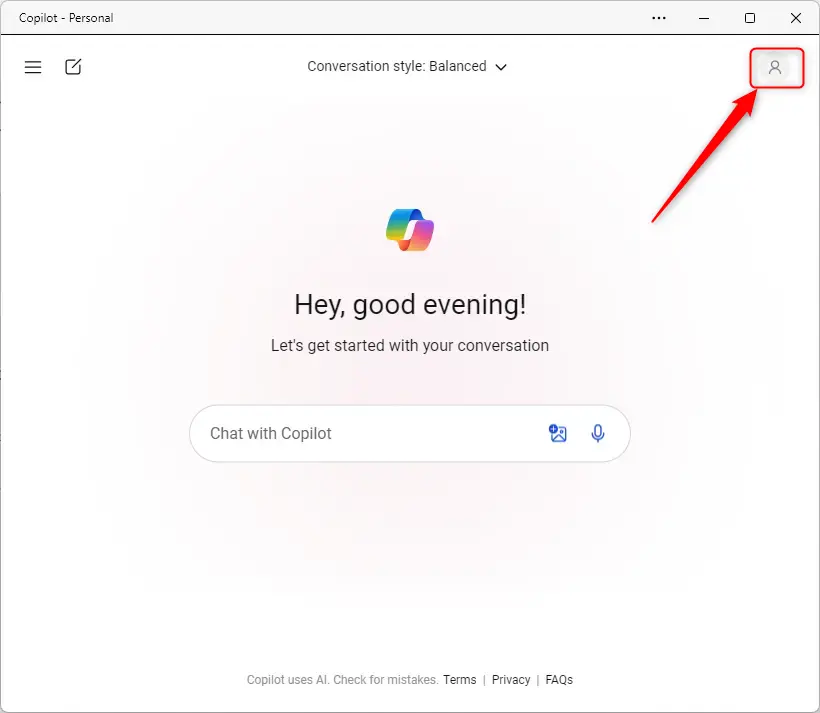
- Click your profile picture located at the top right corner of the Copilot window.
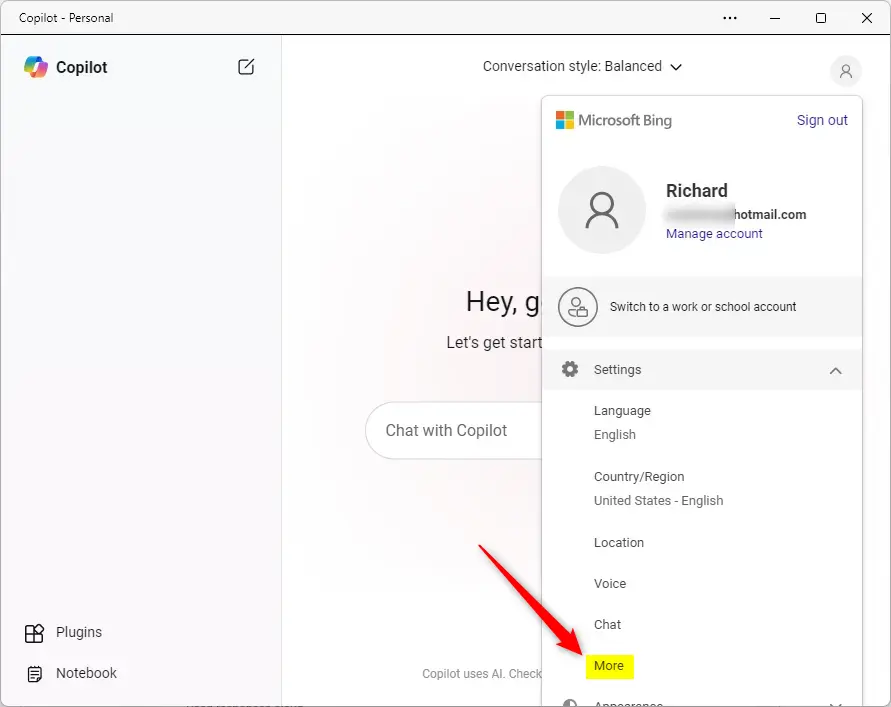
- In the menu that appears, click Settings and then select More.
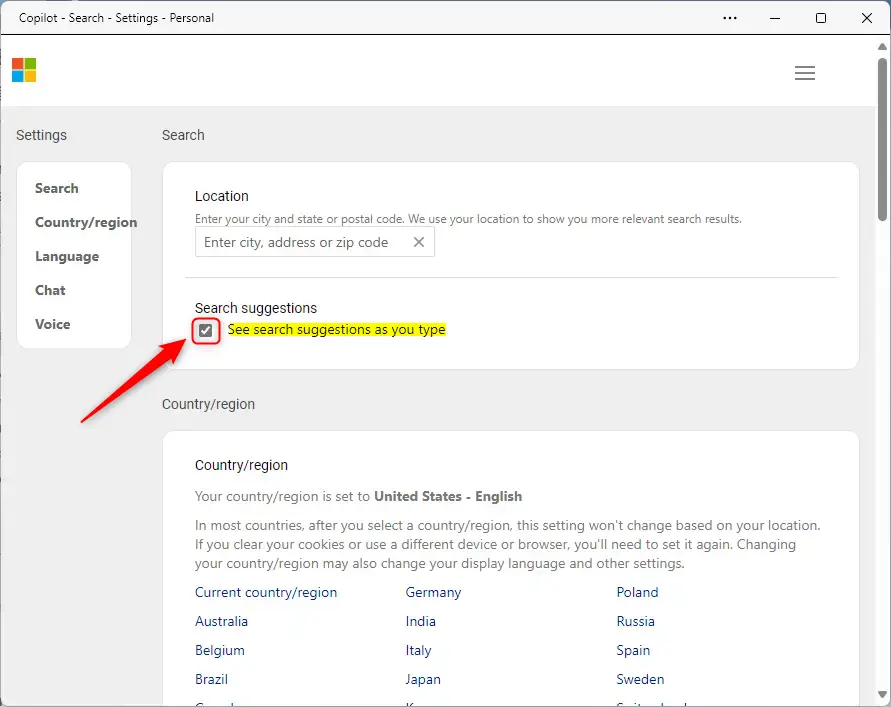
- Find the section labeled Search suggestions.
- Check the box to turn suggestions on, or uncheck the box to turn them off.
- Click the Save button to apply your new settings.
Summary
Copilot is an AI tool for Windows 11 that helps you get things done. It includes a feature that suggests search terms as you type. You can easily enable or disable this feature by opening the Copilot app, going to your profile settings, and adjusting the checkbox under the “More” menu. Saving your changes instantly updates how the AI interacts with you while you type.
How do I enable search suggestions in Windows 11 Copilot?
Can I disable search suggestions in the Copilot app?
What is the Copilot app in Windows 11?
Where can I find the Copilot button in Windows 11?
What should I do if the search suggestions are not showing in Copilot?
Was this guide helpful?

About the Author
Richard
Tech Writer, IT Professional
Richard, a writer for Geek Rewind, is a tech enthusiast who loves breaking down complex IT topics into simple, easy-to-understand ideas. With years of hands-on experience in system administration and enterprise IT operations, he’s developed a knack for offering practical tips and solutions. Richard aims to make technology more accessible and actionable. He's deeply committed to the Geek Rewind community, always ready to answer questions and engage in discussions.




No comments yet — be the first to share your thoughts!