

This post describes how to turn On or Off the Narrator or Screen Reader in Ubuntu Linux.
Screen Reader (Narrator) is a screen-reading feature built into Ubuntu Linux, so you need nothing to download or install.
The Narrator (Orca) app feature in Ubuntu Linux helps those with limited vision or who cannot see the text clearly on their screen. The narrator has also been improved and integrated tightly into Ubuntu Linux.
The Orca screen reader can speak the user interface. Depending on how you installed your system, you might not have Orca installed. If not, install Orca first.
For web pages, the screen reader automatically reads them, starting at the top of the page.
Below is how one turns the Narrator or Screen Reader in Ubuntu Linux on or off.
How to enable or disable Screen Reader in Ubuntu Linux
As mentioned above, the Screen Reader feature in Ubuntu Linux helps those with limited vision or who cannot see the text clearly on their screen.
If you want to use the Screen Reader in Ubuntu Linux because you’re having difficulties seeing text clearly on your screen or want to turn it off because you don’t need it, the steps below show you how.
Ubuntu Linux has a centralized location for the majority of its settings. From system configurations to creating new users and updating, all can be done from the System Settings panel.

Alternatively, click on the System menu at the top-right corner of the top bar on your desktop.
On the System menu, select Settings, as highlighted below.

In the Settings app, click on the Accessibility tile to open the panel.

In the System Settings -> Accessibility panel, under Seeing, select the Screen Reader tile to expand.
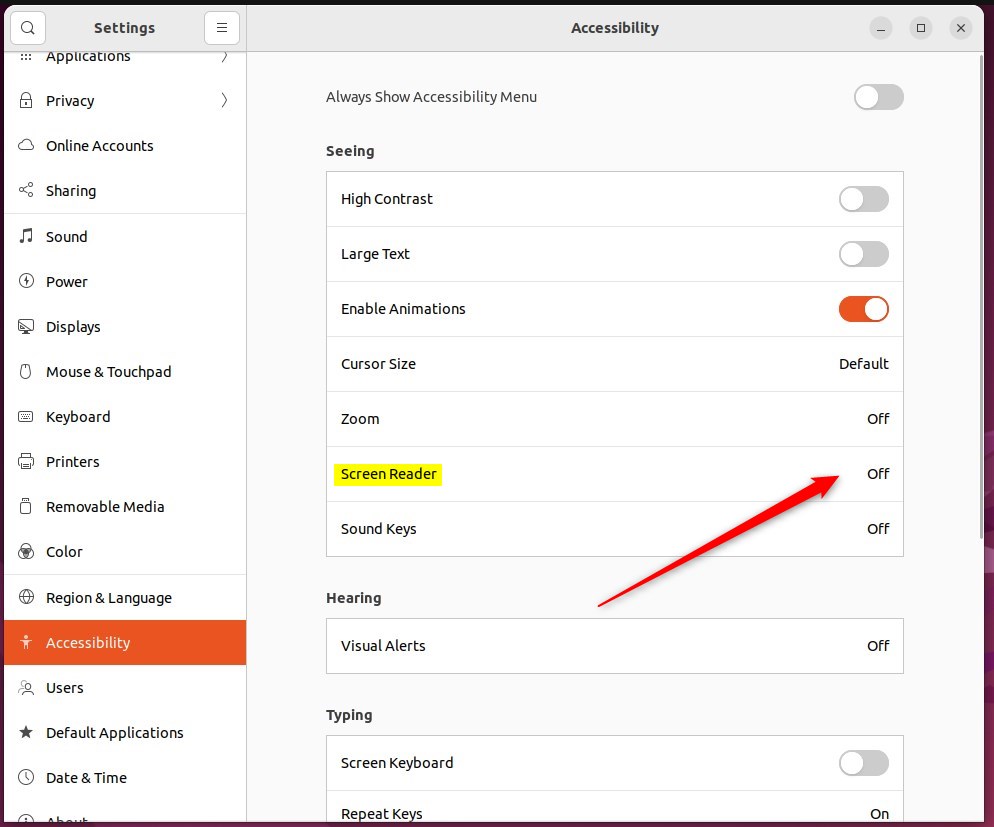
On the Screen Reader pop-up window, toggle the Screen Reader switch to the On position to enable.
To disable it, toggle the switch back to the Off position.
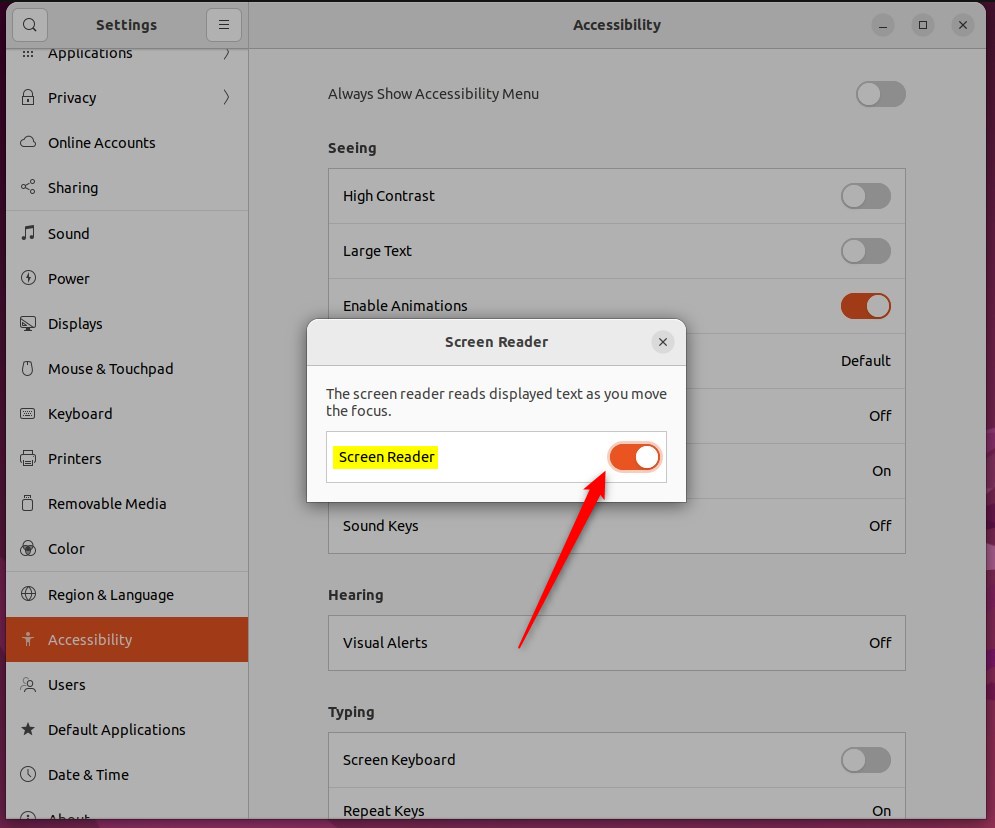
When you enable Screen Reader, you will be able to turn Screen Reader on and off by clicking the accessibility icon in the top bar and selecting Screen Reader.

That should do it! You can now close the Settings app.
Conclusion:
This post showed you how to enable or disable Screen Reader in Ubuntu Linux. Please use the comment form below if you find any errors above or have something to add.
- Enabling Screen Reader in Ubuntu Linux provides accessibility to users with limited vision or difficulty in reading text on the screen.
- The feature can be easily enabled or disabled through the System Settings panel under Accessibility.
- Once enabled, the Screen Reader can be controlled through the accessibility icon in the top bar, allowing for convenient toggling on and off.
- The tight integration of the Orca screen reader with Ubuntu Linux reflects the platform’s commitment to enhancing accessibility for all users.
Leave a Reply