You can enable or disable the PIN requirement for projecting to your Windows 11 PC to control wireless display connections.
This PIN feature, often associated with Miracast wireless display technology, adds a security layer. It prevents unauthorized devices from mirroring their screen to your computer without your explicit permission.
Requiring a PIN ensures only trusted devices can connect. This is particularly useful if you share your PC or want to prevent accidental or unwanted screen mirroring.
Enabling this setting means Windows 11 will prompt for a PIN every time a new device attempts to project its screen to your PC.
⚡ Quick Answer
Go to Settings, then System, and select Projecting to this PC. Under Require PIN for pairing, choose Never, First Time, or Always to control wireless display connections. This setting manages the PIN prompt for Miracast screen mirroring.
Prerequisites: Checking the Wireless Display Feature
Your Windows 11 PC needs the Wireless Display feature installed before you can project your screen to another device.
Before you can project, you must ensure the Wireless Display feature is installed. This is a standard Windows 11 component.
Open Settings and go to Apps > Optional features.
Click View features next to Add an optional feature.
Search for Wireless Display. If it is not in the list, check your installed features list.
Note: This requires administrative privileges on your user account.
Open the Settings app by pressing Windows key + I.
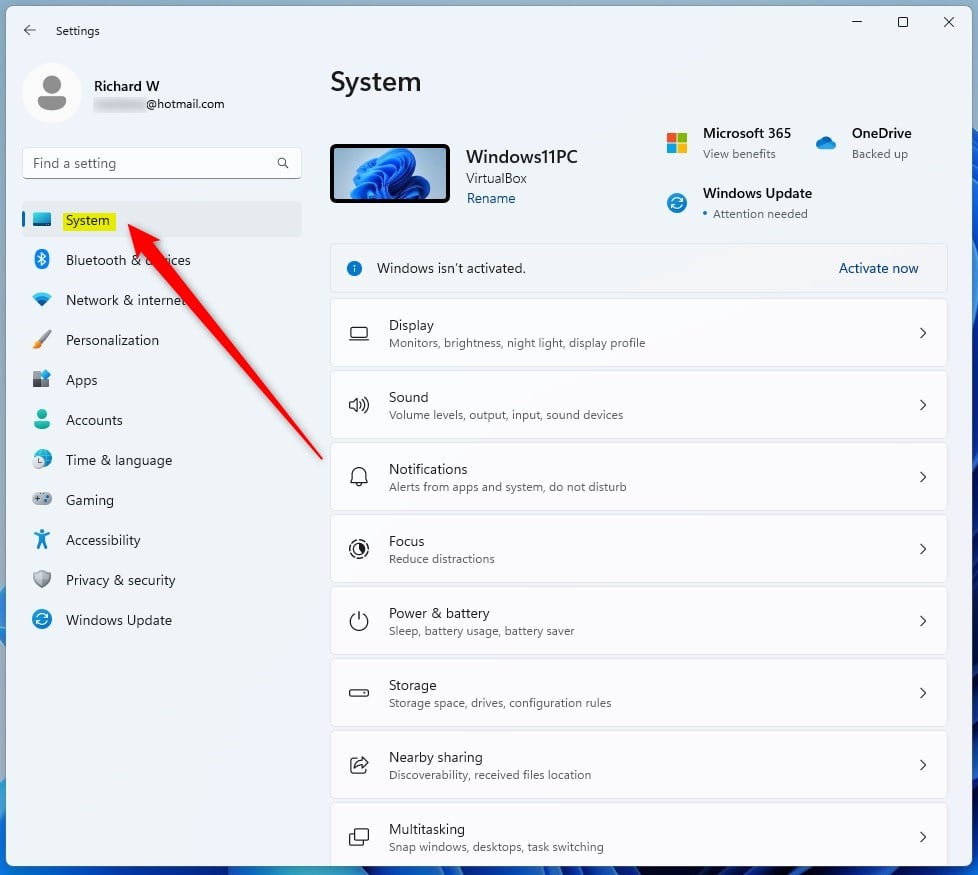
Click on System on the left sidebar.
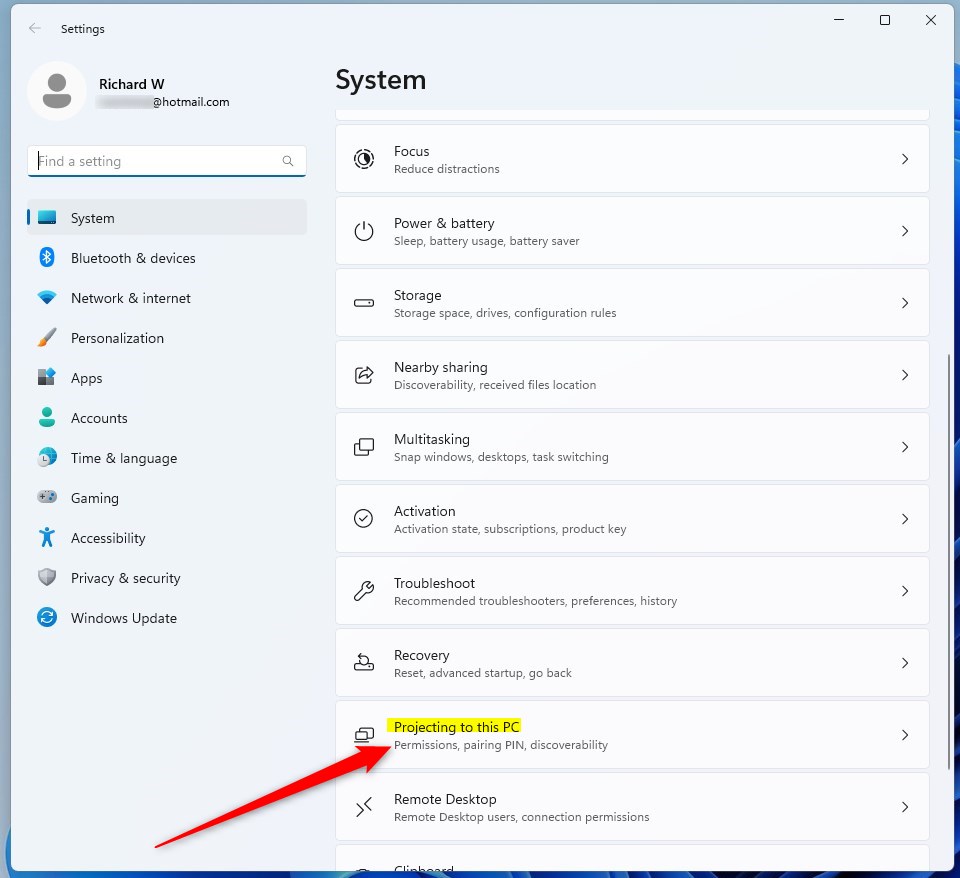
Select Projecting to this PC.
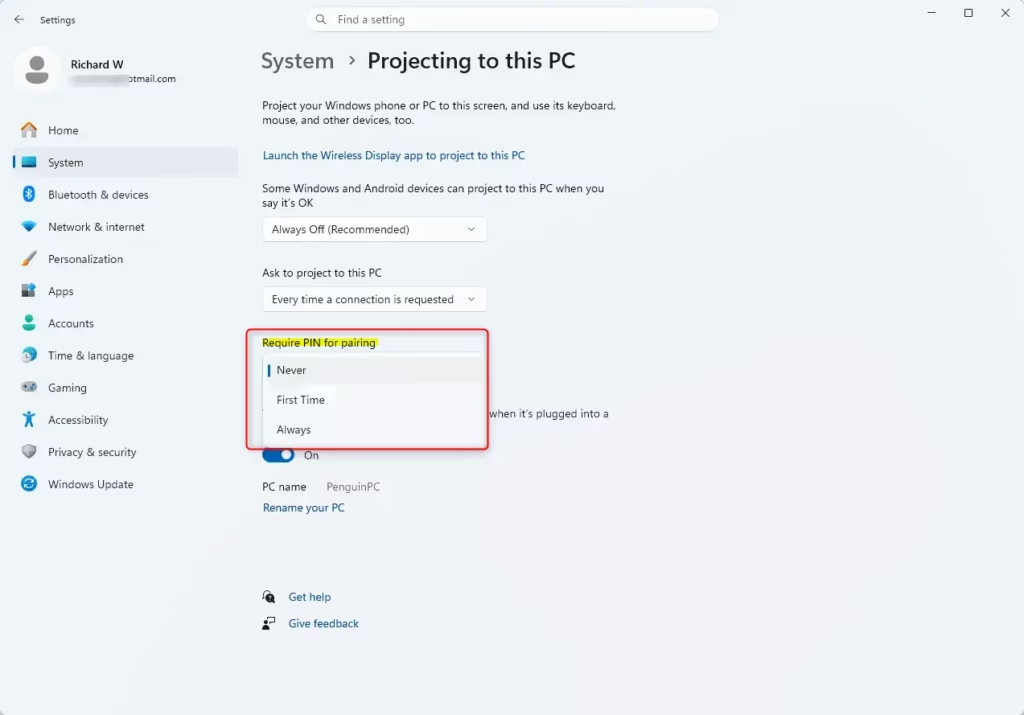
Under Require PIN for pairing, choose Never, First Time, or Always.
windows 11 new settings buttonwindows 11 system tilewindows 11 projecting to this pc tileWindows 11 settings for requiring PIN for projecting to this PC.
Advanced Configuration: Registry Editor
Warning: Modifying the registry incorrectly can cause system issues. This requires administrative privileges.
Press Windows key + R, type regedit, and press Enter.
Navigate to: 🗝️HKEY_LOCAL_MACHINE\SOFTWARE\Microsoft\MiracastReceiver
Look for a DWORD value named RequirePinForPairing.
Set the value to 0 for Never, 1 for First Time, or 2 for Always.
Summary
You have learned how to manage the Require PIN for projecting setting. By using these steps, you can control who mirrors their screen to your PC. Always ensure your system is updated to maintain the best compatibility with wireless display standards.
Why is my PIN not appearing when projecting?
If the PIN isn’t showing up when you try to project, first check that your network is set to Private, not Public.
If the PIN does not appear, ensure your network profile is set to Private rather than Public. Also, verify that the Wireless Display optional feature is correctly installed and that your firewall is not blocking Miracast traffic. Restarting both the host PC and the projecting device often resolves temporary handshake errors.
Is the projection PIN the same as my Windows login PIN?
No, the projection PIN is a temporary, randomly generated code used only for the wireless display pairing process. It is completely separate from your Windows user account login PIN or password. It is designed specifically to prevent nearby unauthorized devices from accidentally or intentionally connecting to your monitor.
Richard, a writer for Geek Rewind, is a tech enthusiast who loves breaking down complex IT topics into simple, easy-to-understand ideas. With years of hands-on experience in system administration and enterprise IT operations, he’s developed a knack for offering practical tips and solutions.
Richard aims to make technology more accessible and actionable. He's deeply committed to the Geek Rewind community, always ready to answer questions and engage in discussions.






No comments yet — be the first to share your thoughts!