How to Enable or Disable Regedit in Windows 11


Registry Editor (the system tool used to view and change low-level Windows settings , also known as Regedit) can be turned on or off in Windows 11 to control who makes deep system changes. Locking access to the registry database protects your PC setup from accidental damage or unwanted tweaks by blocking tools like 🗝️HKEY_LOCAL_MACHINE from being edited.
When you restrict access, Windows shows a pop-up message whenever someone tries to open the tool, stating that an administrator put limits in place. You need an account with administrator rights to change this setting and either lock down or open up the registry for use.
You can enable or disable Registry Editor access using Group Policy Editor, Registry Editor itself, or PowerShell. For Pro versions, use gpedit.msc to navigate to User Configuration Administrative Templates System and set “Prevent access to registry editing tools.” For Home versions, modify the “DisableRegistryTools” DWORD value in the registry.
Method 1Use Group Policy Editor
Group Policy Editor lets you enable or disable Regedit (the built-in database for Windows settings ) on Windows 11 Pro editions. Open the policy tool by pressing the Win and R, typing gpedit.msc, and pressing Enter. Go to User Configuration, select Administrative Templates, click System, and find the setting to prevent access to registry editing tools to turn it on or off.
Requires admin privileges.
- Press Win+R, type
gpedit.msc, and hit Enter. - Navigate to: User Configuration Administrative Templates System.
- Find Prevent access to registry editing tools on the right.
- Double-click it and select Enabled to block access or Disabled to allow it.
gpedit.msc to open the Group Policy Editor, and then press Enter.
Method 2Use Registry Editor
Registry Editor lets you enable or disable Regedit on Windows 11 Home editions where the group policy tool is missing. Open the registry by typing regedit in the Start menu search bar and pressing Enter. Go to 🗝️HKEY_CURRENT_USER\
Why use this method? This works on Windows Home editions where Group Policy is unavailable. What happens? Manual creation of a key tells Windows to block the tool.
Requires admin privileges.
- Open the Registry Editor by searching for
regeditin the Start menu. - Go to:
HKEY_CURRENT_USER\SOFTWARE\Microsoft\Windows\CurrentVersion\Policies\System. - If the System folder is missing, right-click Policies, select New Key, and name it System.
- Right-click in the empty space, select New DWORD (32-bit) Value, and name it DisableRegistryTools.
- Double-click it and set the value to 2 to disable, or 0 to enable.
regedit, and hit Enter.HKEY_CURRENT_USER\SOFTWARE\Microsoft\Windows\CurrentVersion\Policies.DisableRegistryTools.DisableRegistryTools and set its Value data to 1 to disable access or 0 to enable it.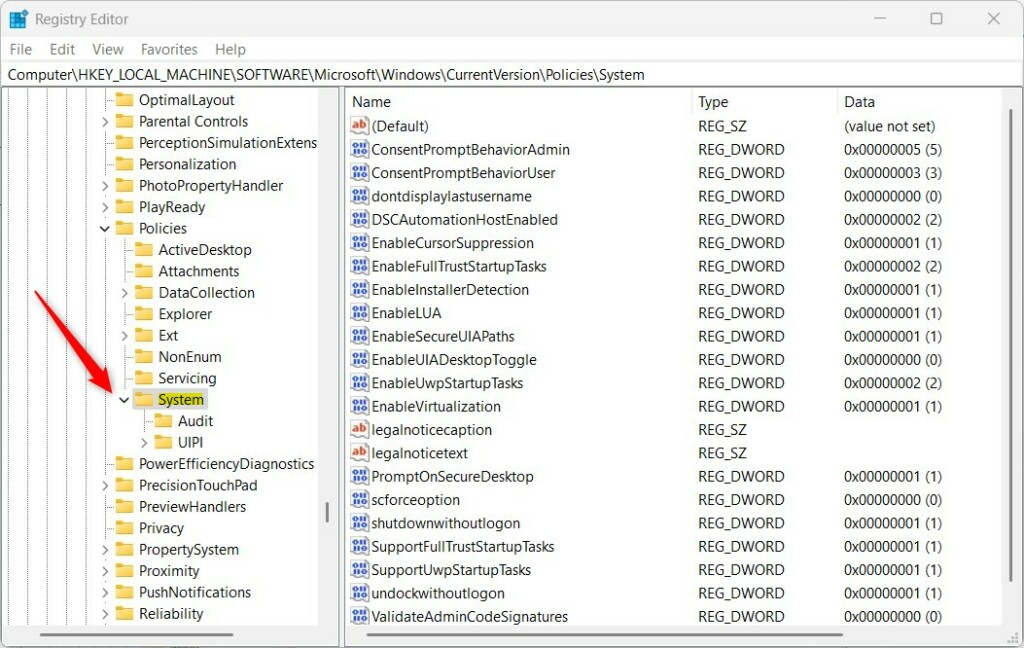
Method 3Use PowerShell
PowerShell (a command-line shell for system tasks) lets you quickly enable or disable Regedit on Windows 11 using a single command. Open PowerShell as an administrator from the Start menu, paste the specific command to change the registry restriction value, and press Enter to instantly block or restore access to the registry tool.
Why use this method? This is the quickest way to toggle access. What happens? The command instantly updates the registry database.
Requires admin privileges.
- Right-click the Start button and select Terminal (Admin) or PowerShell (Admin).
- To disable access, run:
Set-ItemProperty -Path HKCU:\Software\Microsoft\Windows\CurrentVersion\Policies\System -Name DisableRegistryTools -Value 2 -Force - To enable access, run:
Remove-ItemProperty -Path HKCU:\Software\Microsoft\Windows\CurrentVersion\Policies\System -Name DisableRegistryTools -Force
reg add "HKCU\Software\Microsoft\Windows\CurrentVersion\Policies\System" /v DisableRegistryTools /t REG_DWORD /d 1 /freg delete "HKCU\Software\Microsoft\Windows\CurrentVersion\Policies\System" /v DisableRegistryTools /fTroubleshooting Access Denied Errors
Fixing an Access Denied error when opening Regedit on Windows 11 usually means a virus or a previous administrator blocked the tool. You need local administrator rights to change the restriction keys back to normal, or you can run a full scan with Windows Security to remove malware that locked the registry in the first place.
Summary
Registry Editor access management relies on Group Policy, the Registry itself, or PowerShell. Group Policy suits Pro users best, while Registry edits work on all versions. Caution remains vital when editing the registry. Visit the official Microsoft documentation on security policies for more information.





[…] Registry Editor in Windows is crucial for managing the operating system’s configuration settings. It provides […]