How to Enable or Disable Pop-up Tips Description in File Explorer on Windows 11

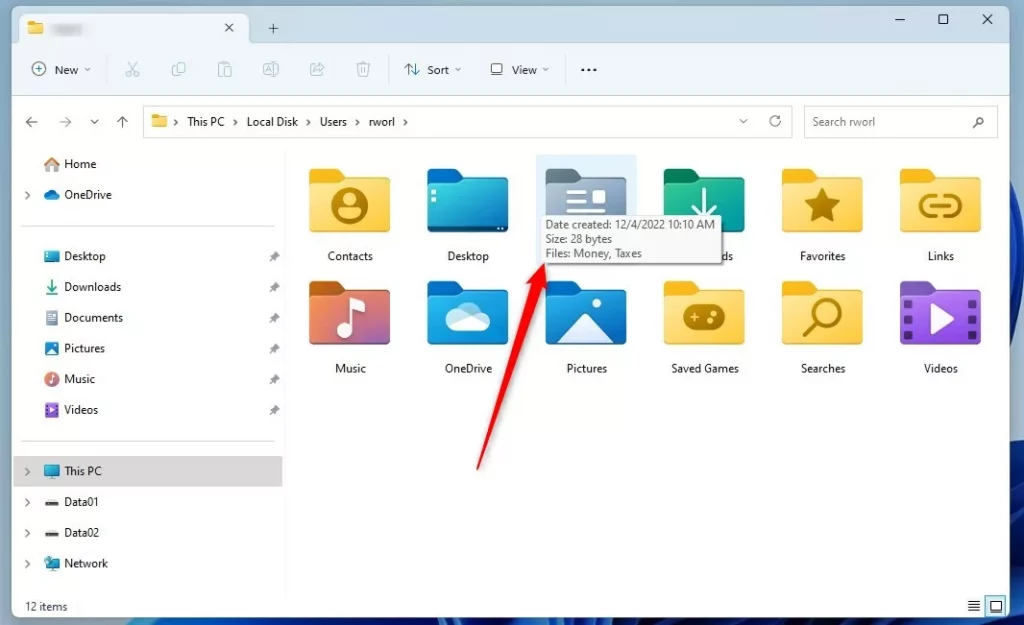
You can enable or disable pop-up tips, also known as descriptions, in Windows 11 File Explorer to control informational tooltips. These descriptions appear when you hover your mouse pointer over files and folders, providing quick details.
File Explorer pop-up tips are a built-in Windows 11 feature designed to show relevant information, such as file size, modification date, or author, without opening the item.
For instance, hovering over an image file might display its dimensions or the date it was taken. You can easily toggle this helpful feature on or off to customize your File Explorer experience.
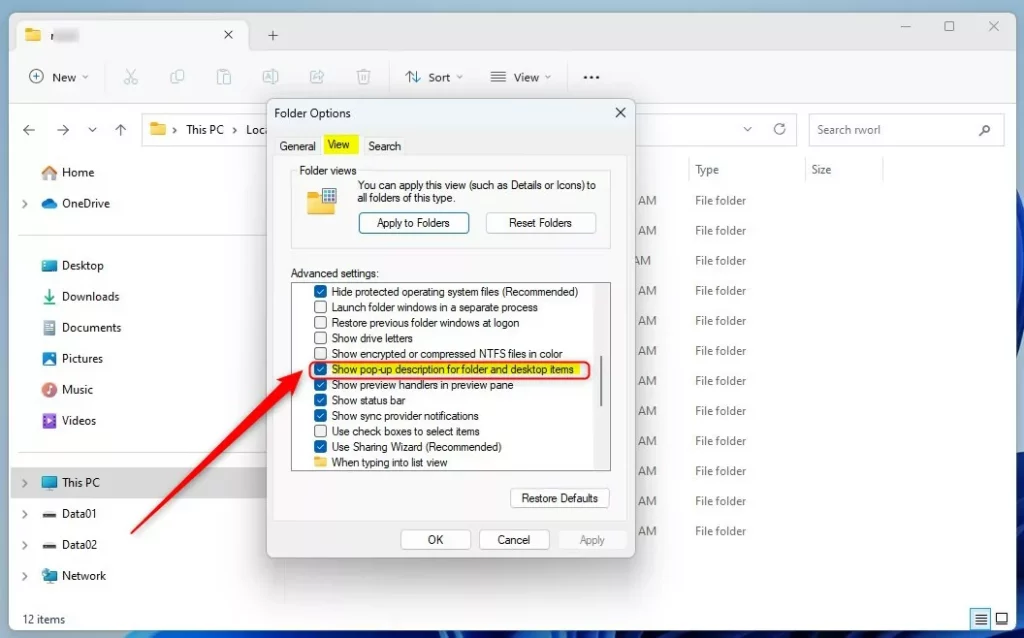
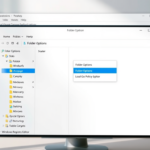
To enable or disable pop-up tips in File Explorer, open File Explorer, click the three dots menu, select Options, go to the View tab, and check or uncheck “Show pop-up description for folder and desktop items.” Click OK to apply.
Method 1Using Folder Options
You can easily turn Windows 11 pop-up descriptions on or off right in File Explorer’s settings.
- Open File Explorer or press the Windows key + E on your keyboard.
- Click the three dots icon in the top menu bar and select Options.
- In the window that appears, click the View tab.
- Find the box labeled Show pop-up description for folder and desktop items.
- Check the box to turn the feature on, or uncheck it to turn it off.
- Click OK to save your changes.
Method 2Using the Registry Editor
For more advanced control over Windows 11 pop-up descriptions, you can use the Registry Editor, but be careful as mistakes can cause problems.
- Press Windows key + R, type
regedit, and press Enter. - Navigate to this path:
HKEY_CURRENT_USER\Software\Microsoft\Windows\CurrentVersion\Explorer\Advanced
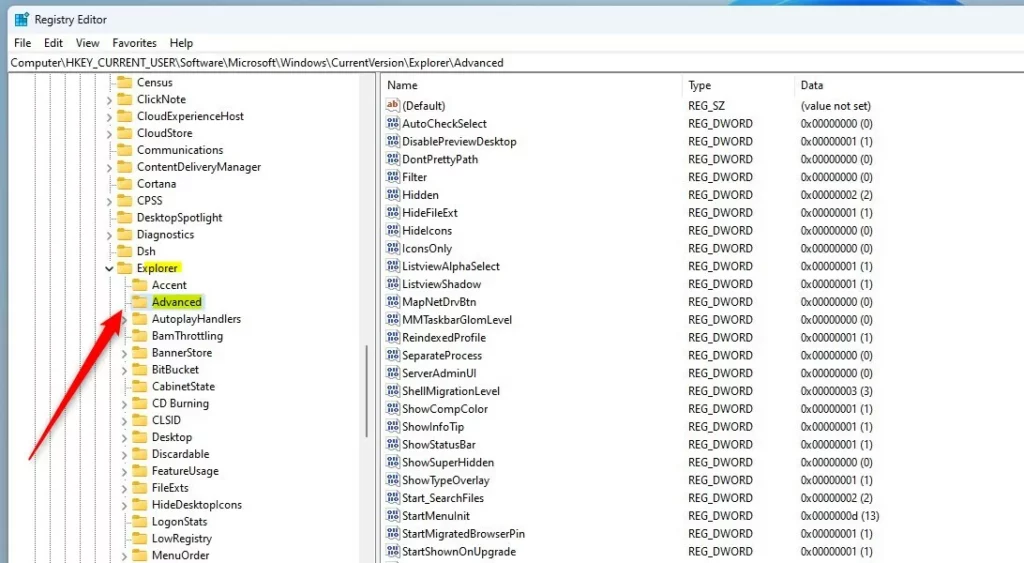
- In the right pane, right-click and select New -> DWORD (32-bit) Value.
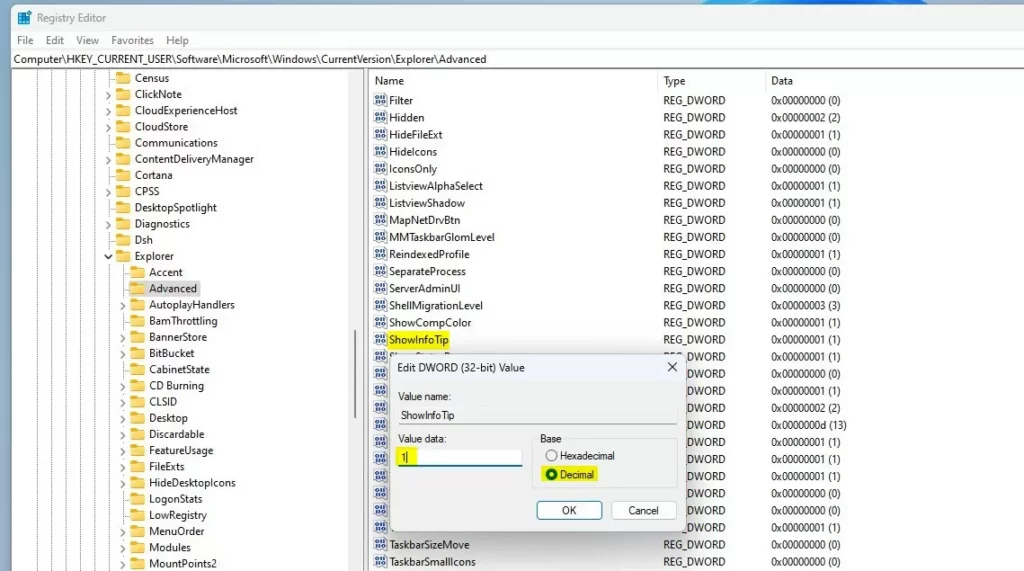
- Name this value
ShowInfoTip. - Double-click
ShowInfoTipand set the Value data to1to turn it on, or0to turn it off.
Applying Changes: Restarting Windows Explorer
After changing your Windows 11 pop-up descriptions, you might need to restart File Explorer for the changes to show up.
- Press Ctrl+Shift+Esc to open Task Manager.
- Find Windows Explorer in the list.
- Right-click it and select Restart.
- Alternatively, run this command in Command Prompt:
taskkill /f /im explorer.exe & start explorer.exe
Advanced Configuration: System Hover Delay
You can control how long you need to hover before the tip appears by editing a registry value located at HKEY_CURRENT_USER\Control Panel\Desktop. Making this value higher means the tips will appear more slowly, which can reduce visual distractions.
Summary
You can control whether Windows 11 shows extra information when you hover over files by using either File Explorer settings or the Registry Editor.
Does disabling pop-ups improve system performance?
Disabling these pop-up descriptions in Windows 11 doesn’t really affect your system’s performance much. It does reduce some background tasks File Explorer runs when you hover over items, but the main advantage is a cleaner look and less clutter, not a big speed boost.
Can I disable tooltips for specific applications only?
No, the setting for these pop-up descriptions in Windows 11 applies everywhere in the system’s interface. It affects File Explorer and desktop items universally. There is no native setting to disable these tooltips for specific individual applications while keeping them enabled for the rest of the operating system.
Are these settings synced across Windows devices?
Settings managed through the Registry, like the ‘ShowInfoTip’ value, are saved directly on your computer. They are not synced across multiple Windows devices via your Microsoft account. You will need to manually apply these changes on every computer where you wish to customize the File Explorer hover behavior.
Was this guide helpful?

About the Author
Richard
Tech Writer, IT Professional
Richard, a writer for Geek Rewind, is a tech enthusiast who loves breaking down complex IT topics into simple, easy-to-understand ideas. With years of hands-on experience in system administration and enterprise IT operations, he’s developed a knack for offering practical tips and solutions. Richard aims to make technology more accessible and actionable. He's deeply committed to the Geek Rewind community, always ready to answer questions and engage in discussions.



No comments yet — be the first to share your thoughts!