How to Enable Passwordless Sign-in in Windows 11

This tutorial shows you how to turn passwordless sign-in on or off for Microsoft accounts in Windows 11.
Why Do This?
Passwordless sign-in makes your device more secure. Instead of using passwords, you sign in with Windows Hello. Windows Hello uses your face, fingerprint, or PIN. This modern security method is harder to hack than passwords.
When you enable passwordless sign-in, all apps and browsers that use your Microsoft account will automatically switch to Windows Hello. Your passwords won’t work anymore for signing in to Windows.
Learn more: How to go passwordless with your Microsoft account – Microsoft Support and Go passwordless in Windows – Microsoft Support
What You Need to Know
You must be signed in as an administrator to change this setting.
When you turn on passwordless sign-in:
- The option to enter a username and password will be removed from the sign-in screen
- You cannot remove your PIN from your Microsoft account
- Password and picture password sign-in options will not be available
Option 1Use Settings
Note: You must be signed in to Windows with a Microsoft account to use this method. If you’re not, skip to Option Two.
- Open Settings by pressing ⊞ Win+I on your keyboard.
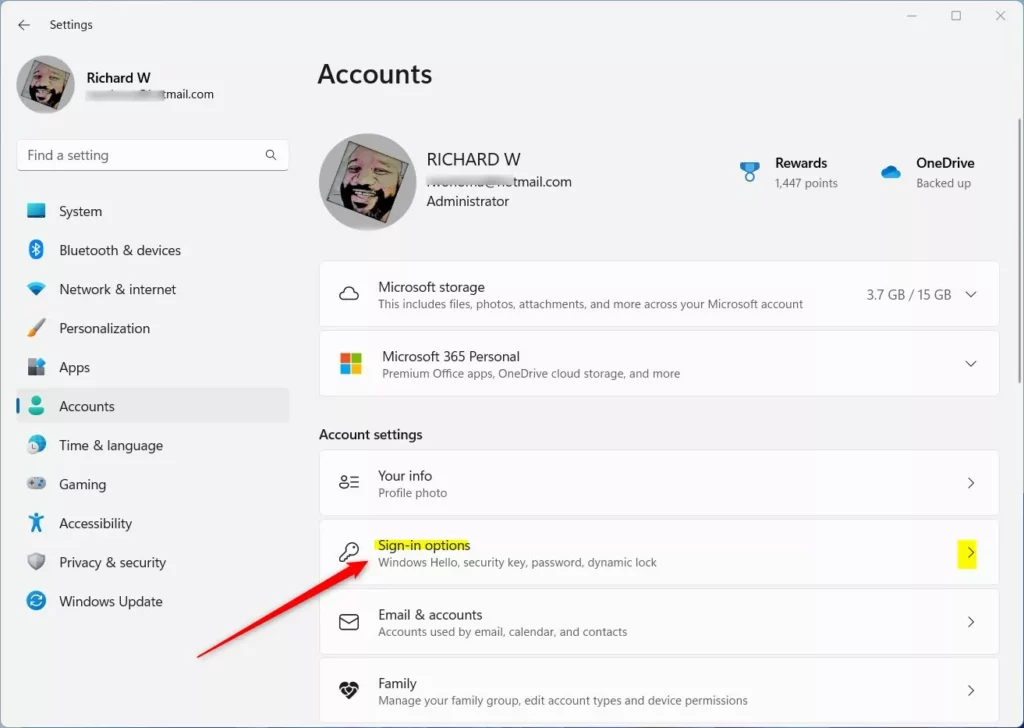
- Click Accounts on the left side. Then click Sign-in options on the right side
- Find the setting that says For improved security, only allow Windows Hello sign-in for Microsoft accounts on this device. Turn it On or Off based on what you want.
- Close Settings when you’re done.
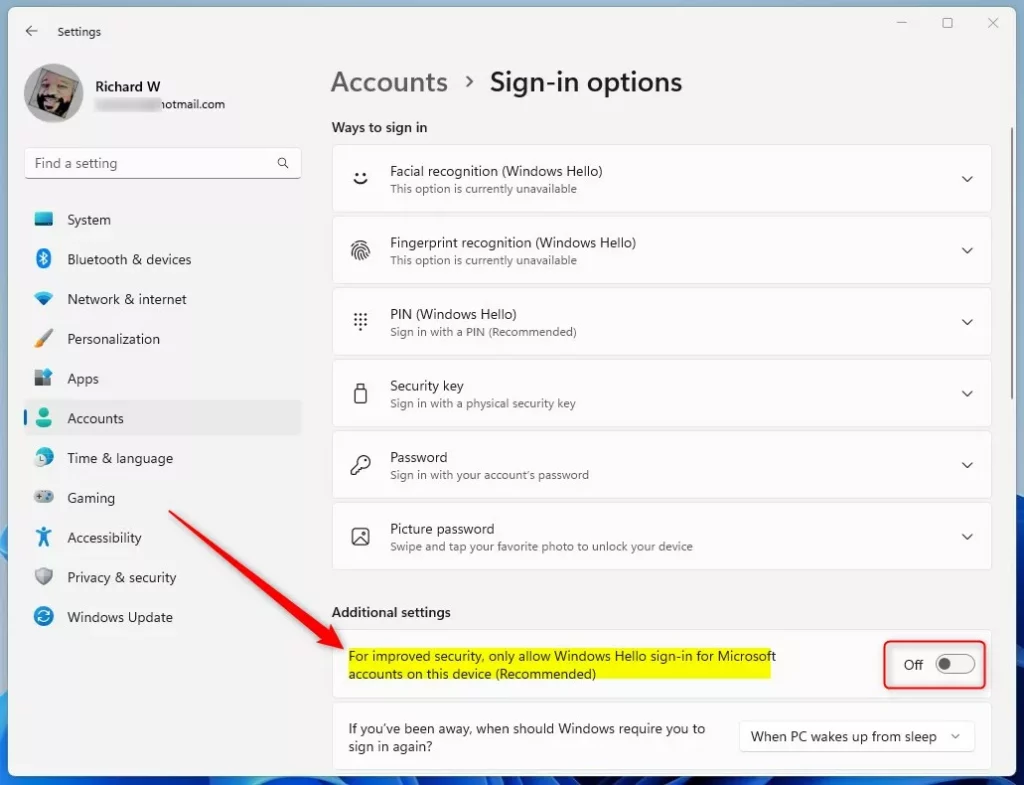
Note: This setting will be grayed out if you don’t have Windows Hello set up yet. You need at least one Windows Hello option like a PIN, facial recognition, or fingerprint.
Option 2Use Registry Editor
⚠️ Requires Admin Privileges
Open the Windows Terminal app as administrator and run the commands below.
To Turn On Passwordless Sign-in
This is the default setting.
reg add "HKEY_LOCAL_MACHINE\SOFTWARE\Microsoft\Windows NT\CurrentVersion\PasswordLess\Device" /v DevicePasswordLessBuildVersion /t REG_DWORD /d 2 /f
reg add "HKEY_LOCAL_MACHINE\SOFTWARE\Microsoft\Windows NT\CurrentVersion\PasswordLess\Device" /v DevicePasswordLessUpdateType /t REG_DWORD /d 1 /f
To Turn Off Passwordless Sign-in
reg add "HKEY_LOCAL_MACHINE\SOFTWARE\Microsoft\Windows NT\CurrentVersion\PasswordLess\Device" /v DevicePasswordLessBuildVersion /t REG_DWORD /d 0 /f
reg add "HKEY_LOCAL_MACHINE\SOFTWARE\Microsoft\Windows NT\CurrentVersion\PasswordLess\Device" /v DevicePasswordLessUpdateType /t REG_DWORD /d 1 /f
Summary
Passwordless sign-in makes Windows 11 more secure by replacing passwords with Windows Hello (face, fingerprint, or PIN). You can enable or disable this feature through Settings if you have a Microsoft account signed in, or through Registry Editor using administrator privileges. When enabled, your device will no longer accept password-based sign-ins for Microsoft accounts.
Was this guide helpful?
100% of readers found this helpful (1 votes)

About the Author
Richard
Tech Writer, IT Professional
Richard, a writer for Geek Rewind, is a tech enthusiast who loves breaking down complex IT topics into simple, easy-to-understand ideas. With years of hands-on experience in system administration and enterprise IT operations, he’s developed a knack for offering practical tips and solutions. Richard aims to make technology more accessible and actionable. He's deeply committed to the Geek Rewind community, always ready to answer questions and engage in discussions.



No comments yet — be the first to share your thoughts!