How to Keep Microsoft Teams Running in the Taskbar


Microsoft Teams running in the taskbar keeps the chat app open in the background even after you click the red X to close the main window. This background mode lets you get instant message alerts and jump into video calls without waiting for the program to start up again.
Recent versions of Microsoft Teams for Windows include a background setting that hides the app in the system tray instead of shutting it down completely. Turning on this option saves you time and stops you from missing important work or school updates during the day.
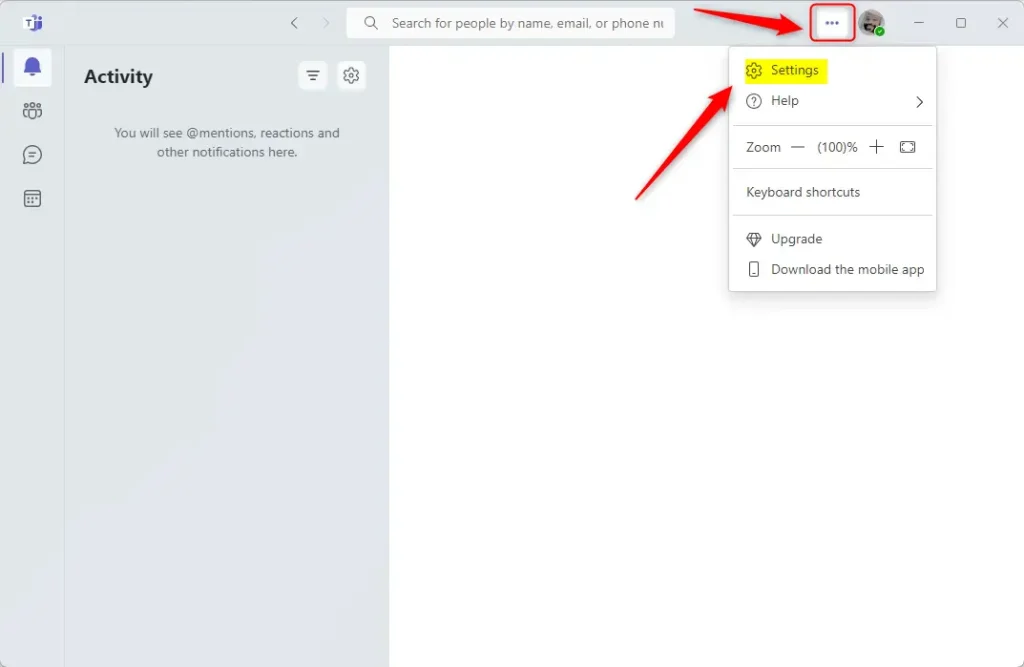
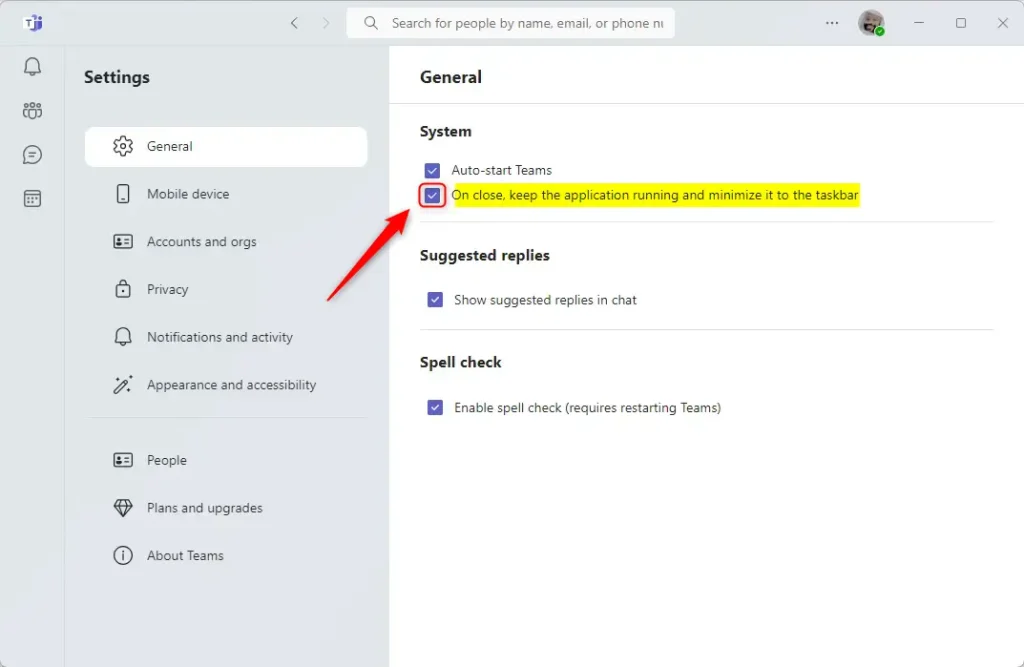
Click the three dots next to your profile picture, select Settings, then General. Check the box for “On close, keep the application running and minimize it to the taskbar ” in the System section. This keeps Teams active in the taskbar when you close the window.
Turn “On close, keep the applications running and minimize it to the taskbar” on or off in Teams
You can keep Teams running minimized in the taskbar by changing a quick setting in your app preferences. When you turn this option on, clicking the X close button will not shut down Microsoft Teams completely. Instead, it stays active in the background so you never miss a chat or call while working on other things.
Here’s how.
Open Microsoft Teams from the Start menu or the taskbar . This action opens the main Microsoft Teams window, allowing you to access its features and settings.

You can also launch the app from the Taskbar or Taskbar overflow.

When you first launch the Teams app, the mini window will open. Click the expansion button on the menu bar to open the full Teams window.

In the full Teams window, click the Settings and more ( …) button next to your profile picture and select Settings from the menu.
Then, under 'System,' check the box next to "On close, keep the application running and minimize it to the taskbar" to enable it.
To disable it, uncheck the box.
That should do it!
Leaving this setting enabled lets you jump back into meetings or reply to messages instantly without launching the app from scratch.
- Enabling this feature allows quick access to the Teams app without reloading
- Helps in ensuring essential notifications and messages are not missed when away from the computer
- Convenient for swiftly joining meetings or calls without reopening the app from scratch
Was this guide helpful?

About the Author
Richard
Tech Writer, IT Professional
Richard is a writer at Geek Rewind who turns complex IT tasks into clear, step-by-step guides. He draws on years of hands-on experience in system administration and enterprise IT operations, focusing on Windows, Linux and WordPress: the problems people actually run into, and the fixes that work. His server and WordPress guides come from systems he runs himself. Richard builds and maintains the platform behind Geek Rewind, from its Ubuntu servers and Nginx configuration to its custom WordPress plugins. Many new tutorials start with readers' questions, and he's always glad to answer them in the comments.




No comments yet — be the first to share your thoughts!