
Microsoft Edge has a special visual style called the Copilot theme. This guide explains how to turn this visual style on or off for your user account.
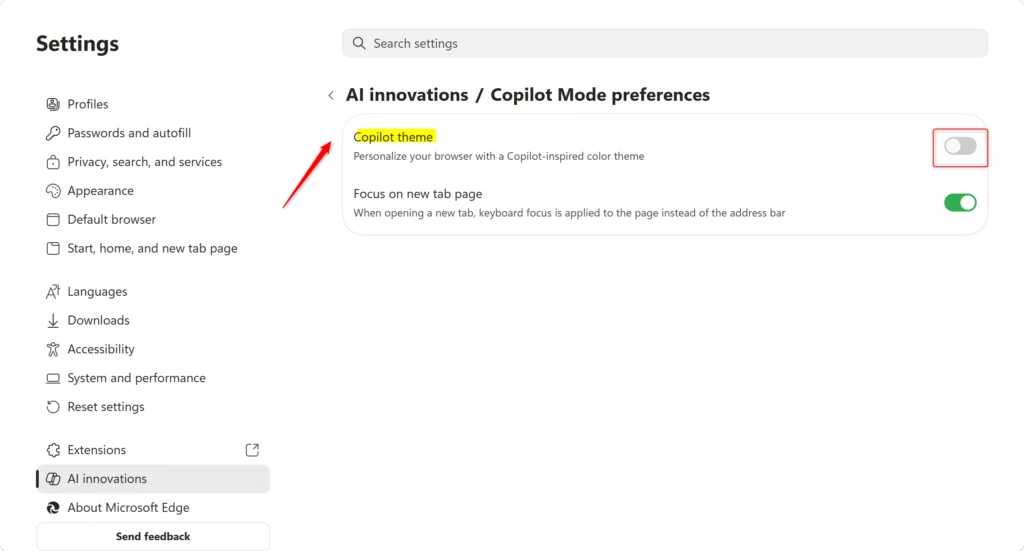
To enable or disable the Edge Copilot theme, open Edge, go to Settings, then AI innovations, and click Copilot Mode preferences. Use the toggle switch to turn the theme on or off. This setting affects your browser’s visual style to match the Copilot experience.
Why use the Copilot theme?
The Copilot theme changes your browser’s colors and layout to match the AI-powered Copilot experience. It’s designed to make your browser feel more modern and integrated with AI tools. You might want to turn it off if you prefer the classic look of Microsoft Edge.
What happens when you are done?
Once you change this setting, your browser adopts the Copilot-inspired color scheme or reverts to your default theme. If you manually pick a different theme later, the Copilot theme will automatically turn off.
How to change your Copilot theme settings
- Open Microsoft Edge.
- Click the Settings and more menu (the three dots in the top right corner, or press Alt+F), then click Settings.
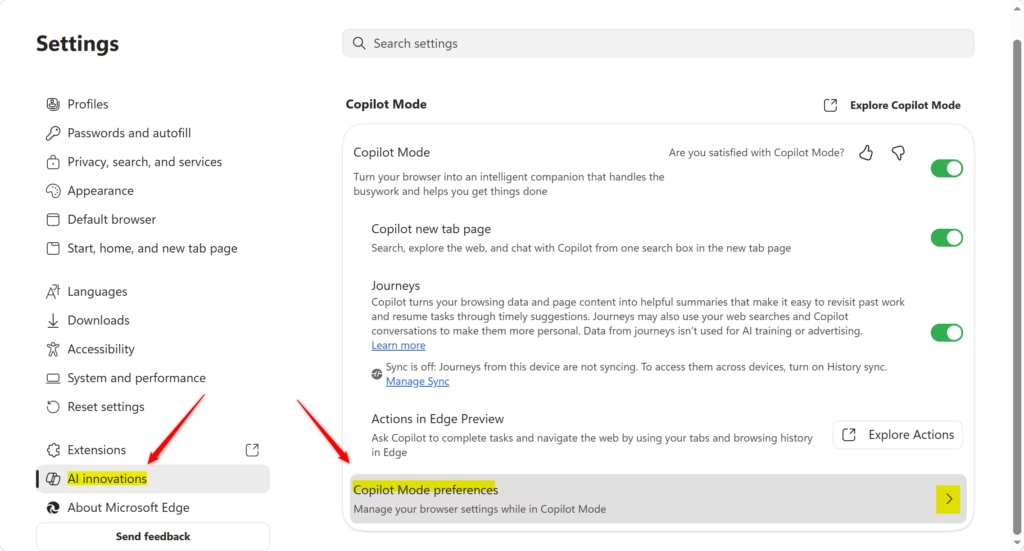
- Click on AI innovations in the menu on the left.
- Click on Copilot Mode preferences in the main window.
You can change your Edge Copilot theme settings right within the Microsoft Edge browser.
- Use the toggle switch to turn Copilot theme On or Off based on your preference.
- You can now close the Settings tab.
Summary
The Copilot theme in Microsoft Edge is a simple visual setting that changes how Copilot looks, and you can turn it on or off easily.
References:
Introducing Copilot Mode in Edge: A new way to browse the web
How do I change the theme of Copilot?
To change the Copilot theme in Microsoft Edge, open the browser and navigate to Settings. Select AI innovations from the left-hand menu, then click on Copilot Mode preferences. From here, you can toggle the Copilot theme on or off to match your preferred visual style and browser layout.
How do I turn on Copilot mode in Microsoft Edge?
To enable Copilot mode, open Microsoft Edge and click the three-dot menu in the top right corner to access Settings. Navigate to the AI innovations section in the left sidebar. Ensure the toggle for Copilot is set to on, which activates the AI features and associated theme preferences.
How do I change the Microsoft Edge theme?
You can change your Microsoft Edge theme by opening Settings and selecting Appearance from the left menu. Under the Theme section, you can choose between Light, Dark, or System default. If you have Copilot mode enabled, you can also manage specific AI-integrated themes through the AI innovations settings menu.
How do I change the color of my Copilot?
You can change the color of your Copilot experience by adjusting the Copilot theme setting in Microsoft Edge, which affects the browser’s look.
Was this guide helpful?

About the Author
Richard
Tech Writer, IT Professional
Richard, a writer for Geek Rewind, is a tech enthusiast who loves breaking down complex IT topics into simple, easy-to-understand ideas. With years of hands-on experience in system administration and enterprise IT operations, he’s developed a knack for offering practical tips and solutions. Richard aims to make technology more accessible and actionable. He's deeply committed to the Geek Rewind community, always ready to answer questions and engage in discussions.




No comments yet — be the first to share your thoughts!