How to Enable or Disable Control Panel and Settings in Windows 11

This tutorial will show you how to turn the Control Panel and Settings on or off for specific users or all users in Windows 11.
Why Would You Want to Do This?
Windows 11 has two places where you can change settings. The newer Settings app is modern and easy to use. The older Control Panel still works but is being phased out. Sometimes you might want to disable one or both of these for security reasons or to prevent accidental changes.
What You Need to Know First
You must be signed in as an administrator to make these changes. If Settings or Control Panel is disabled, you won’t be able to open them. You’ll see an error message if you try.
Microsoft is moving toward the Settings app because it looks better and works smoother. The Control Panel is still available for backwards compatibility, but the Settings app is the way forward.
Option 1Using Local Group Policy Editor
Note: This method only works in Windows 11 Pro, Enterprise, and Education editions. If you have Home edition, skip to Option Two.
- Open the Local Group Policy Editor. You can do this by pressing the Windows key and typing
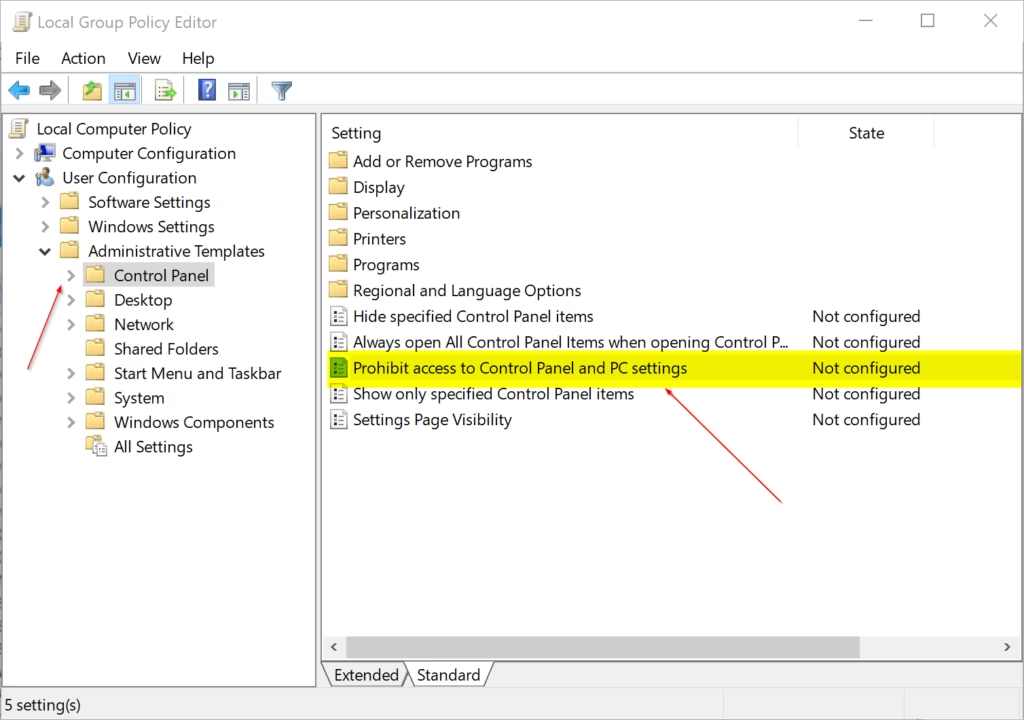
gpedit.msc, then pressing Enter. - In the left side panel, navigate to this path:
User Configuration > Administrative Templates > Control Panel - Look at the right side panel. Find the policy called Prohibit access to Control Panel and PC settings and double-click it to open it.
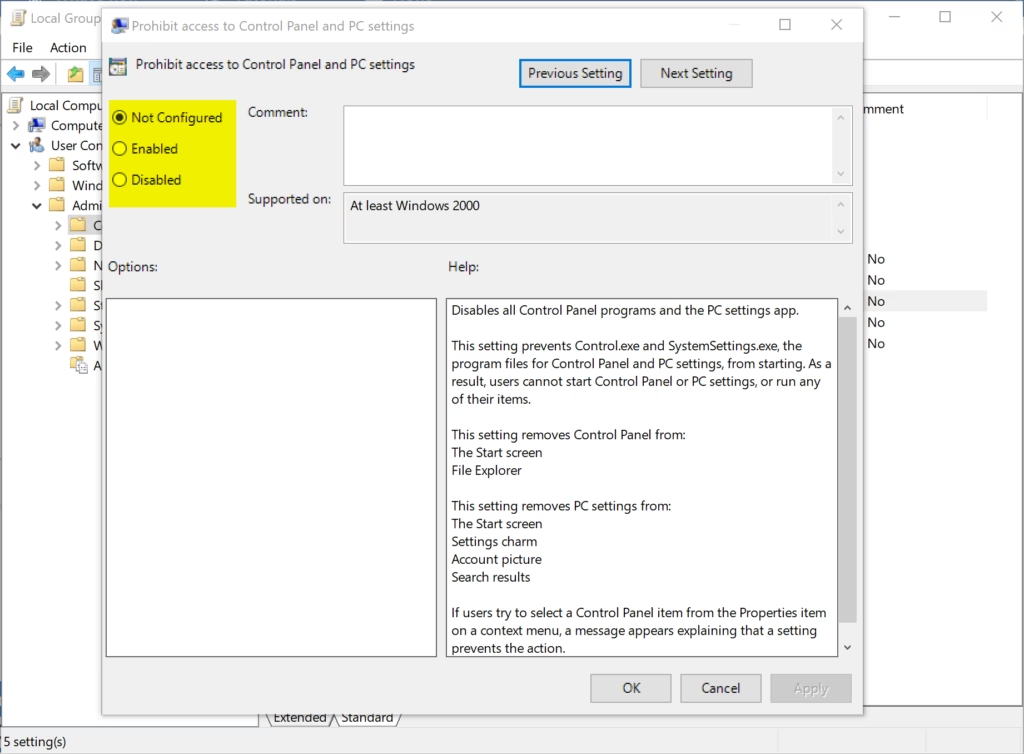
To Enable Control Panel and Settings
This is the normal setting.
- Select the dot next to Not Configured.
- Click OK.
- Close the Local Group Policy Editor.
To Disable Control Panel and Settings
- Select the dot next to Enabled.
- Click OK.
- Close the Local Group Policy Editor.
Option 2Using the Registry
This method works on all versions of Windows 11.
⚠️ Admin privileges required for the following steps.
To Enable Control Panel and Settings for All Users
This is the normal setting.
Open the Terminal as admistrator and run the command below.
reg delete "HKEY_CURRENT_USER\Software\Microsoft\Windows\CurrentVersion\Policies\Explorer" /v NoControlPanel /f
reg delete "HKEY_LOCAL_MACHINE\SOFTWARE\Microsoft\Windows\CurrentVersion\Policies\Explorer" /v NoControlPanel /f
To Disable Control Panel and Settings for All Users
In the same registry location, run the command below.
reg add "HKEY_CURRENT_USER\Software\Microsoft\Windows\CurrentVersion\Policies\Explorer" /v NoControlPanel /t REG_DWORD /d 1 /f
reg add "HKEY_LOCAL_MACHINE\SOFTWARE\Microsoft\Windows\CurrentVersion\Policies\Explorer" /v NoControlPanel /t REG_DWORD /d 1 /f
Close the Registry Editor when done.
Summary
You now know how to enable or disable Control Panel and Settings in Windows 11. Use Option One if you have Windows 11 Pro, Enterprise, or Education. Use Option Two if you have Home edition or prefer the Registry method. Remember that you need admin rights to make these changes. Once disabled, users won’t be able to access these settings areas until you re-enable them.
Was this guide helpful?

About the Author
Richard
Tech Writer, IT Professional
Richard, a writer for Geek Rewind, is a tech enthusiast who loves breaking down complex IT topics into simple, easy-to-understand ideas. With years of hands-on experience in system administration and enterprise IT operations, he’s developed a knack for offering practical tips and solutions. Richard aims to make technology more accessible and actionable. He's deeply committed to the Geek Rewind community, always ready to answer questions and engage in discussions.




No comments yet — be the first to share your thoughts!