

This tutorial shows you how to turn video enhancement on or off in Windows 11. Video enhancement automatically improves video quality when your computer is plugged in.
Some apps use the video system built into Windows 11. These include apps that come with Windows 11, such as Universal Windows Platform (UWP) apps Microsoft Edge, Photos, and Movies & TV. Many third-party video apps from Microsoft Store also use this system. Examples include Hulu, Netflix, and Vudu.
For these apps, you can control how videos play using video playback settings in Windows 11. You can have your PC enhance videos automatically (if your hardware supports it). Or you can choose to play videos at lower quality to save internet data.
When watching videos on battery power, you can choose to optimize playback for battery life or video quality.
Video playback settings in Windows – Microsoft Support Learn how to change the video playback settings for apps that use Windows’ built-in video system.
Option One
Turn On or Off Auto Enhance in Settings
- Open Settings by pressing
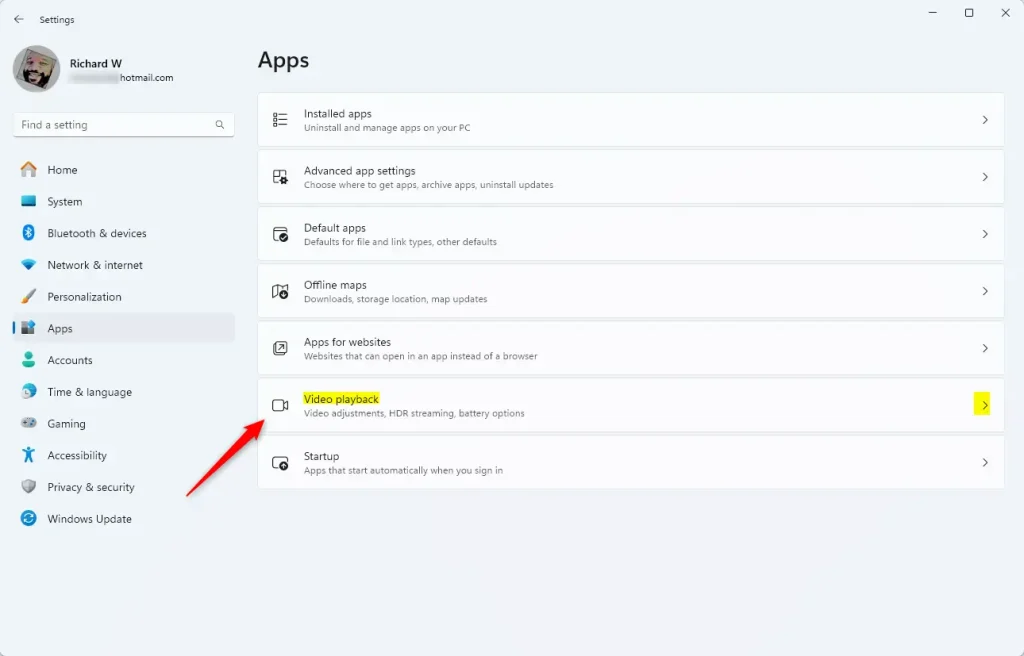
Win+I. - Click Apps on the left side. Then click Video playback on the right side.
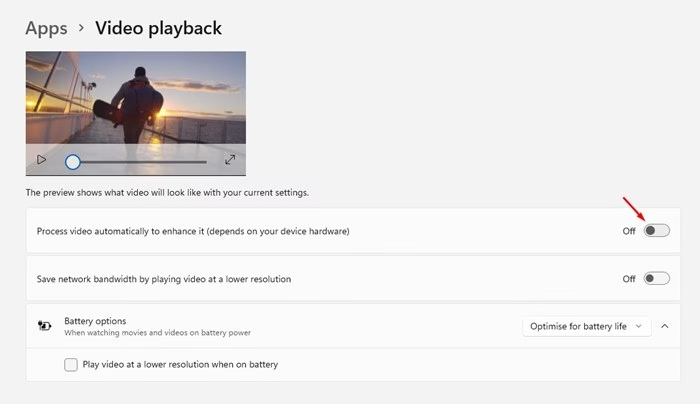
- Turn on or off the setting that says “Process video automatically to enhance it (depends on your device hardware).” Choose what works best for you.
- Close Settings when you’re done.
Option Two
Turn On or Off Auto Enhance using the Registry
⚠️ Admin privileges required
Turn On Auto Enhance
reg add "HKEY_CURRENT_USER\Software\Microsoft\Windows\CurrentVersion\VideoSettings" /v EnableAutoEnhanceDuringPlayback /t REG_DWORD /d 1 /fTurn Off Auto Enhance
This is the default setting.
reg add "HKEY_CURRENT_USER\Software\Microsoft\Windows\CurrentVersion\VideoSettings" /v EnableAutoEnhanceDuringPlayback /t REG_DWORD /d 0 /fSummary
Windows 11 lets you automatically enhance videos during playback for apps that use the built-in video system. You can turn this feature on or off in two ways. The easiest way is through Settings by going to Apps > Video playback. If you prefer, you can also use the Registry to make this change. Choose the method that works best for you.


Leave a Reply