How to Enable or Disable All Windows Security Notifications in Windows 11

This guide shows you how to turn Windows Security notifications on or off for all users in Windows 10 and Windows 11.
Why would you do this? The Notifications page in Windows Security settings lets you control notifications. But it doesn’t cover everything. You won’t see critical alerts, like when virus protection turns off.
What happens when you disable all notifications? You’ll stop getting Windows Security alerts completely. This is helpful if you use a third-party antivirus program but keep getting notifications about Microsoft Defender being disabled.
Important: You need admin rights to make these changes.
You can disable all Windows Security notifications using the Local Group Policy Editor or Registry Editor. Navigate to Computer Configuration > Administrative Templates > Windows Components > Windows Security > Notifications in Group Policy, then double-click “Hide all notifications” and set it to Enabled.
Option 1Using Local Group Policy Editor
You can turn off all Windows Security notifications using the Local Group Policy Editor if you have Windows 11 Pro, Enterprise, or Education.
- Open the Local Group Policy Editor. Type
gpedit.mscin your search bar and press Enter. - In the left pane, navigate to this location:
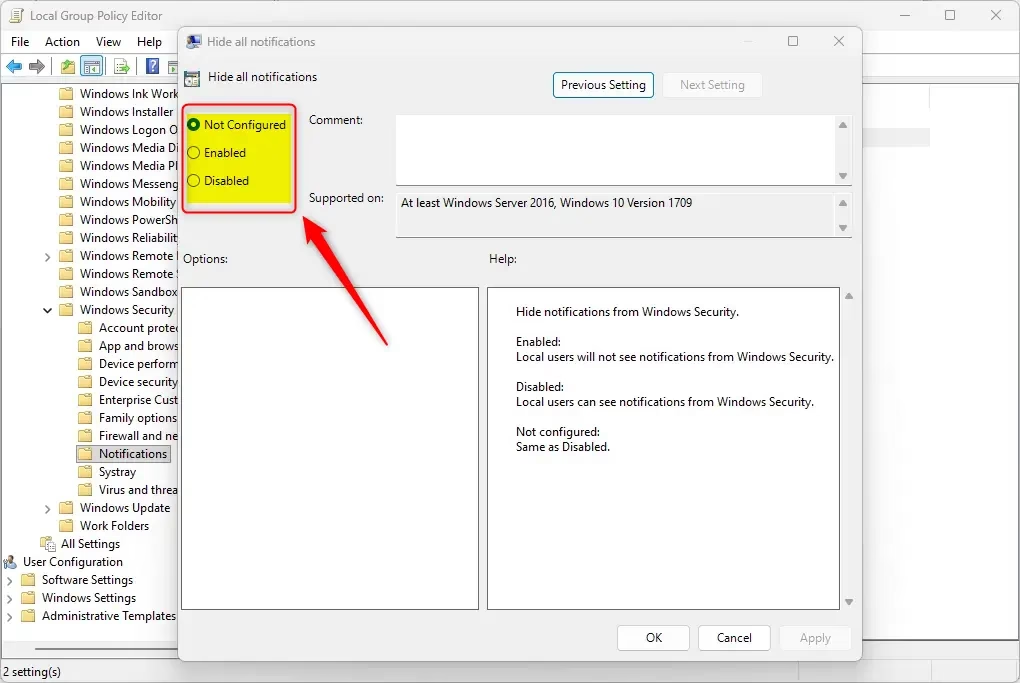
Computer Configuration > Administrative Templates > Windows Components > Windows Security > Notifications - Look at the right pane. Double-click on Hide all notifications to edit it.
- To enable (turn on ) all notifications:
- Select the dot next to Not Configured
- Click OK
- To disable (turn off ) all notifications:
- Select the dot next to Enabled
- Click OK
- Close the Local Group Policy Editor.
Option 2Using Registry with Commands
If you have Windows 11 Home or any other edition, you can disable all Windows Security notifications by using commands in the Registry Editor.
Right-click on Windows Terminal and choose Run as administrator
To enable (turn on ) all notifications: Copy and paste this command:
[HKEY_LOCAL_MACHINE\SOFTWARE\Microsoft\Windows Defender Security Center\Notifications]
"DisableNotifications"=-
[HKEY_LOCAL_MACHINE\SOFTWARE\Policies\Microsoft\Windows Defender Security Center\Notifications]
"DisableNotifications"=-
[HKEY_LOCAL_MACHINE\SOFTWARE\Policies\Microsoft\Windows Defender Security Center\Notifications]
"DisableEnhancedNotifications"=-
To disable (turn off ) all notifications: Copy and paste this command:
reg delete "HKLM\SOFTWARE\Microsoft\Windows Defender Security Center\Notifications" /v DisableNotifications /f
reg add "HKLM\SOFTWARE\Policies\Microsoft\Windows Defender Security Center\Notifications" /v DisableNotifications /t REG_DWORD /d 1 /f
Press Enter and wait for the command to finish.
Summary
You’ve learned two methods to control Windows Security notifications: one using Group Policy Editor for Pro/Enterprise/Education versions and another using Registry commands for all Windows editions.
Should I disable Windows Security notifications on startup?
It’s usually best to keep Windows Security notifications on, especially at startup, unless another antivirus program causes problems.
How do I get rid of fake Windows Security alerts?
To get rid of fake Windows Security alerts, which are usually browser scams, clear your browser’s cache and cookies, and reset its settings.
How do I turn off security notifications on 🪟 Windows 11?
You can turn off security notifications on Windows 11 using the Local Group Policy Editor for Pro, Enterprise, or Education versions, or by editing the Registry for Home editions.
How do I know if a Microsoft security alert is real in Windows?
Real Microsoft security alerts show up directly in the Windows Security app or the Action Center, not as pop-ups in your web browser.
Was this guide helpful?
100% of readers found this helpful (1 votes)

About the Author
Richard
Tech Writer, IT Professional
Richard, a writer for Geek Rewind, is a tech enthusiast who loves breaking down complex IT topics into simple, easy-to-understand ideas. With years of hands-on experience in system administration and enterprise IT operations, he’s developed a knack for offering practical tips and solutions. Richard aims to make technology more accessible and actionable. He's deeply committed to the Geek Rewind community, always ready to answer questions and engage in discussions.




Is there an app I should have to block all intruders in my personal computer?
I am computer illitertate. Are there PC businesses I can pay to protect my laptop?
Are there computer businesses of whom I can hire one to protect my PC from hackers?
Are there businesses I can hire to protect my PC from hackers?
gparkerson074@gmail.com