
This article covers how to turn the “Copilot Actions” feature on or off in the Copilot app for Windows 11.
When Copilot is installed on Windows, you can enable or disable it, open Copilot when Windows starts, Pin or Unpin the Copilot side panel, Resize the Copilot side panel, delete chat history in Copilot, create a desktop shortcut, hide the sidebar, use your phone with Copilot, and more.
Starting with version 1.25112.74 of the Copilot app, Microsoft has rolled out new Copilot Actions to Windows Insiders worldwide, except in the EEA region.
Copilot Actions can do the heavy lifting for you as a general purpose agent— simply describe the task you want to complete in your own words, and the agent will attempt to complete it by interacting with desktop and web applications.
Enable Copilot Actions
A new Microsoft feature allows Copilot to complete tasks for you in the Desktop app and on the web.
Here’s how to do it.
First, open the Copilot app.
If you haven’t signed into Copilot yet, please do so with your Microsoft account to sync your settings.
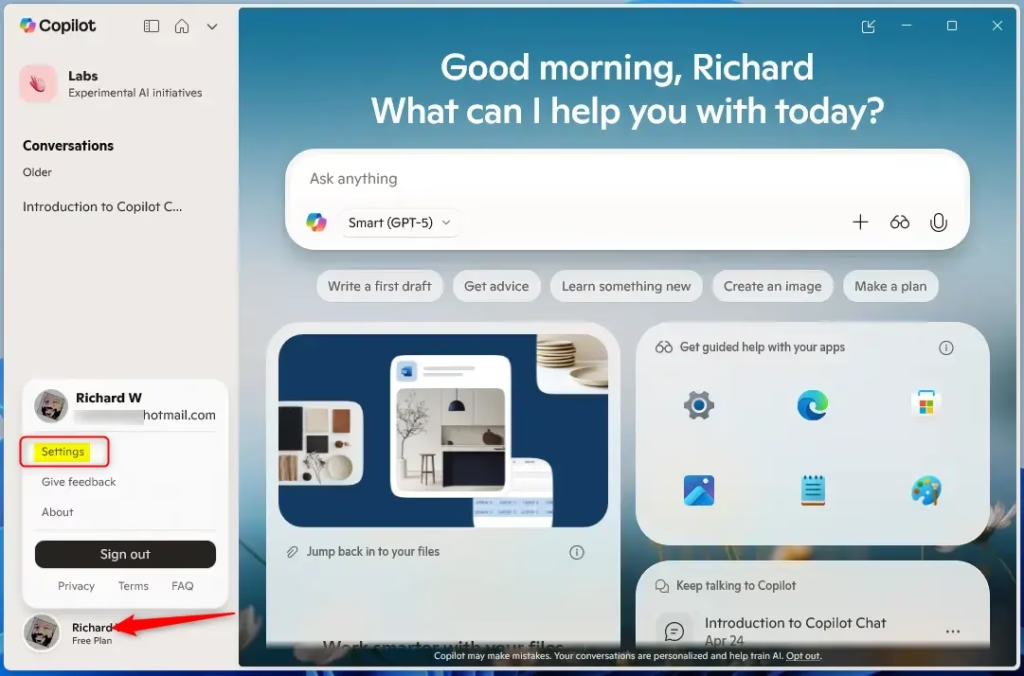
Next, click the Account button and select Settings in full view mode.
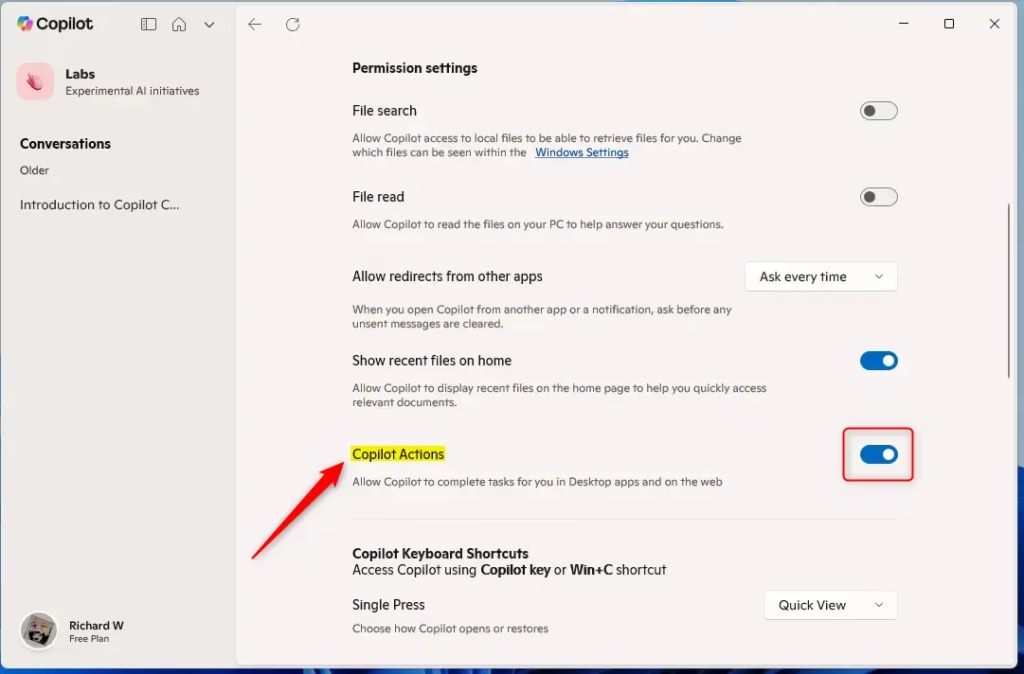
On the Settings page, navigate to the Permission settings and select “Copilot Actions” Toggle the button to enable or disable this feature.
Exit the settings page when finished.
That should do it!
Reference:
Conclusion:
In summary, enabling or disabling the Copilot Actions feature in the Copilot app for Windows 11 is a straightforward process, allowing users to customize their experience. Here are the key points:
- User-Friendly Interface: The Copilot app provides an intuitive interface for managing settings.
- Account Integration: Ensure you’re signed in with a Microsoft account for personalized settings.
- Settings Navigation: Access the “Account” and then “Settings” to find the Copilot Actions toggle.
- Enhanced Productivity: Copilot Actions streamline tasks, making it easier to interact with applications.
- Quick Adjustments: Users can quickly enable or disable features based on their preferences.
By following these steps, you can make the most of the Copilot Actions and enhance your productivity on Windows 11.



Leave a Reply Cancel reply