This guide will help you turn on or off a special feature in Windows 11 called Narrator. Narrator reads the text on your screen out loud and can also read extra details, like help tips and button info.
What is Narrator?
Narrator is a free tool built into Windows that helps people who have trouble seeing by reading the screen out loud.
With Narrator, you can do many things like:
- Turn keyboard shortcuts on or off
- Make Narrator start automatically
- Change the voice, speed, and volume
- Add or remove natural voices
- Lower other app sounds when Narrator is talking
- And many more!
One helpful setting lets you choose if Narrator reads advanced details like help text or info about buttons. This can make Narrator tell you extra things like font size and color, or just keep things simple.
How to Turn On or Off Advanced Details in Narrator
Follow these easy steps to change this setting:
- Open Settings:
Click the Start menu (the Windows icon in the bottom-left corner) and choose Settings.
Or press Windows key + I on your keyboard to open Settings quickly.
- In Settings, click Accessibility in the left menu.
- On the right side, find and click Narrator to open its settings.
- Scroll down to the Verbosity section and click on Verbosity level to expand it.
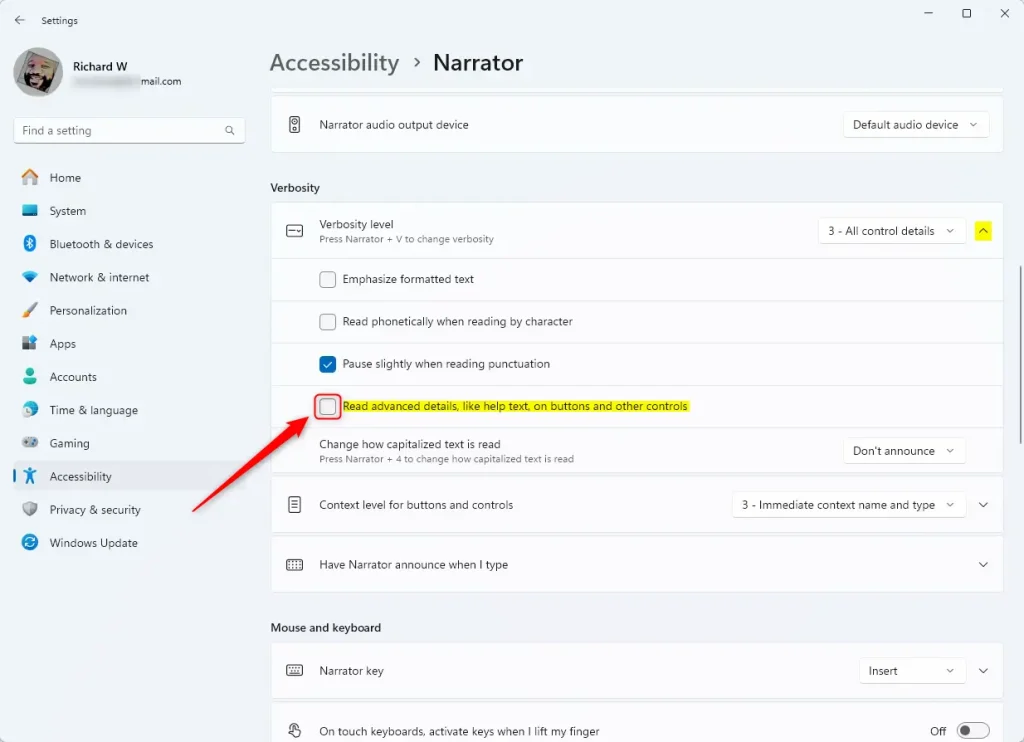
- Find the option that says Read advanced details, like help text, on buttons and other controls and switch it On or Off depending on what you want.
- Close the Settings window when you’re done.
Here are some pictures to help you find the right settings:

Summary
- Turning on advanced details makes Narrator give more info about what’s on your screen, like help tips and button details.
- This is great for people who want a fuller description of what they see.
- If you prefer a simpler readout, you can turn advanced details off.
- Changing this setting is easy and can make using your computer easier and more personal.
If you want to learn more about Narrator and other helpful Windows 11 features, check out these guides:
- How to Turn On or Off Narrator in Windows 11
- How to Change Narrator Voice, Speed, and Volume
- How to Start Narrator Automatically


Leave a Reply Cancel reply