How to Edit Desktop Stickers in Windows 11

This guide explains how to customize desktop stickers in Windows 11.
Desktop stickers are a hidden feature in Windows 11. They are not turned on by default. To use them, you must change settings in the Windows Registry. We do not recommend this for most users because it is complex and carries risks.
Why use desktop stickers? You can add fun graphics to your desktop that stay visible even if you change your wallpaper.
What happens when done? You will be able to move, resize, and add custom stickers to your screen.
If you have already enable stickers and are using them on your desktop, follow these steps to manage your stickers.
Editing Stickers on Your Desktop
If you have enabled this feature, you can edit your stickers using the right-click menu. Right-click on an empty space on your desktop and select Add or edit stickers.
You can add more stickers by clicking the button on the stickers pane.
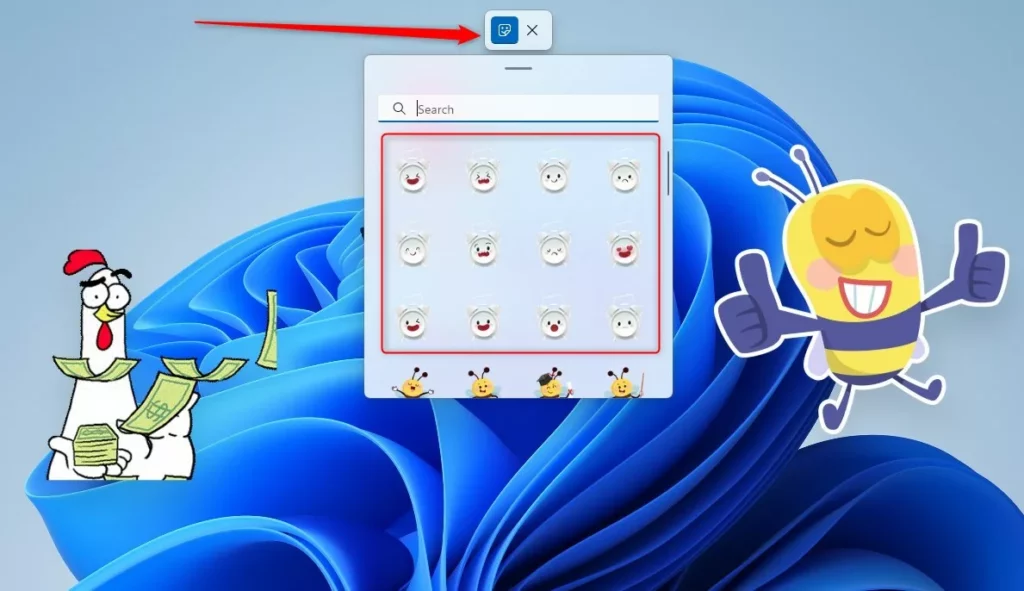
To edit a sticker, click on it or hover your mouse over it. You can then:
- Resize: Drag the dots on the corners of the sticker to make it bigger or smaller.
- Move: Click and drag the sticker to any spot on your desktop.
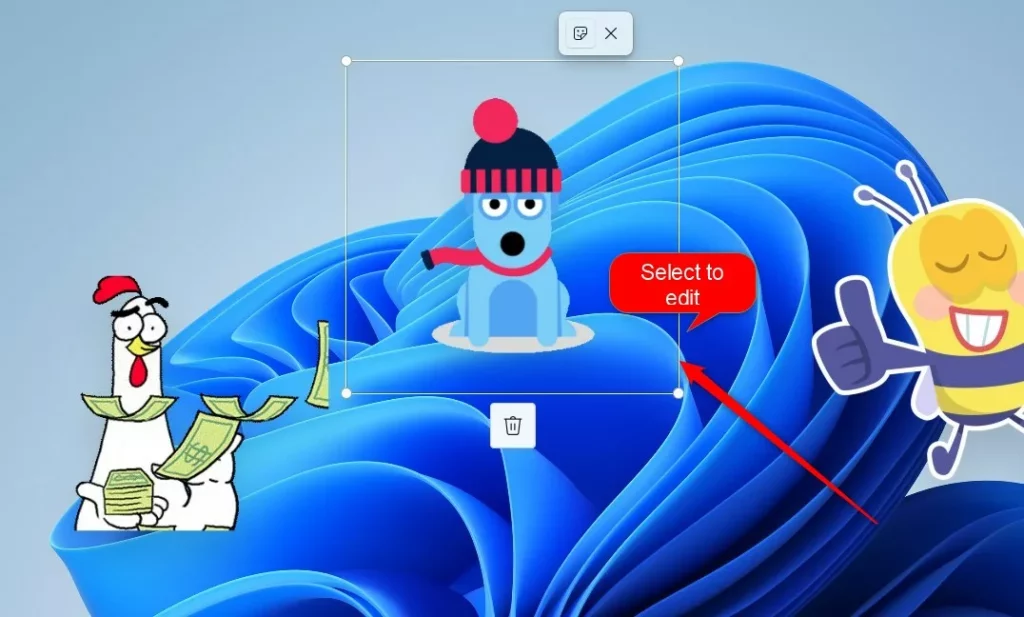
When you are finished, click the Close (X) button on the toolbar to exit the editor.

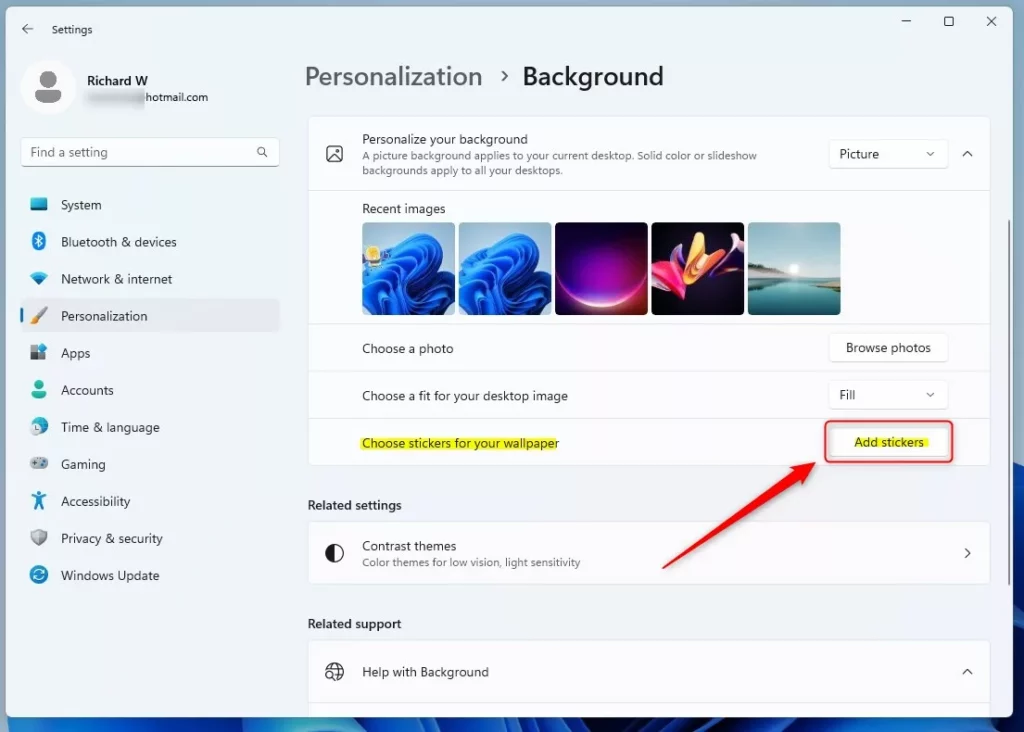
You can also open the sticker editor through your computer settings. Go to Start > Settings > Personalization > Background. Click on the Choose stickers for your wallpaper tile and select the Add stickers button.
Note: If you need to enable this feature via the registry, you must have Admin privileges. You would typically navigate to HKEY_LOCAL_MACHINE\SOFTWARE\Microsoft\Windows\CurrentVersion\Stickers to manage these settings.
Summary
Desktop stickers are a hidden Windows 11 feature that lets you personalize your screen. Enabling them requires modifying the Windows Registry, which is risky for your system. If enabled, you can easily manage stickers by right-clicking your desktop or visiting your Personalization settings to move, resize, or add new images to your wallpaper.
Was this guide helpful?

About the Author
Richard
Tech Writer, IT Professional
Richard, a writer for Geek Rewind, is a tech enthusiast who loves breaking down complex IT topics into simple, easy-to-understand ideas. With years of hands-on experience in system administration and enterprise IT operations, he’s developed a knack for offering practical tips and solutions. Richard aims to make technology more accessible and actionable. He's deeply committed to the Geek Rewind community, always ready to answer questions and engage in discussions.


No comments yet — be the first to share your thoughts!