
Windows 11 plays a startup sound when your computer boots up. This sound plays right before you see the login screen. Some people find this sound annoying and want to turn it off. The good news is that disabling it is easy, even if you’ve never done it before.
Why Disable the Startup Sound?
The startup sound can be disruptive, especially if you boot your computer early in the morning or in a quiet environment. Turning it off gives you a quieter start to your day.
What Happens When You Disable It?
Once you disable the startup sound, your computer will boot silently without playing any audio during startup.
Method 1: Use the Settings App
This is the easiest way for most people.
- Open the Settings app. Click the Start menu and select Settings. Or press Windows key + I on your keyboard.
- Click System on the left side.
- Click the Sound tile on the right to open sound settings.

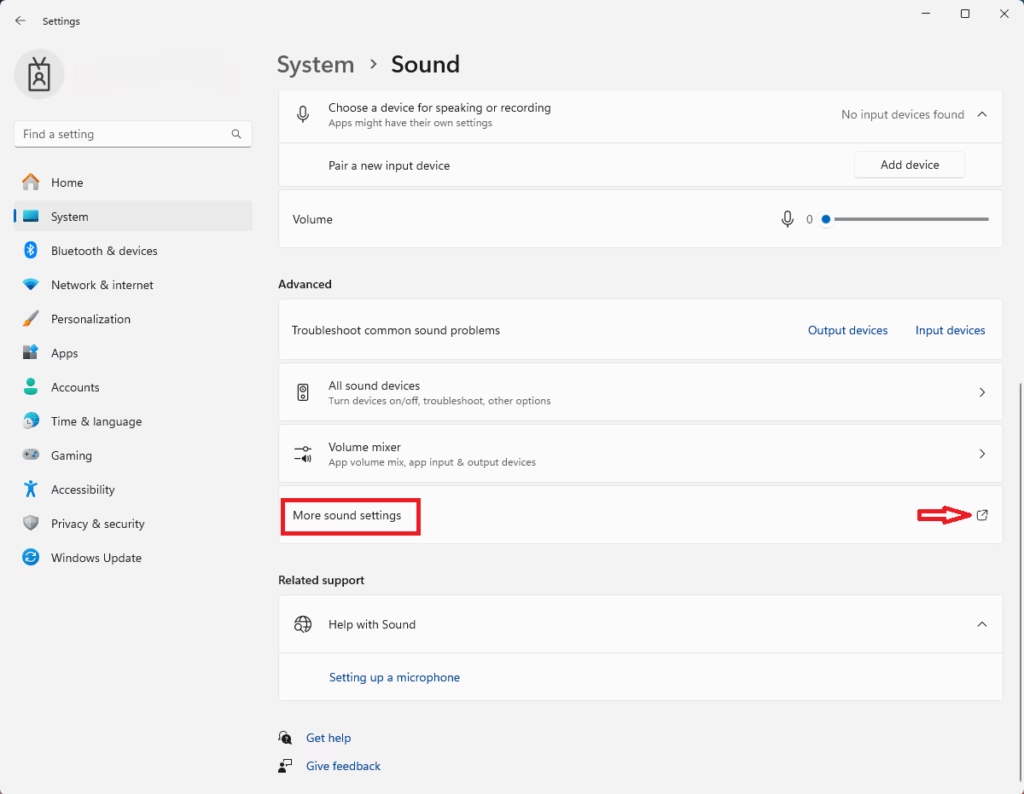
- Scroll down and click “More sound settings” at the bottom of the page.
- A new window will open. Click the “Sounds” tab.
- Find the box that says “Play Windows Startup sound”. Click the checkbox to uncheck it.
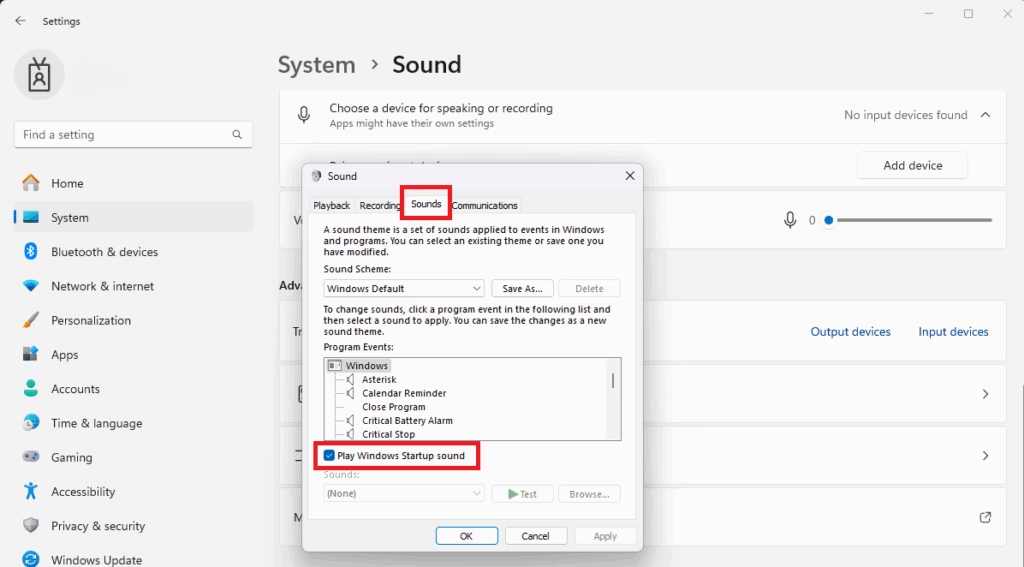
- Click “Apply” and then “OK”. You’re done!
Method 2: Use the Registry Editor (Advanced)
This method is for users comfortable with advanced settings. You will need administrator access to do this.
- Admin required: Press Windows key + R to open the Run dialog.
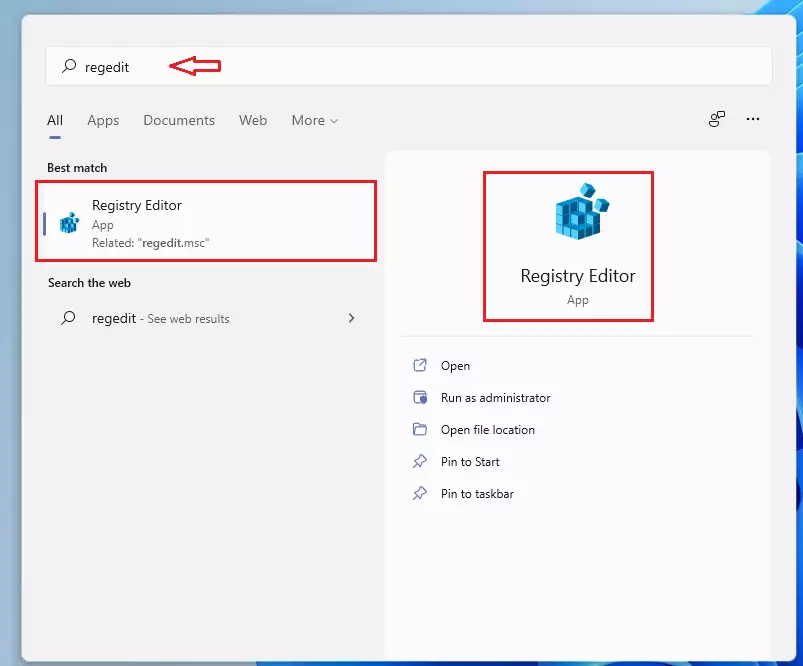
- Type
regeditand press Enter. - If asked for permission, click “Yes”.
- In the Registry Editor window, navigate to this path by copying and pasting it into the address bar at the top:
HKEY_LOCAL_MACHINE\SOFTWARE\Microsoft\Windows\CurrentVersion\Authentication\LogonUI\BootAnimation
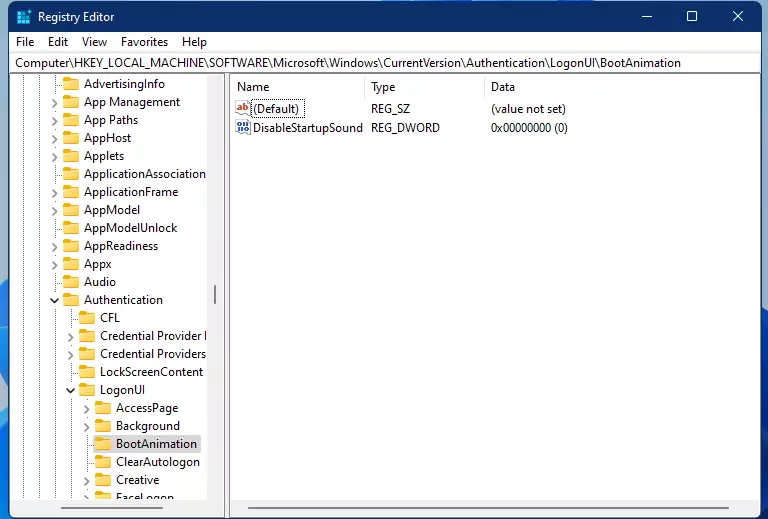
- In the right panel, find the item called “DisableStartupSound”. Double-click it.
- A small dialog box will appear. Change the value from 0 to 1.
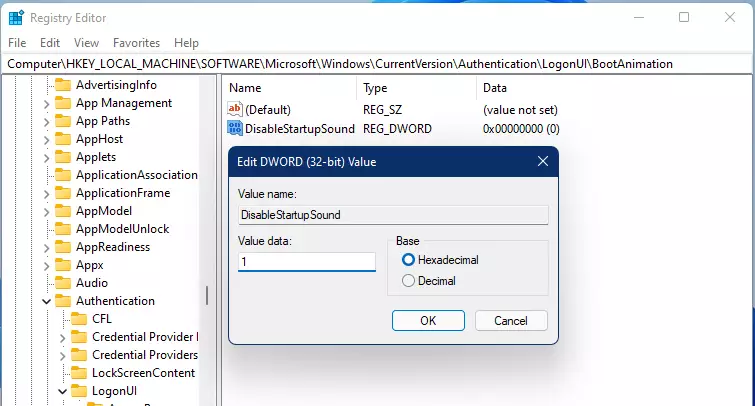
- Click “OK” to save the change.
- Close the Registry Editor window. You’re finished!
Value meanings:
- 0 = Startup sound is on
- 1 = Startup sound is off
Summary
Disabling the Windows 11 startup sound is simple and takes just a few minutes. You have two choices:
- Settings App Method: This is easier and works for anyone. Just open Settings, go to Sound, and uncheck the startup sound box.
- Registry Method: This is more advanced but gives you another way to disable the sound if the Settings method doesn’t work.
Once you disable the startup sound, your computer will boot quietly. You can always turn it back on by checking the box again or changing the registry value back to 0.



Leave a Reply