How to Disable Driver Signature Enforcement in Windows 11

You disable driver signature enforcement in Windows 11 to install unsigned drivers that Windows normally blocks.
Driver signature enforcement is a security feature in Windows. It checks that hardware drivers are digitally signed (basically, approved) by Microsoft or the hardware maker. This stops malicious software from running.
Many older or custom hardware drivers don’t have this digital signature. Windows 11, to keep your system safe, blocks them by default. If you need to install a driver that Windows flags as unsigned – maybe for old hardware or during some development work – you’ll need to temporarily turn off this protection. Our guide walks you through the exact steps for Windows 11, often requiring access to the Advanced startup options.
You can disable driver signature enforcement in Windows 11 by restarting into Advanced Startup, navigating to Startup Settings, and pressing 7 or F7. Alternatively, use the Command Prompt with the command bcdedit /set nointegritychecks off. This allows the installation of unsigned drivers.
What is Driver Signature Enforcement?
Driver signature enforcement is a Windows 11 security setting that checks if drivers are approved by Microsoft before you can install them.
But sometimes you might need older drivers or special drivers. These drivers might not be signed by Microsoft. When this happens, Windows won’t let you install them. You have to temporarily turn off driver signature enforcement to install them.
Important Note
Disabling driver signature enforcement can make your computer less secure. Only turn it off if you trust the driver you want to install.
How to Turn Off Driver Signature Enforcement in 🪟 Windows 11
You can turn off driver signature enforcement in Windows 11 by first turning off BitLocker and Secure Boot, then restarting your computer into Advanced Startup.
- Turn off BitLocker and Secure Boot (if enabled). BitLocker is a security feature that encrypts your drive. Secure Boot helps protect your PC from malicious software during startup. You can read how to turn off BitLocker here and how to disable Secure Boot here.
- Restart Windows into Advanced Startup Mode. Click
Start > Settings > System > Recovery. Under Recovery options, click theRestart nowbutton next to Advanced startup.
- When Windows restarts, select
Troubleshoot.
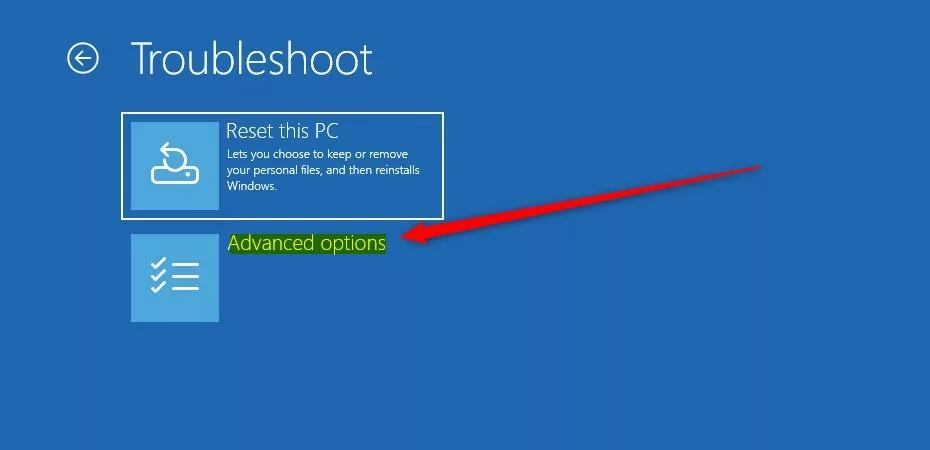
- Click
Advanced options. - Select
Startup Settings.
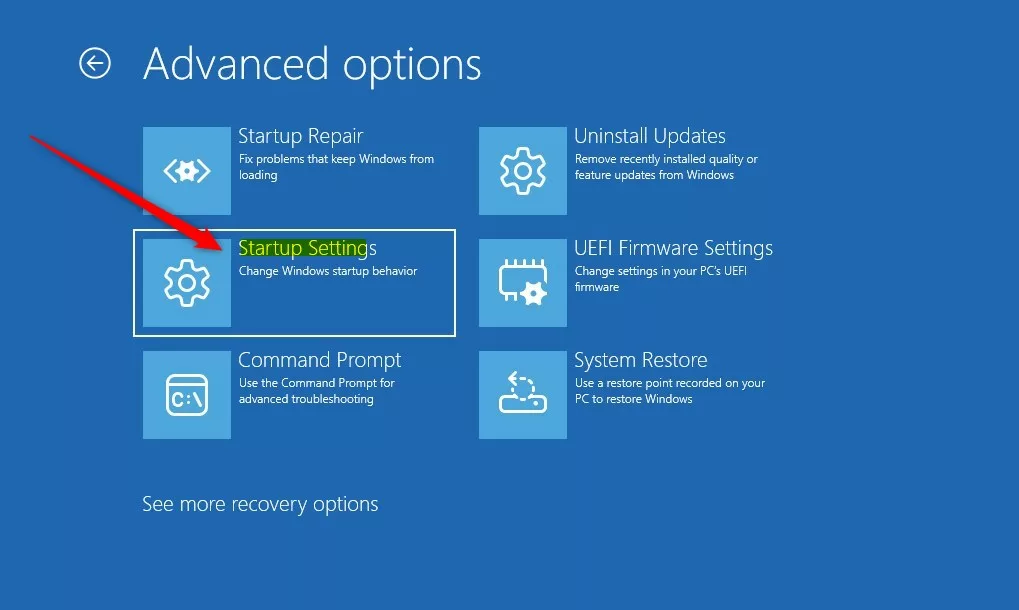
- Click
Restart.
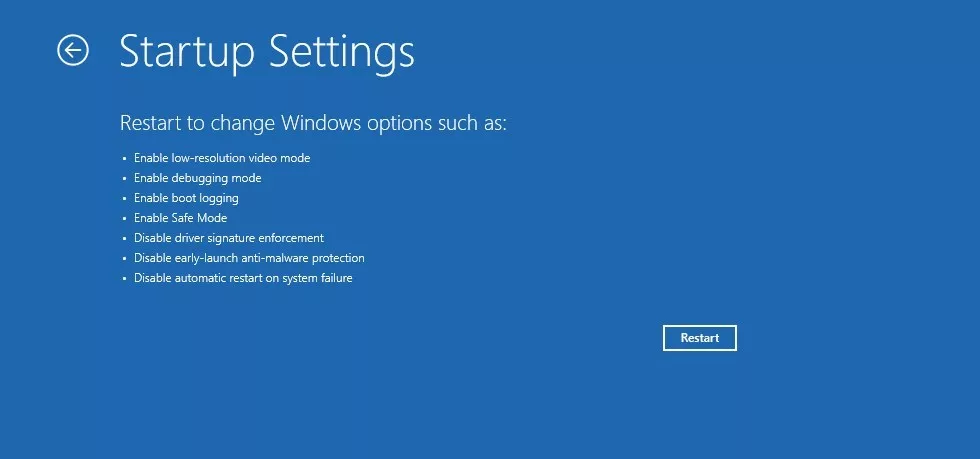
- After your PC restarts, press
7orF7on your keyboard. This will disable driver signature enforcement.
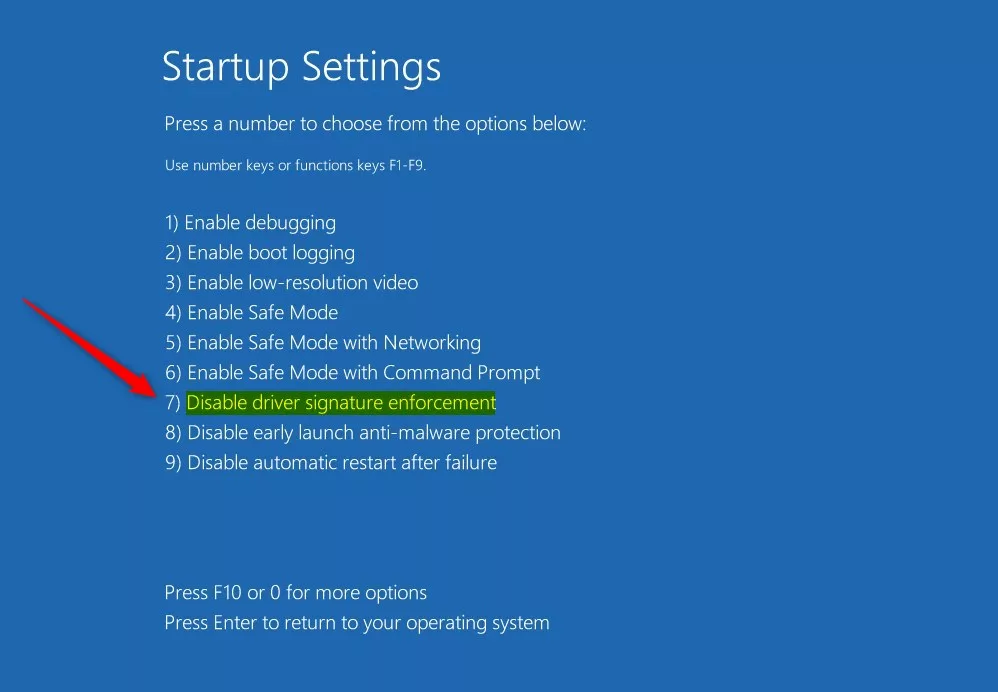
Your PC will now start up normally, with driver signature enforcement disabled. You can install unsigned drivers while this mode is active.
To Turn Driver Signature Enforcement Back On
To turn it back on, repeat the steps above. This time don’t press 7 or F7. Instead, let Windows boot normally. Or restart your PC normally to re-enable the feature.
How to Enable or Disable Driver Signature Enforcement Using Command Prompt
You can disable driver signature enforcement using the Command Prompt by first making sure BitLocker and Secure Boot are off, then opening Windows Terminal as an administrator.
- Make sure BitLocker is off and Secure Boot is disabled (see links above).
- FLAG: Admin privileges required. Open Windows Terminal as an Administrator. You can read how to open Windows Terminal as admin here.
- Switch to the Command Prompt tab inside Windows Terminal.
- To disable driver signature enforcement, type this command and press Enter:
bcdedit /set nointegritychecks off - To enable driver signature enforcement again, type this command and press Enter:
bcdedit /set nointegritychecks on - Restart your computer to apply the changes.
Summary
- Driver signature enforcement helps keep your Windows 11 PC safe. It only allows trusted drivers.
- You can temporarily turn off this feature to install unsigned drivers if you need to.
- Use the Advanced Startup menu or Command Prompt to turn this feature on or off.
- Always be careful. Only install drivers from sources you trust.
Driver signature enforcement is a Windows 11 safety feature that only lets you install trusted drivers to keep your PC secure.
How do I disable driver signature enforcement test mode?
Choose Troubleshoot > Advanced options > Startup Settings and click the Restart button. When your computer restarts you’ll see a list of options. Press F7 on your keyboard to select Disable driver signature enforcement. Your computer will now restart and you’ll be able to install unsigned drivers.
What does driver signature enforcement do?
Windows driver signature enforcement is a highly effective security tool. It determines whether a driver is safe and can be installed or should be blocked because of security-related concerns.
Was this guide helpful?

About the Author
Richard
Tech Writer, IT Professional
Richard, a writer for Geek Rewind, is a tech enthusiast who loves breaking down complex IT topics into simple, easy-to-understand ideas. With years of hands-on experience in system administration and enterprise IT operations, he’s developed a knack for offering practical tips and solutions. Richard aims to make technology more accessible and actionable. He's deeply committed to the Geek Rewind community, always ready to answer questions and engage in discussions.



No comments yet — be the first to share your thoughts!