

Does your Caps Lock key accidentally turn everything into uppercase letters? This can make typing passwords or sensitive information really frustrating.
The good news is you can turn off the Caps Lock key in Windows 11. Don’t worry—you’ll still be able to make uppercase letters by holding the Shift key and pressing a letter.
How to Disable Caps Lock Using the Windows Registry Editor
The easiest way to disable Caps Lock is by changing a setting in the Windows Registry Editor. This tool lets you change how Windows works.
Important: Be careful when using the Registry Editor. Changing the wrong settings can cause problems. Follow these steps exactly.
If you want to learn more about opening the Registry Editor first, check this guide: How to Open the Registry in Windows 11.
Step-by-Step Instructions:
- Press Windows key + R on your keyboard to open the Run box.
- Type
regeditand press Enter. This opens the Registry Editor. - If a security prompt appears, click Yes to continue. ⚠️ Admin privileges required
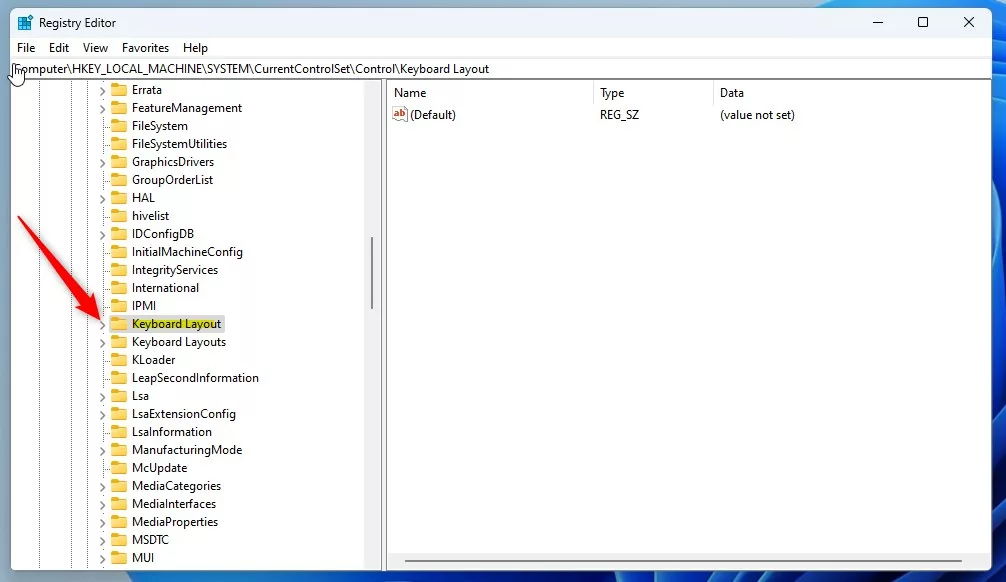
- In the Registry Editor, navigate to this folder path:
HKEY_LOCAL_MACHINE\SYSTEM\CurrentControlSet\Control\Keyboard Layout - If you don’t see the Keyboard Layout folder, right-click on Control, choose New > Key, and name it Keyboard Layout.
- Click on the Keyboard Layout folder to select it.
- In the right pane, right-click on an empty space and select New > Binary Value.
- Name this new value
Scancode Map. - Double-click on Scancode Map to edit it, and enter this value exactly (including commas and zeros):
00,00,00,00,00,00,00,00,02,00,00,00,00,00,3a,00,00,00,00,00 - Click OK to save.
- Close the Registry Editor.
- Restart your computer to apply the change.
After restarting, the Caps Lock key will no longer work. You can still use Shift + letter to type capital letters.
Why Disable Caps Lock?
- Prevents accidentally typing in all caps, especially when entering passwords.
- Makes typing easier and reduces mistakes.
- You still have the option to capitalize letters with the Shift key.
Want to Turn Caps Lock Back On?
If you want to enable Caps Lock again, just delete the Scancode Map value in the Registry Editor and restart your computer. ⚠️ Admin privileges required
Summary
Disabling Caps Lock in Windows 11 is simple and takes just a few minutes. Using the Registry Editor, you can prevent the Caps Lock key from working while still keeping the ability to type uppercase letters with the Shift key. Remember to be careful when making changes to the Registry, and always restart your computer after making the change. If you ever want to turn Caps Lock back on, you can easily reverse the process by deleting the value you created.



Leave a Reply