

This article explains how to pause Windows Update from automatically downloading and installing updates for up to 20 years in Windows 11.
What is Windows Update?
Windows Update is a service by Microsoft that provides regular updates and patches for the Windows operating system. These updates usually include security fixes, bug fixes, and performance improvements that help keep your computer running smoothly and protect it from various security threats.
You cannot entirely disable Windows Update but you can pause the service for up to 20 years. This effectively stops new updates until you are ready to resume updates and check for updates manually.
Why Would You Want to Pause Updates?
There are several reasons why someone may want to pause automatic updates in Windows:
- Compatibility issues: Some updates can cause compatibility issues with certain hardware or software. This can lead to system instability or crashes.
- Bandwidth concerns: Automatic updates can consume significant bandwidth and slow down your internet connection. This is especially true if you have limited data usage.
- Control over installation: Some people prefer more control over when and which updates to install. Automatic updates can sometimes interrupt important tasks or cause inconvenience if installed at bad times.
How to Pause Windows Updates for Up to 20 Years
You can pause automatically downloading and installing updates on Windows for up to 20 years. Here’s how to do it.
Step 1: Open the Registry Editor
First, open Windows Registry Editor.
Step 2: Navigate to the Registry Key
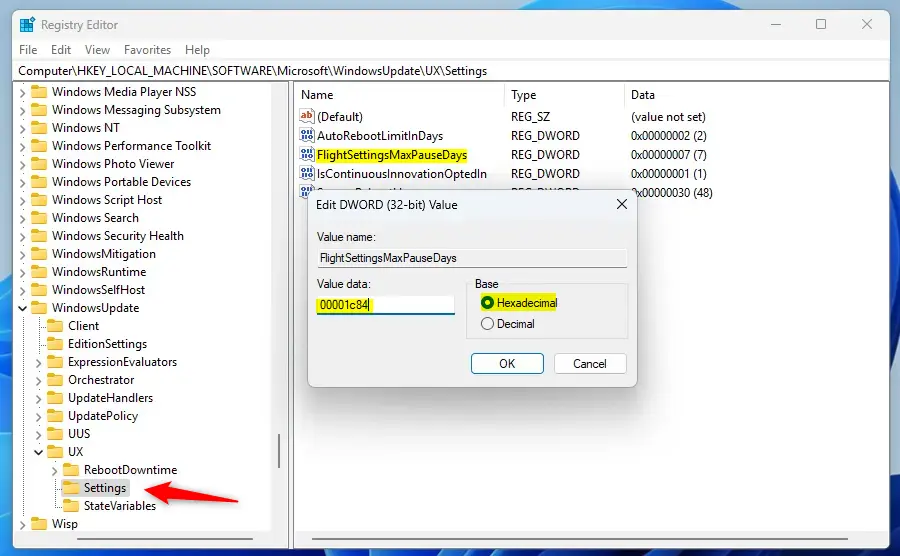
Then, navigate to the registry key below:
Computer\HKEY_LOCAL_MACHINE\SOFTWARE\Microsoft\Windows\Update\UXSettingsStep 3: Modify the FlightSettingsMaxPauseDays Value
⚠️ Requires Admin Privileges
Next, double-click the FlightSettingsMaxPauseDays (REG_DWORD) name on the right pane to open it.
Then, enter a [Hexadecimal] value of 00001c84 to allow pausing Windows Update for up to 20 years.
If you do not see the “FlightSettingsMaxPauseDays” item, right-click a blank area and create a new DWORD (32-bit) registry item.
Then, enter the name “FlightSettingsMaxPauseDays” and enter a [Hexadecimal] value of 00001c84 to allow pausing Windows Update for up to 20 years.
Step 4: Open Windows Settings
After updating the Registry Editor, open the Windows Settings app. Then, select Windows Update on the left menu and click the “Pause for 1 week” button.
Step 5: Choose Your Pause Duration
Then, use the drop-down options to choose how long to pause Windows updates.
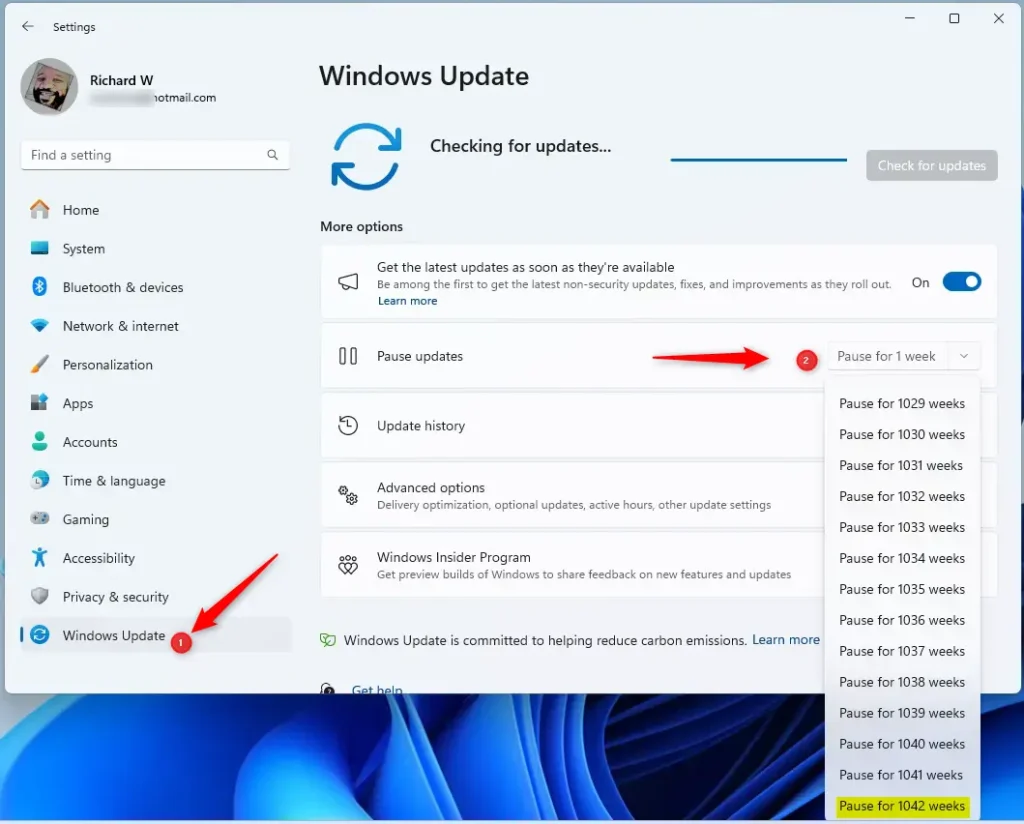
Windows Update is paused until 2044 in this example.
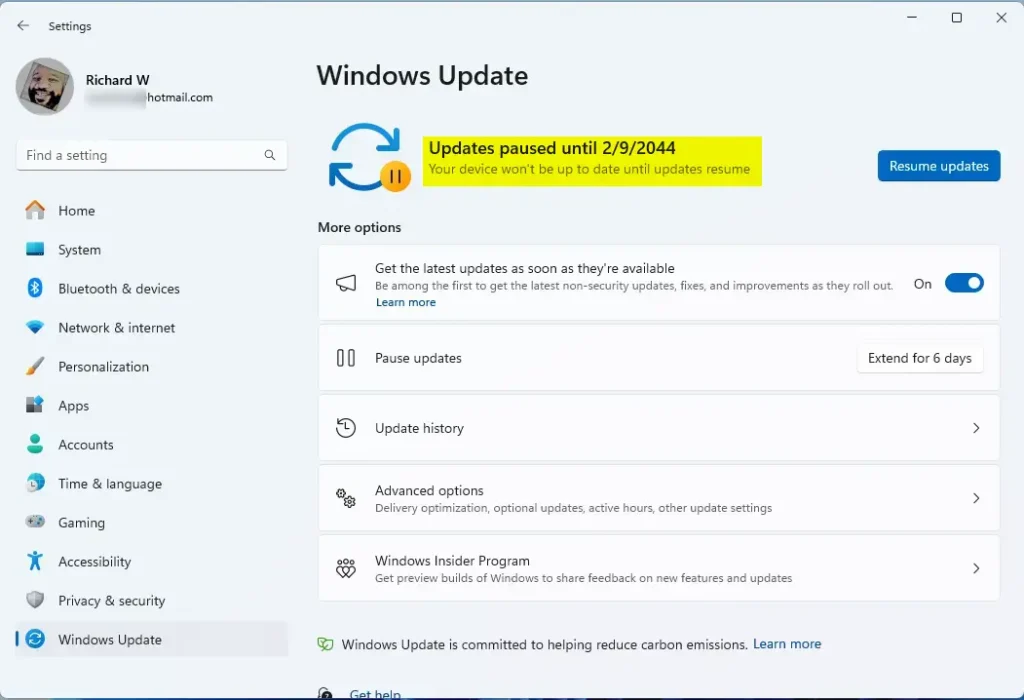
That’s it! You’re done.
Summary
You can now pause Windows updates for an extended period. This gives you more control over your system’s update schedule. Pausing updates can help prevent compatibility issues, conserve bandwidth, and reduce interruptions during important tasks. The process involves editing the Windows Registry to increase the maximum pause duration, then using the Windows Settings app to set your desired pause period.


Leave a Reply Cancel reply