How to Change Windows Terminal Themes

You can easily change your Windows Terminal theme to customize its appearance and boost your productivity.
Windows Terminal is a modern, tabbed command-line application that acts as a unified interface for various shells like Command Prompt, PowerShell, and WSL. It allows extensive personalization, including themes, color schemes, and fonts, making your command-line experience more visually appealing and comfortable.
For example, choosing a dark theme can significantly reduce eye strain during extended work sessions. You can select from numerous pre-installed color schemes or even create your own.
Windows Terminal version 1.10 introduced the ability to set custom themes directly through its settings JSON file.
Open Windows Terminal, click the down arrow, select Settings, go to Appearance, and choose your preferred theme from the Application Theme menu. Save your changes to apply the new look.
How to change your Terminal theme
Changing your Windows Terminal theme is simple and can be done right from the app’s settings menu.
- Open the Windows Terminal app. You can do this by clicking the Start menu, typing “Terminal,” and selecting the app.
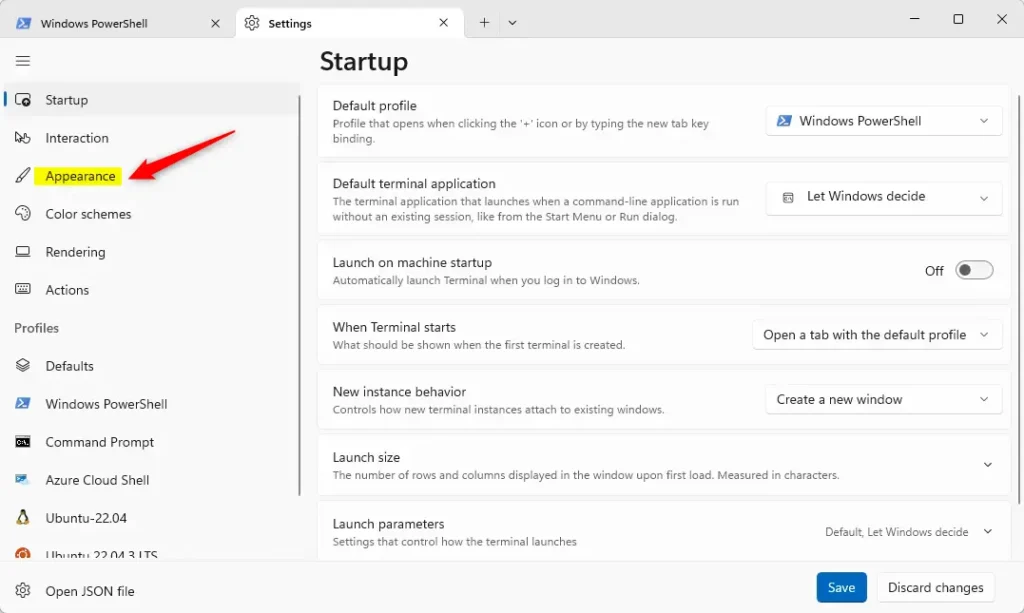
- Click the down arrow in the top bar of the Terminal window. Select Settings (or press Ctrl + , on your keyboard).

- On the left side of the screen, click the Appearance tab.
- On the right side, find the Application Theme box. Use the menu to pick Dark, Light, or Use Windows theme.
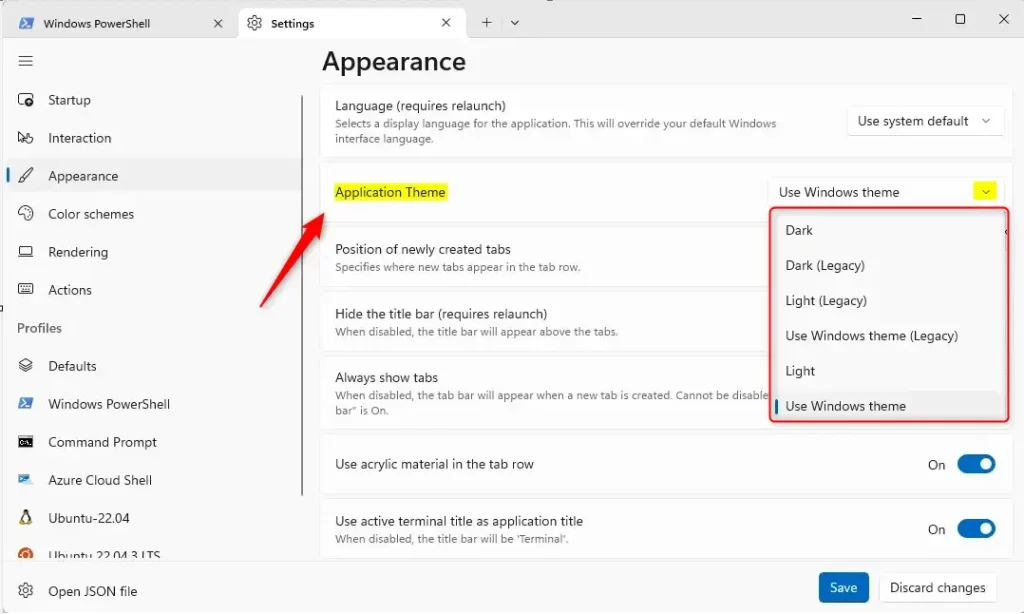
- Click the Save button at the bottom to finish.
Note: These settings are specific to your user profile. You do not need admin privileges to change these appearance settings.
Summary
- Terminal themes allow you to switch between Light and Dark modes.
- Using a dark theme can help reduce eye strain in low-light rooms.
- Custom themes make it easier to manage multiple open tabs or windows.
- The “Use Windows theme” setting keeps your app consistent with your system settings.
How to change terminal color in 🪟 Windows 11?
Now I'm going to go down to where it says appearance. Click on appearance. And you can see the color scheme is showing here. So I'm going to hit the drop-down.
Was this guide helpful?

About the Author
Richard
Tech Writer, IT Professional
Richard, a writer for Geek Rewind, is a tech enthusiast who loves breaking down complex IT topics into simple, easy-to-understand ideas. With years of hands-on experience in system administration and enterprise IT operations, he’s developed a knack for offering practical tips and solutions. Richard aims to make technology more accessible and actionable. He's deeply committed to the Geek Rewind community, always ready to answer questions and engage in discussions.



No comments yet — be the first to share your thoughts!