
What is a Storage Pool?
A Storage Pool is like combining several smaller boxes into one big box. Your computer sees this big box as a single drive, even though it’s actually made up of several drives working together.
Why would you want this? Storage Pools help keep your files safe. They can make extra copies of your data. So if one hard drive stops working, you won’t lose your important files.
How to Create a Storage Pool in Windows 11
Follow these simple steps to make a storage pool on your Windows 11 computer:
- Open Settings
Click the Start menu and choose Settings. Or press the Windows key + I on your keyboard. Learn more about opening Settings

Click System in Settings.
- Go to Storage
In the System section, find and click on Storage.

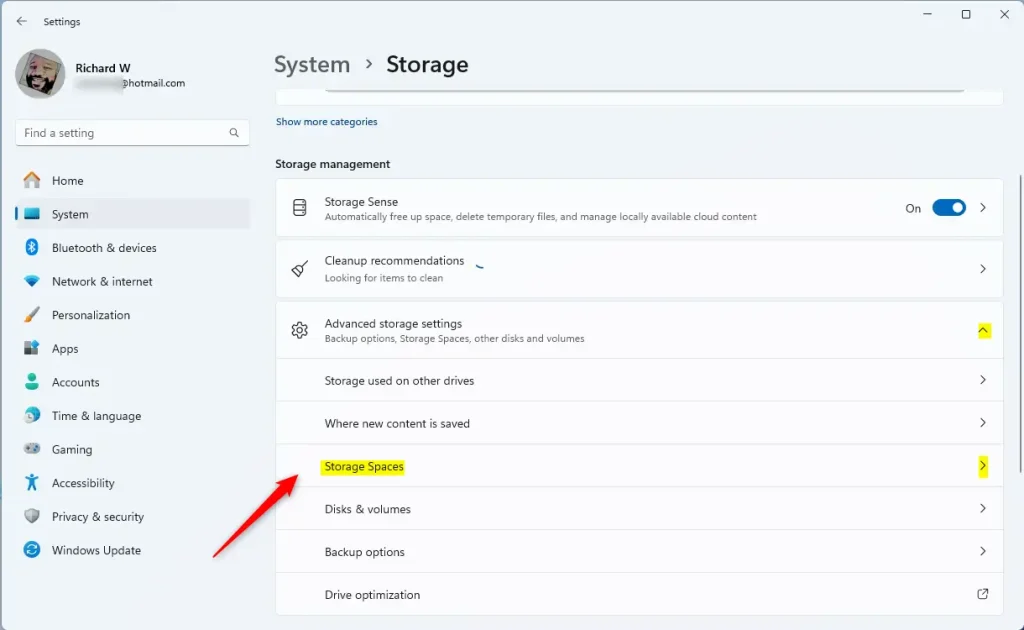
- Open Storage Spaces
Scroll down and click on Advanced storage settings. Then select Storage Spaces.
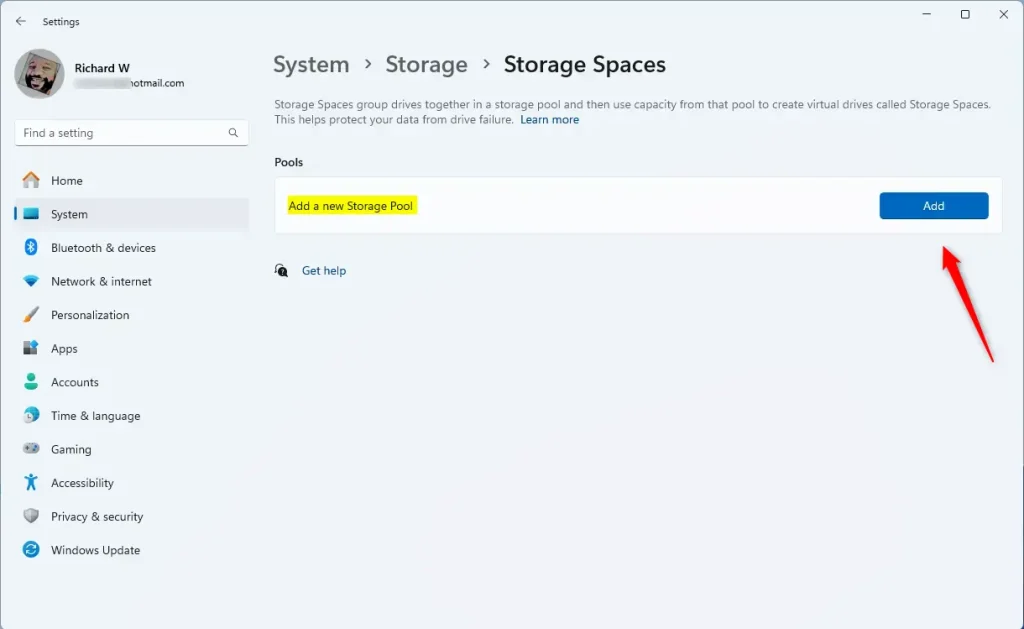
- Create a New Storage Pool
Click the Add button under “Add a new Storage Pool.”
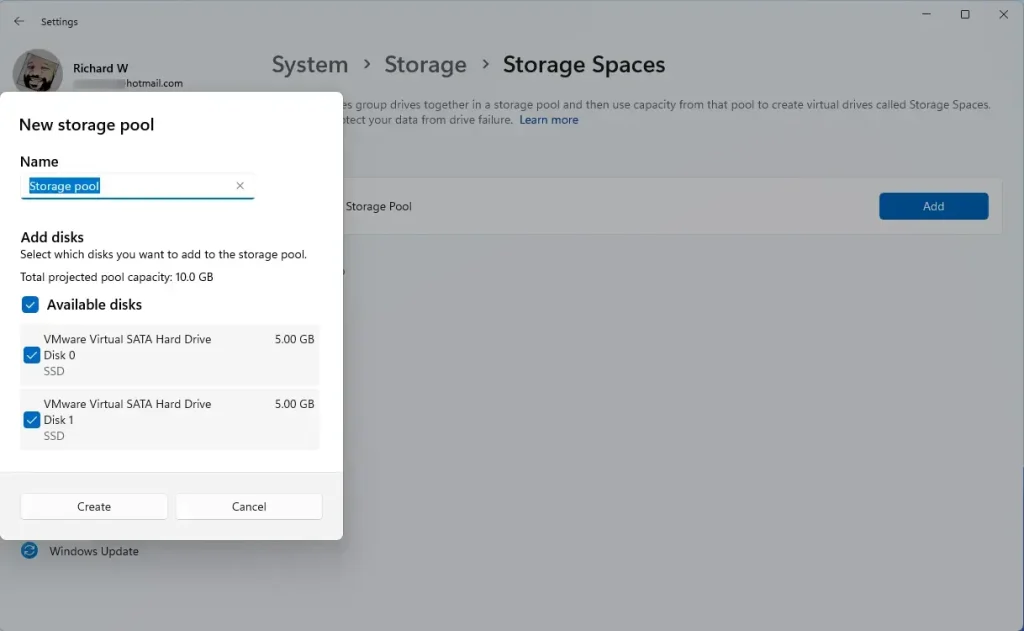
- Name Your Storage Pool and Pick Drives
Enter a name for your new storage pool.
Select at least two extra drives. They can be internal or external drives. These drives will be combined together.
Then click Create.
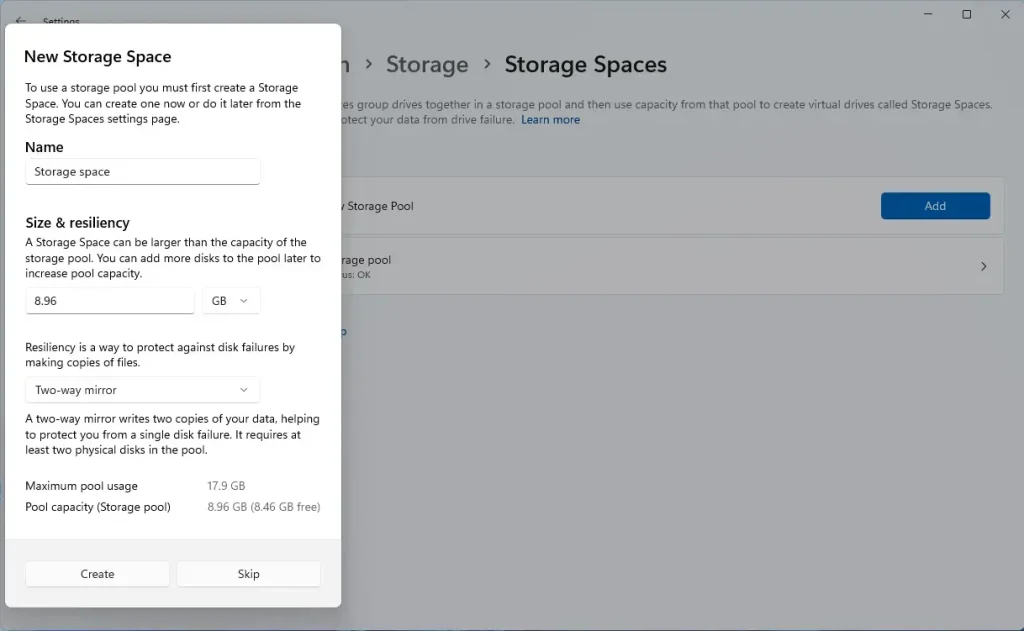
- Choose Size and Protection Type
Pick the size of your storage space. Then choose how you want to protect your data:
- Simple: Uses at least 2 drives. No data backup.
- Two-way mirror: Uses 2 drives and keeps a backup in case one drive fails.
- Three-way mirror: Needs 5 drives. Protects against two drives failing.
- Parity: Needs 3 drives. Balances protection and speed.
- Dual parity: Needs 7 drives. Protects against two drive failures with good speed.
Click Create when finished.
- Set Up Your New Drive
Give your new virtual drive a name. Pick a drive letter like D: or E:.
Choose a format:
- NTFS: Best for Windows computers.
- FAT32: Works with some other devices.
Then click Format.
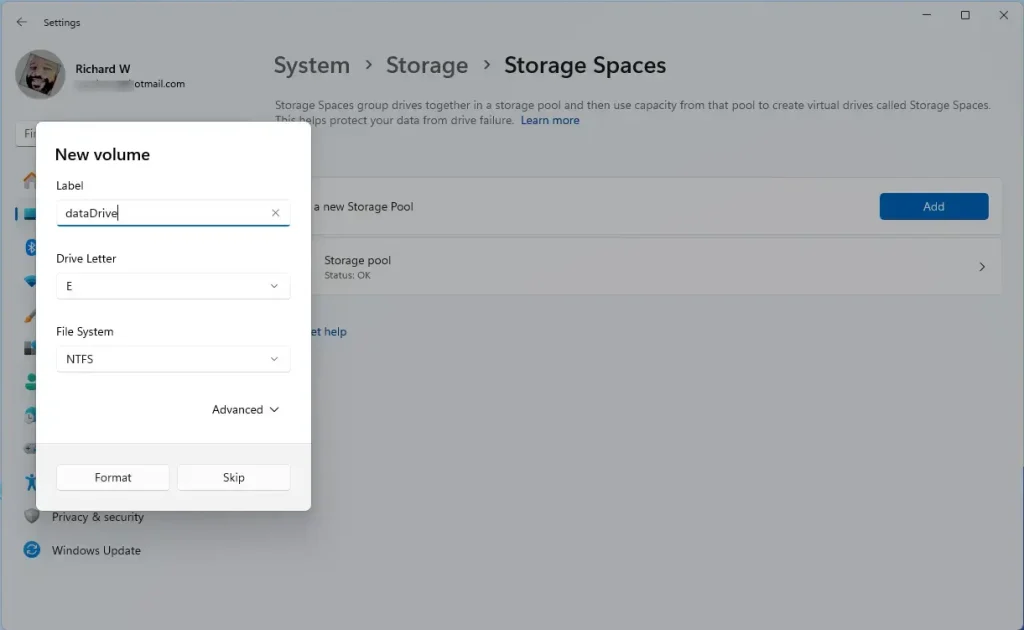
Format your new storage space.
- Done!
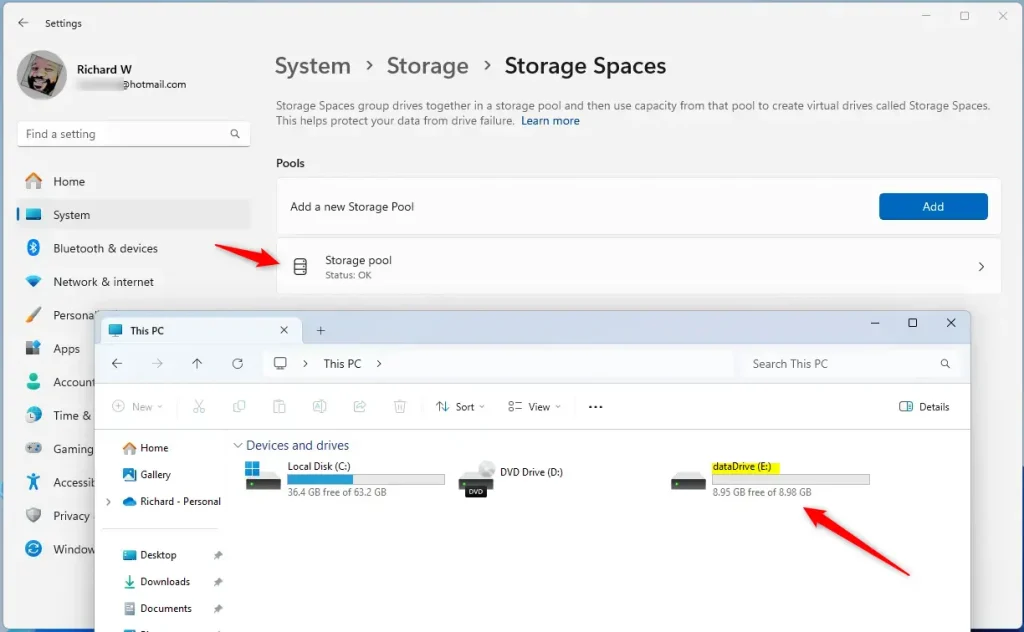
Your new storage pool will now appear as a drive in File Explorer. File Explorer You can start saving files there just like with any other drive.
Why Use Storage Pools?
- You can combine many smaller drives into one big drive. This makes managing files easier.
- You get extra protection for your files. If one drive breaks, your data stays safe.
- You can add more drives later to increase your storage without hassle.
More Help
For official details and troubleshooting, visit Microsoft Storage Spaces Support.
Summary
- Storage Pools let you combine multiple drives into one virtual drive in Windows 11.
- They protect your data by keeping extra copies. The protection level depends on the option you choose.
- Setting one up is easy through the Windows Settings app.
- Once created, your new storage pool is ready to use. It shows up like a regular drive on your computer.
Now you know how to create a storage pool and keep your data safer on Windows 11!



Leave a Reply Cancel reply