How to Use Microsoft Print to PDF in Windows

Have you ever wanted to turn a document, webpage, or image into a PDF file? Windows makes this easy with a built-in tool. You do not need any extra software.
Why use this?
PDFs are great because they look the same on any device. They are perfect for sharing documents that you do not want others to change easily.
What happens when done?
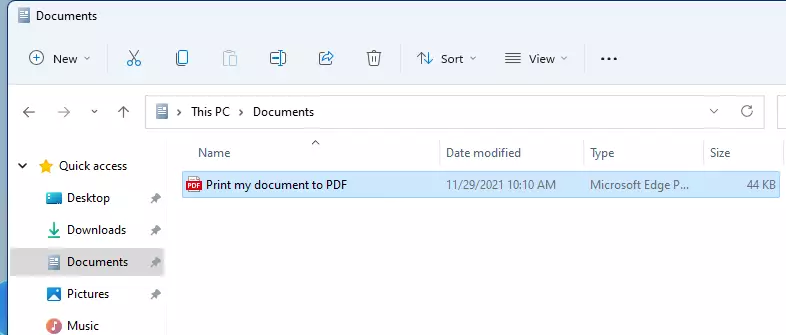
Once you finish these steps, a new PDF file will appear in your chosen folder. You can open, email, or print this file just like any other document.
Windows includes a feature called Microsoft Print to PDF to help you do this. If you do not see this option, you can reinstall it using this How to reinstall Microsoft Print to PDF printer in Windows 11.
How to print to PDF
- Open the file or document you want to save.
- Go to the File menu and select Print.
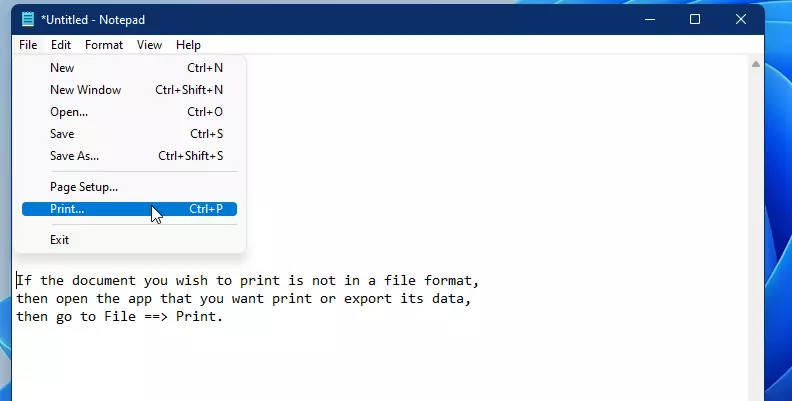
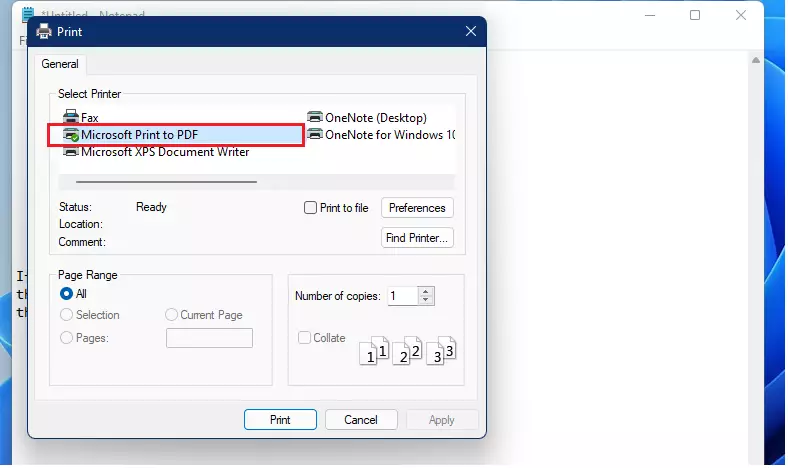
- In the printer list, select Microsoft Print to PDF.
- Click the Print button.
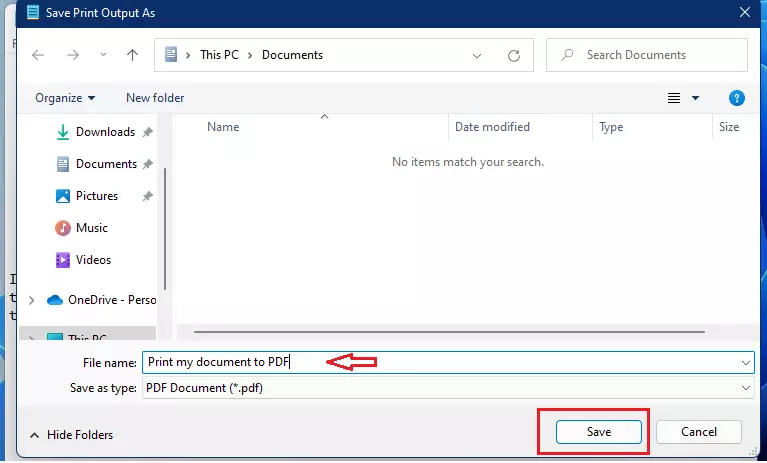
A window will pop up asking where you want to save your file. Choose a folder, give your file a name, and click Save.
Your document is now saved as a PDF in the folder you selected.
Troubleshooting
If the printer is missing, you may need to use command-line tools to restore it. Note: This requires admin privileges.
Open your Command Prompt as an administrator and run the following command to check the status of the printer:
dism /Online /Get-FeatureInfo /FeatureName:Printing-PrintToPDF-FeaturesIf you need to add it back, use this command:
dism /Online /Enable-Feature /FeatureName:Printing-PrintToPDF-FeaturesSummary
You can turn any document into a PDF by choosing Microsoft Print to PDF in your print settings. This built-in Windows tool saves you time and keeps your files professional. Simply select the printer, save your file, and you are done.
Was this guide helpful?


Leave a Reply Cancel reply