How to Clear Your Default Location in Windows 11

This easy guide will help you remove the default location set on your Windows 11 computer. Your default location is what Windows and apps use when they can’t find your exact location.
What is Location Service?
Windows 11 has a feature called Location Service. This feature helps your computer know where you are. It lets apps show you nearby places like restaurants or help with directions.
Apps ask for your location. But you get to decide which apps can see your exact location.
Why Clear Your Default Location?
Sometimes, Windows uses a set “default location” if it can’t find your exact spot. Clearing this default location helps protect your privacy. This way, apps don’t use an old or wrong location.
Steps to Clear Your Default Location
- Open Settings: Press
Win + Ion your keyboard to open the Settings app. - Go to Location Settings: Click on Privacy & security on the left. Then click Location on the right. Or, you can click this link to open it directly: Open Location Settings
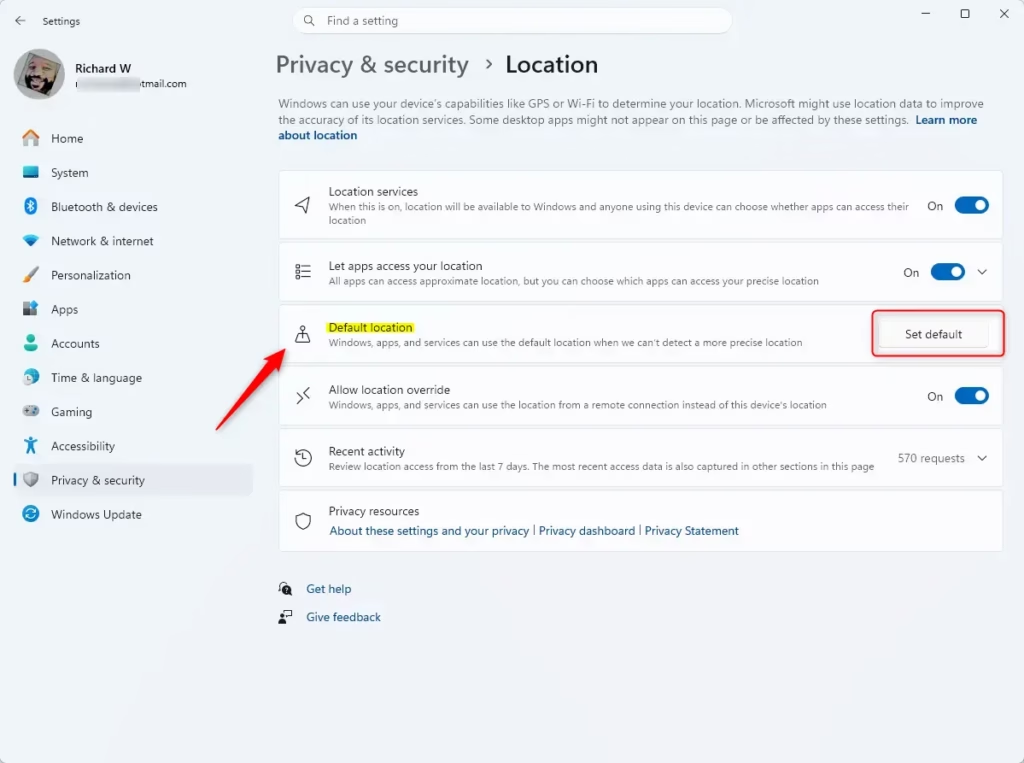
- Click “Set default”: Under Default location, click the Set default button.
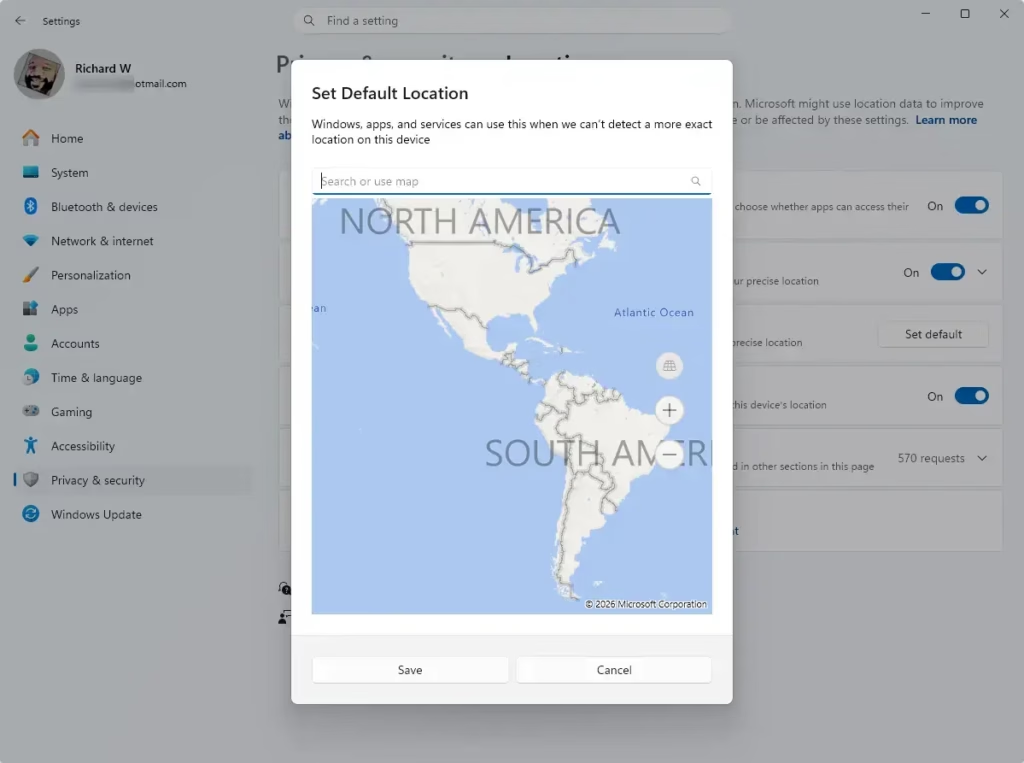
- Clear the location: In the box that opens (Maps app), delete the current location so it’s empty. Then click Save.
- Close Settings: You’re all done! You can now close the Settings window.
Visual Guide
Step 2: Find Location Settings
Step 3: Click “Set default”
Step 4: Clear the location and Save
Why This Matters
- Clearing your default location helps keep your exact whereabouts private.
- Location services help things like setting the right time zone or finding your device if it’s lost.
- You stay in control of which apps can see your location.
- Make sure your location settings match how much information you want to share.
If you want to learn more about managing location and privacy on Windows 11, you can visit Microsoft’s official guide.
Summary
Clearing your default location in Windows 11 is simple and takes just a few clicks. Open Settings, go to Privacy & security, find Location, and clear the default location through the Maps app. This helps protect your privacy by making sure apps don’t use old or wrong location data. You stay in control of what information you share with your apps and Windows.
Was this guide helpful?

About the Author
Richard
Tech Writer, IT Professional
Richard, a writer for Geek Rewind, is a tech enthusiast who loves breaking down complex IT topics into simple, easy-to-understand ideas. With years of hands-on experience in system administration and enterprise IT operations, he’s developed a knack for offering practical tips and solutions. Richard aims to make technology more accessible and actionable. He's deeply committed to the Geek Rewind community, always ready to answer questions and engage in discussions.

No comments yet — be the first to share your thoughts!