

This post shows students and new users steps to take to check the version of the Windows Subsystem of Linux (WSL) running on your system. WSL has two versions that one can install and run today.
Every major update adds a new version number to the platform. In 2017, Microsoft released the original WSL version 1 with Windows 10, and later WSL2 (version 2), which lets developers run a GNU/Linux environment, including most command-line tools, utilities, and applications directly in Windows without setting up a virtual machine or dual-boot.
WSL2 is the new and improved version that comes with a performance boost and complete system call compatibility, and it is built with a new architecture that delivers features that make WSL a fantastic way to run a Linux environment in Windows.
If you want to find out which versions of WSL are running on your system, the commands below will show you how.
How to check the WSL version in Windows 11
As mentioned above, there are two major versions of WSL that one can install and run today. If your system is older and incompatible with WSL version 2, you must install version 1.
If you do not know which version you’re running, use the steps below.
Click on the Start menu button, search for Command Prompt, right-click the top result, and select Run as administrator, as shown below.
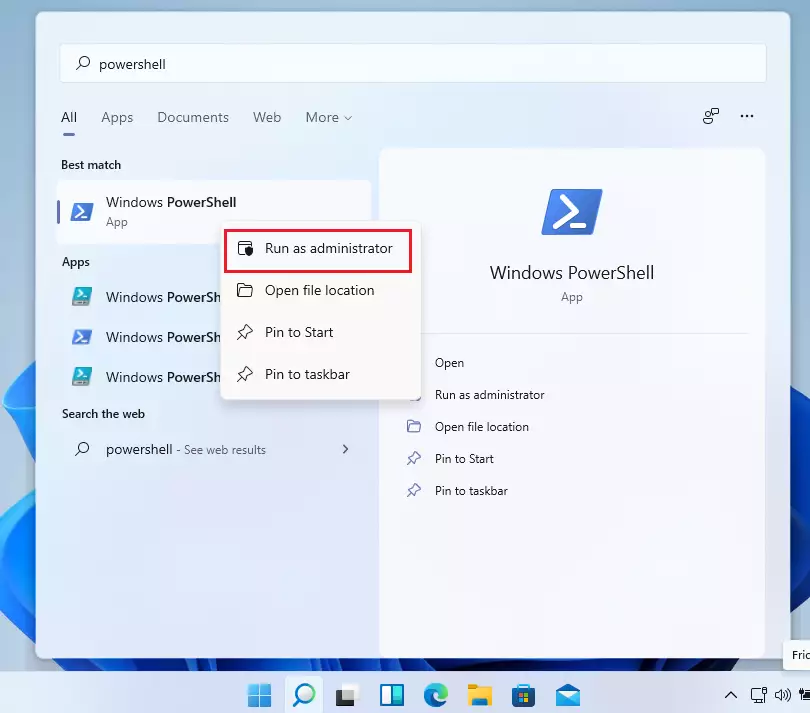
Once the command prompt opens, type the commands below and press ENTER.
wsl.exe --list --verbose
The short version of the commands above can be written as:
wsl.exe -l -v
When you run the commands above, it will show the version of WSL you’re running on your system.
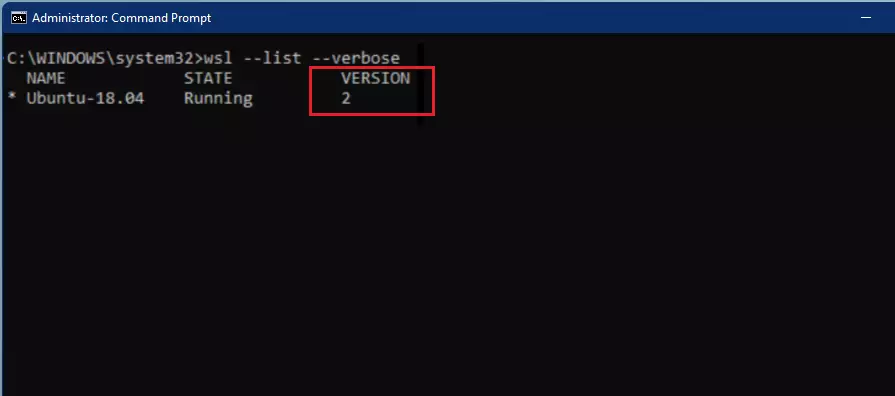
If the command returns 2, then WSL2 is installed. However, if you’re running WSL version 1 or WSL1, the command will return an error or won’t return any value. This is because the above commands were introduced in WSL2 and are unavailable in version 1.
That should do it!
Conclusion:
In summary, checking the Windows Subsystem for Linux (WSL) version is a straightforward process that can help you understand your system’s capabilities. Here are the key takeaways:
- WSL has two versions: WSL1 and WSL2.
- WSL2 offers improved performance and compatibility with Linux applications.
- Use the
wsl.exe --list --verboseorwsl.exe -l -vcommand in Command Prompt to check your current WSL version. - If the command returns 2, you have WSL2 installed; otherwise, you may be running WSL1 or need to troubleshoot the commands.
- Keeping your WSL updated ensures you benefit from the latest features and performance enhancements.



Leave a Reply