

This article explains how to check if “Online Service Experience Packs” are installed on your Windows 11 computer.
What Are Online Service Experience Packs?
Online Service Experience Packs are add-ons for Windows. They give your computer extra features and improvements. These packs help Windows get updates faster from the cloud. This is how Microsoft quickly improves Windows 11.
Online Service Experience Packs work like Windows Feature Experience Packs. But there is a key difference. Windows Feature Experience Packs make broad improvements across many parts of Windows. Online Service Experience Packs focus on improving one specific area. For example, they might improve your “Your Microsoft account settings” page.
Why Check If These Packs Are Installed?
Knowing what updates are installed helps you understand what features your computer has. It also helps when troubleshooting problems.
How to Check If Online Service Experience Packs Are Installed
You can use the Settings app to see if these packs are on your Windows computer. Follow these simple steps:
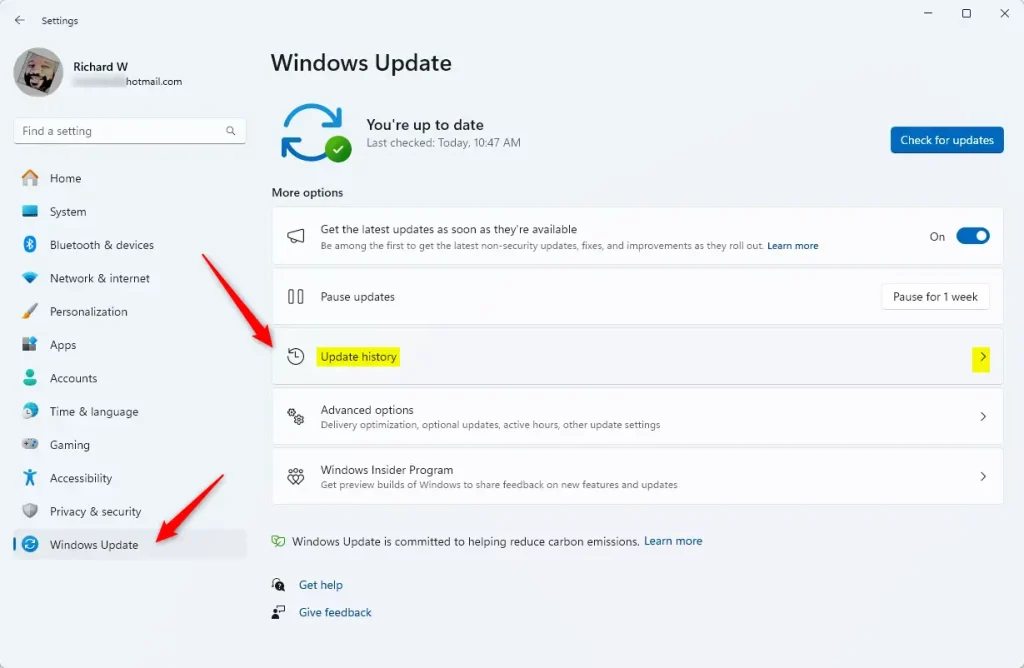
- Open the Settings app.
- Select Windows Update.
- Click the “Update history” tile to open it.
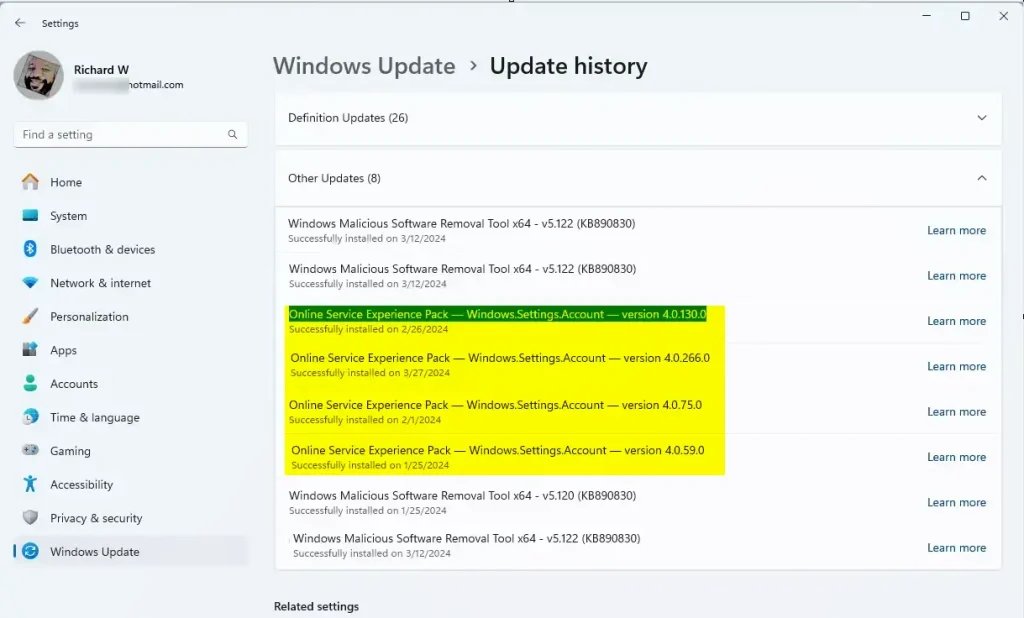
- Expand the “Other Updates” tile.
- Look at the update list to see if Online Service Experience Packs are there.
That’s all you need to do!
What Happens When These Packs Are Installed?
Once installed, these packs give your Windows 11 computer new features and improvements. You may notice better performance or new options in specific areas of Windows.
Need More Help?
For more detailed information, visit the official Microsoft support page on “Online Service Experience Packs” at Microsoft support.
Summary
Online Service Experience Packs are updates that improve specific areas of Windows 11. You can easily check if they’re installed by opening the Settings app, going to Windows Update, and looking at your update history in the “Other Updates” section. This takes just a few clicks and helps you understand what features your computer has.
Frequently Asked Questions
What are Online Service Experience Packs in Windows 11?
How can I check if Online Service Experience Packs are installed on my Windows 11?
What is the difference between Online Service Experience Packs and Windows Feature Experience Packs?
Why are Online Service Experience Packs important for Windows 11 users?
Where can I find more information about Online Service Experience Packs?



Leave a Reply Cancel reply