

Windows 11 lets you use Bluetooth to connect wireless devices. These devices send their battery status to Windows. Want to know how much battery your wireless headphones or mouse have left? Windows 11 can show you that information.
Why check your Bluetooth device’s battery? Knowing the battery level helps you charge devices before they die. What happens when you check? You’ll see exactly how much battery your device has left.
How to Check Bluetooth Device Battery in Windows 11
Windows 11 stores all its settings in one place called the Settings app. You can check your Bluetooth device’s battery level there.
Step 1: Open Windows Settings
First, open the Settings app. You can do this three ways:
- Press Windows key + I on your keyboard
- Click Start then click Settings
- Click the search box on your taskbar and type Settings, then open it

Step 2: Go to Bluetooth & Devices
In the Settings app, look on the left side. Click on Bluetooth & devices. Note: Depending on your Windows 11 update version, this section might be labeled differently. You might see “Connected devices,” “Bluetooth,” or “Bluetooth & devices.” All of these lead to the same place where you can check your device battery.
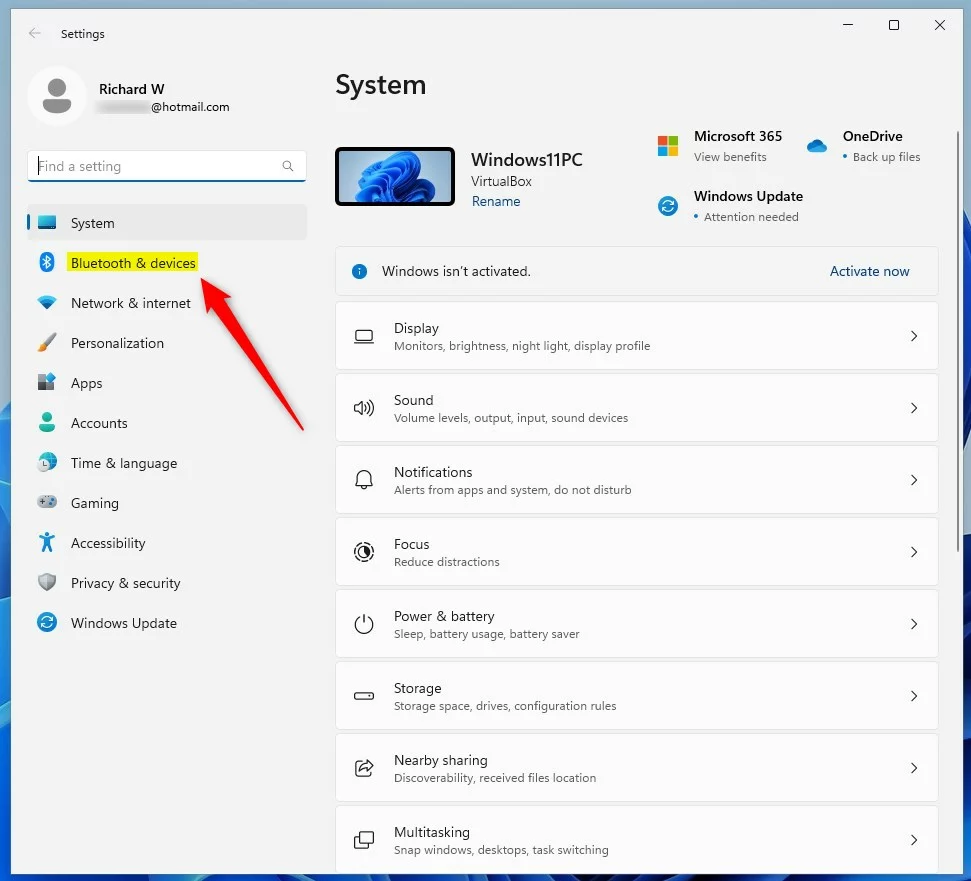
Step 3: Check the Battery Level
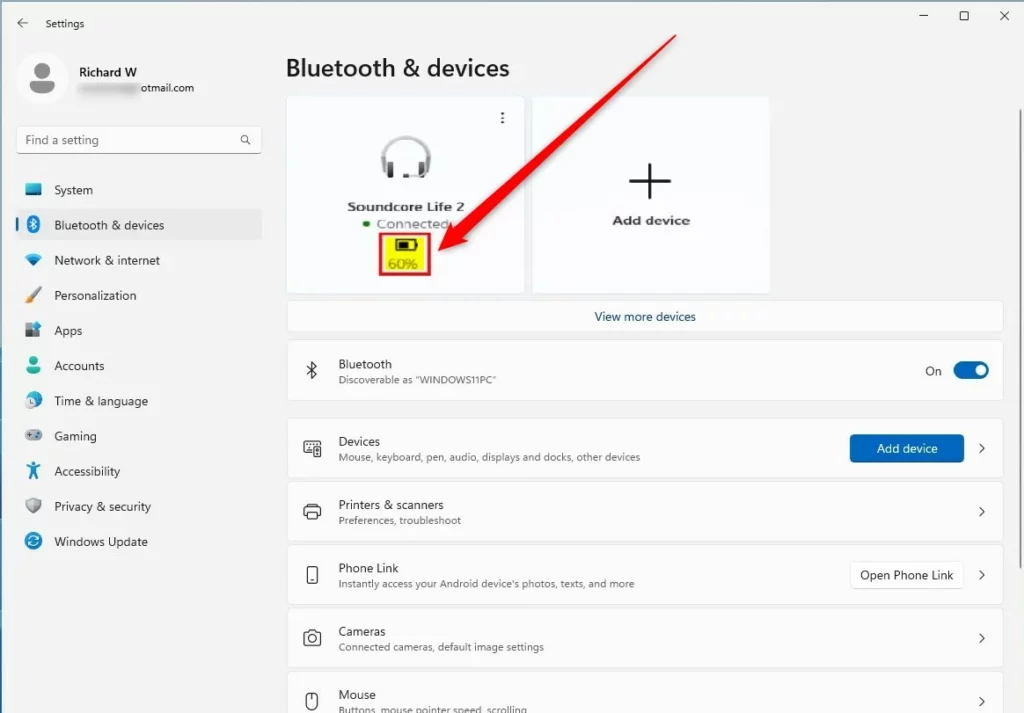
Look at the right side of the screen. You’ll see tiles for each device. Each tile shows the device name and battery level (if the device supports it).
Important: Battery percentages may not update in real-time and can be delayed by several minutes or show inaccurate readings depending on your device manufacturer. If the battery level seems wrong, wait a few minutes and refresh the page.
Step 4: Find More Devices (If Needed)
The main screen only shows devices you recently connected to. If you don’t see your device, click View more devices.
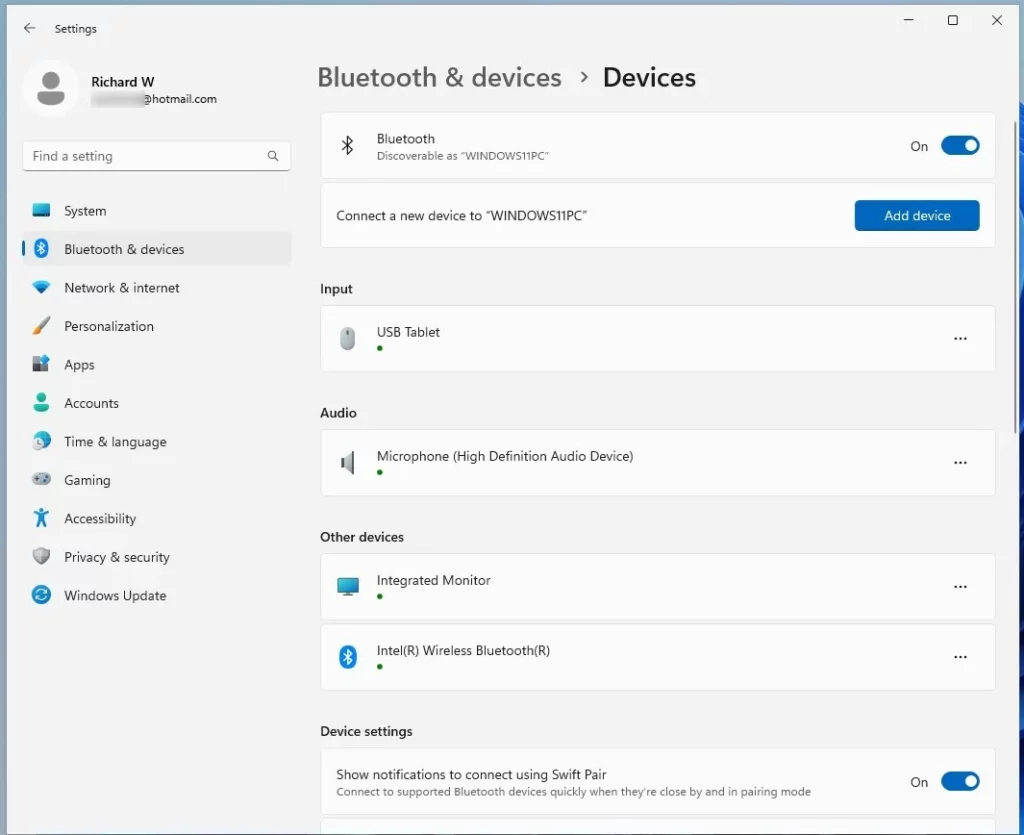
You’ll see all your paired Bluetooth devices. Find the one you want to check.
What If You Don’t See a Battery Level?
Some Bluetooth devices don’t send battery information to Windows. If your device is paired but shows no battery level, that device simply doesn’t support this feature.
Older Bluetooth 4.0 devices and some Bluetooth LE devices have limited or no battery reporting support. Check your device manual for compatibility. You can also try unpairing and re-pairing the device, or updating your Bluetooth drivers through Device Manager to see if that helps.
Alternative Methods
If battery reporting seems unreliable on your device, many device manufacturers offer companion apps with more detailed battery information. Check the device maker’s website for Windows 11 compatibility. These apps often provide better accuracy than Windows 11’s built-in battery reporting.
Troubleshooting Tips
If a paired device doesn’t show a battery level, try these steps:
- Unpair the device and pair it again
- Update your Bluetooth drivers through Device Manager
- Restart Windows 11
- Check the device manufacturer’s website for updated drivers or companion apps
Summary
Checking your Bluetooth device’s battery in Windows 11 is easy. Open Settings, go to Bluetooth & devices, and look at the device tiles. Each tile shows the battery level if your device supports it. Use the View more devices link to see all your connected devices. This quick check helps you know when to charge your wireless devices. Remember that battery readings may be delayed, and older devices might not support battery reporting at all.



Leave a Reply