
This tutorial shows you how to change your touchpad scrolling direction in Windows 11. You can make your touchpad scroll down when you swipe down, or scroll up when you swipe down. It’s your choice.
If your Windows 11 laptop has a built-in precision touchpad, you can change how scrolling works.
Windows 11 uses reverse scrolling by default. But you can switch to natural scrolling if you prefer.
Reverse scrolling (Down motion scrolls up) = When you swipe down on the touchpad, the page scrolls up. When you swipe up on the touchpad, the page scrolls down.
Natural scrolling (Down motion scrolls down) = When you swipe down on the touchpad, the page scrolls down. When you swipe up on the touchpad, the page scrolls up.
Reference: Precision touchpad tuning (touchpad-tuning-guidelines) This page has information about touchpad settings in Windows 10 and newer versions.
Option One
Change Touchpad Scrolling Direction in Settings
- Open Settings (press Win+I).
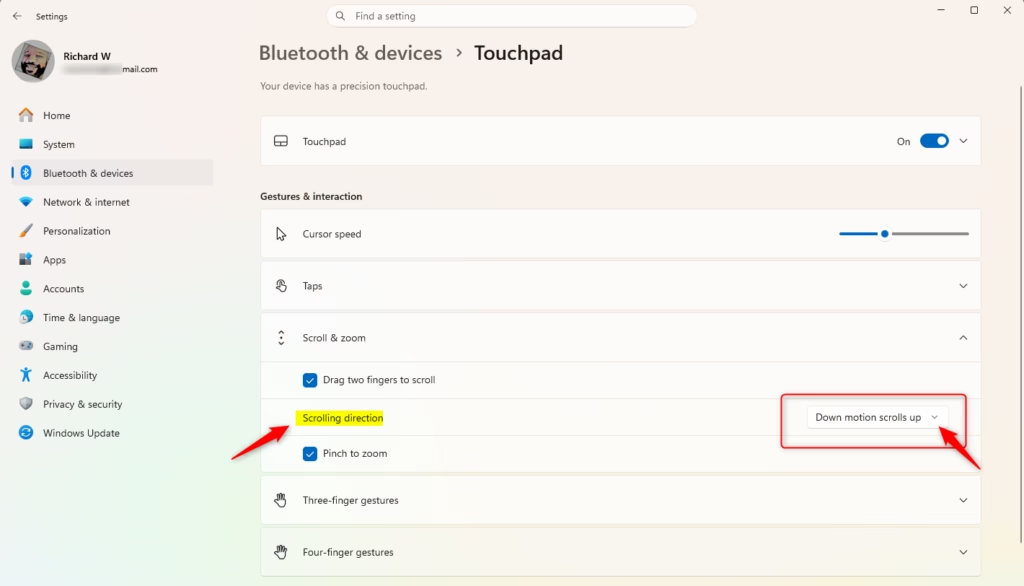
- Click Bluetooth & devices on the left side. Then click Touchpad on the right side. (see screenshot below)
- Open Touchpad settings
- Click Scroll & zoom to open it. (see screenshot below step 4)
- Choose what you want in the Scrolling direction dropdown menu. Select Down motion scrolls up (the default) or Down motion scrolls down. (see screenshot below)
- You can now close Settings.
Option Two
Change Touchpad Scrolling Direction Using Registry
⚠️ Admin privileges required
Change Touchpad Scrolling Direction to “Down motion scrolls up”
This is the default setting.
reg add "HKEY_CURRENT_USER\Software\Microsoft\Windows\CurrentVersion\PrecisionTouchPad" /v ScrollDirection /t REG_DWORD /d 0 /f
Change Touchpad Scrolling Direction to “Down motion scrolls down”
reg add "HKEY_CURRENT_USER\Software\Microsoft\Windows\CurrentVersion\PrecisionTouchPad" /v ScrollDirection /t REG_DWORD /d 0xFFFFFFFF /f
Summary
You can easily change how your touchpad scrolls in Windows 11. Use Settings for a simple way to switch between reverse scrolling and natural scrolling. Or use the Registry if you prefer a more advanced method. Either way, you control how your touchpad works.



Leave a Reply