

If you want Windows 11 and some of your apps to show dates, times, and numbers in a way that fits your country or language, this guide will help you change the regional format.
By default, Windows uses the same language as your display language for these settings, but you can pick any language you like.
Why Change Regional Format?
- It changes how dates (like 12/31/2024), times (like 2:00 PM), and numbers appear on your PC.
- Useful if you prefer formats from another country or if you use multiple languages.
Option 1: Change Regional Format Using Settings
- Press Windows key + I on your keyboard to open Settings.
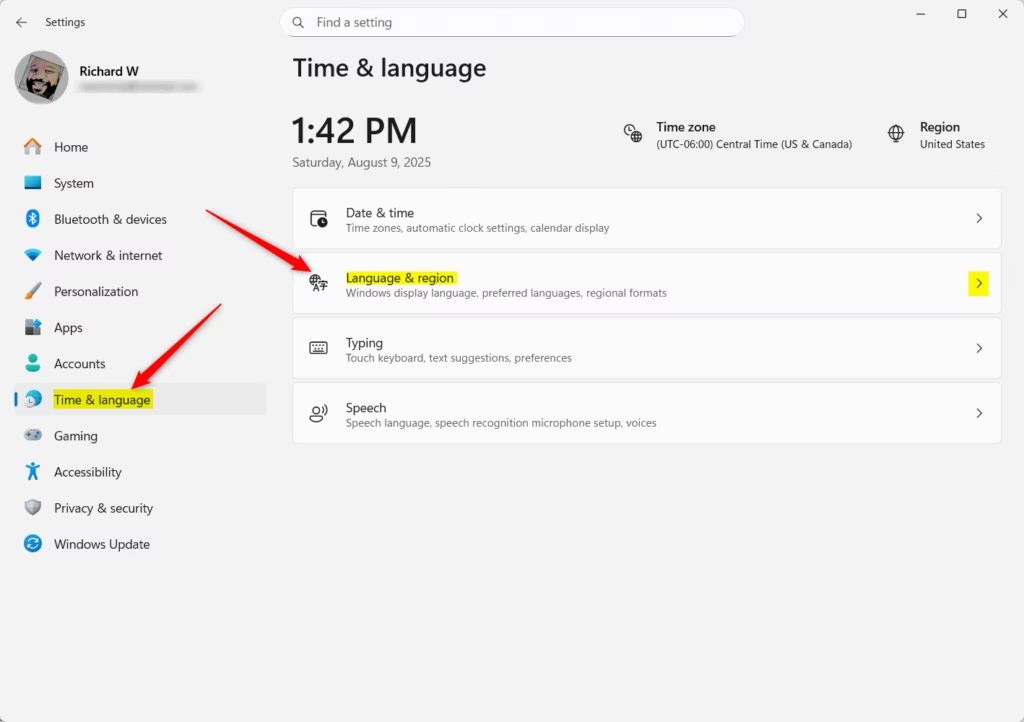
- On the left, click Time & language.
- On the right side, click Language & region.
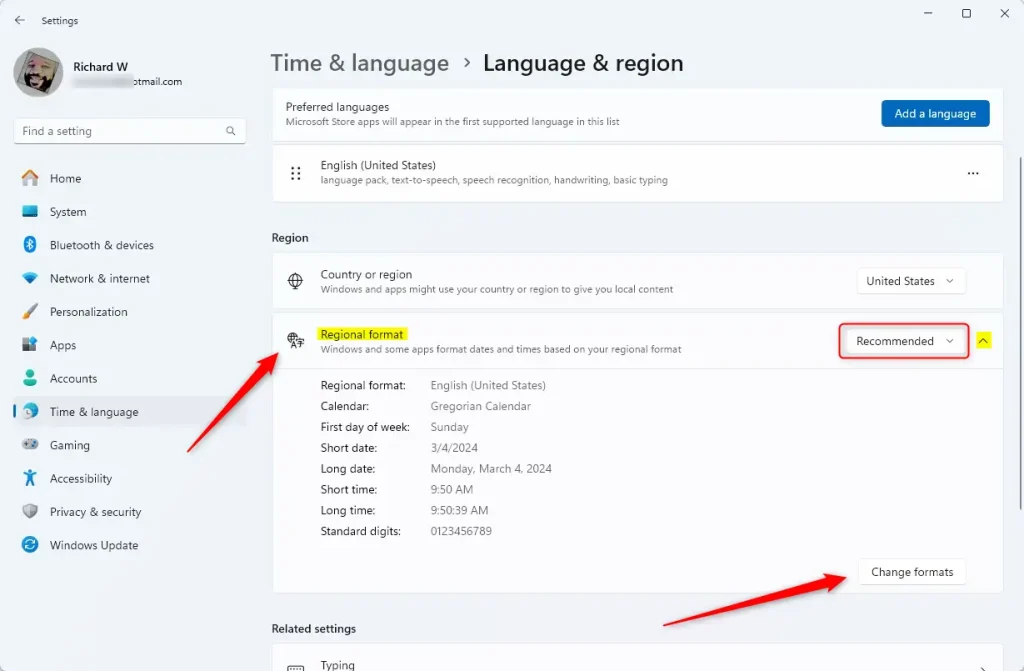
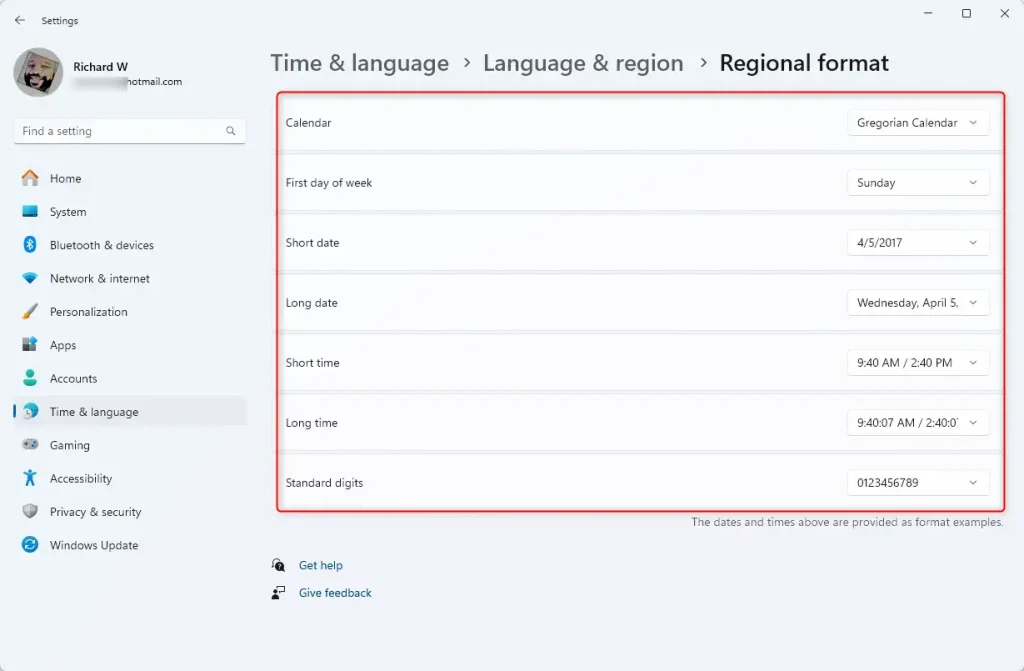
- Under Regional format, click the drop-down menu and select the language or region format you want.
- You can close Settings when done.
Open Language & region Settings directly
Here is where you pick your preferred regional format:
Option 2: Change Regional Format Using Control Panel
- Open the Control Panel. You can do this by typing Control Panel in the search box on the taskbar and clicking it.
- Make sure your view is set to Small icons or Large icons (not Category view).
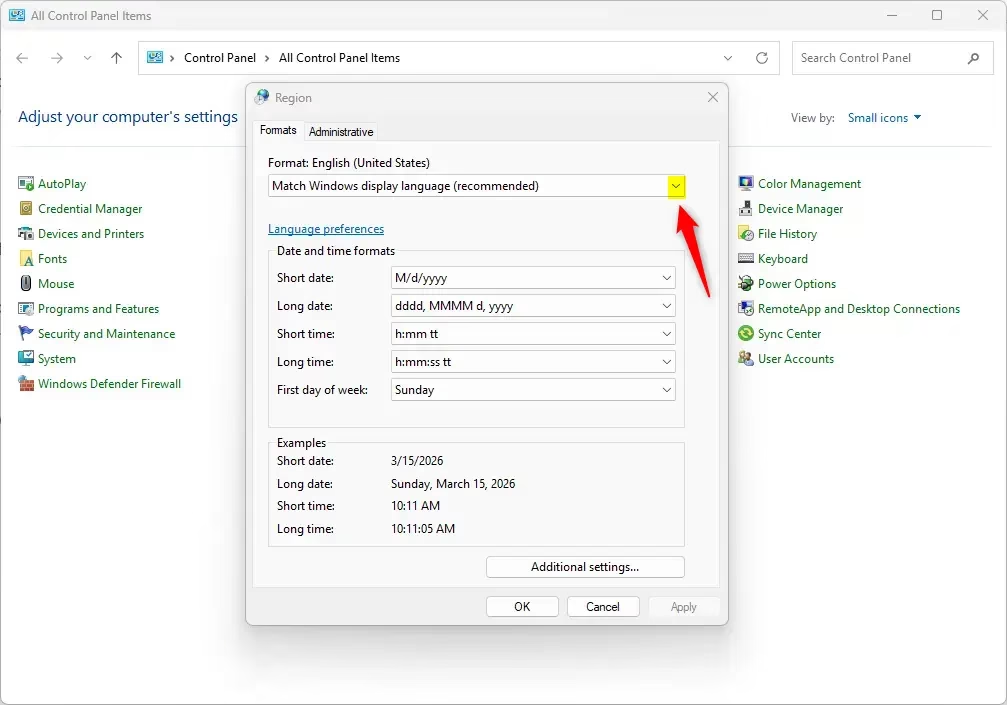
- Click on Region.
- In the Formats tab, click the drop-down menu and choose the language or region format you want.
- Click OK to save your changes.
Important Tips
- Some apps may need to be closed and opened again to see the changes.
- It’s usually best to keep the regional format matching your Windows display language for consistency.
- If you want to learn more or troubleshoot, Microsoft’s official guide is here: Microsoft Support – Change Windows regional settings.
Summary
- Changing the regional format changes how dates, times, and numbers look on your PC.
- You can do this either in Settings or Control Panel.
- Make sure to restart apps to see the changes.
- If you want advanced info, these settings are saved in your system’s registry at
HKEY_CURRENT_USERControl PanelInternational.
That’s it! Now you know how to change your regional format in Windows 11 easily.
Leave a Reply