How to Change the Narrator Voice in Windows 11

You can change the Narrator voice in Windows 11 to a more natural-sounding option, like Microsoft’s Anna or David, by accessing the Narrator settings.
Narrator is Windows’ built-in screen reader that vocalizes on-screen elements, assisting users with visual impairments. It reads text, links, buttons, and other interface components aloud.
While Windows 11 offers several default voices, you can download and install new, higher-quality natural voices to personalize your experience. These natural voices offer improved clarity and a more human-like cadence.
Navigate to Settings, then Accessibility, and finally Narrator. Select your preferred voice from the “Choose a voice” drop-down menu. You can also adjust the speed, pitch, and volume of the selected voice.
How to Customize Narrator Voice and Settings
Follow these easy steps to change the Narrator’s voice and how it sounds:
- Open Settings: Click the Start menu button (the Windows logo at the bottom left). Then click Settings. Or press the Windows key + I on your keyboard to open Settings quickly.
- Go to Accessibility: In the Settings window, look at the left side and click Accessibility.
Windows 11 Accessibility menu - Open Narrator settings: On the right side, find and click the Narrator section.

Windows 11 Narrator settings - Choose your Narrator voice: Under Narrator’s voices, click the drop-down menu next to Choose a voice. Pick the voice you like.
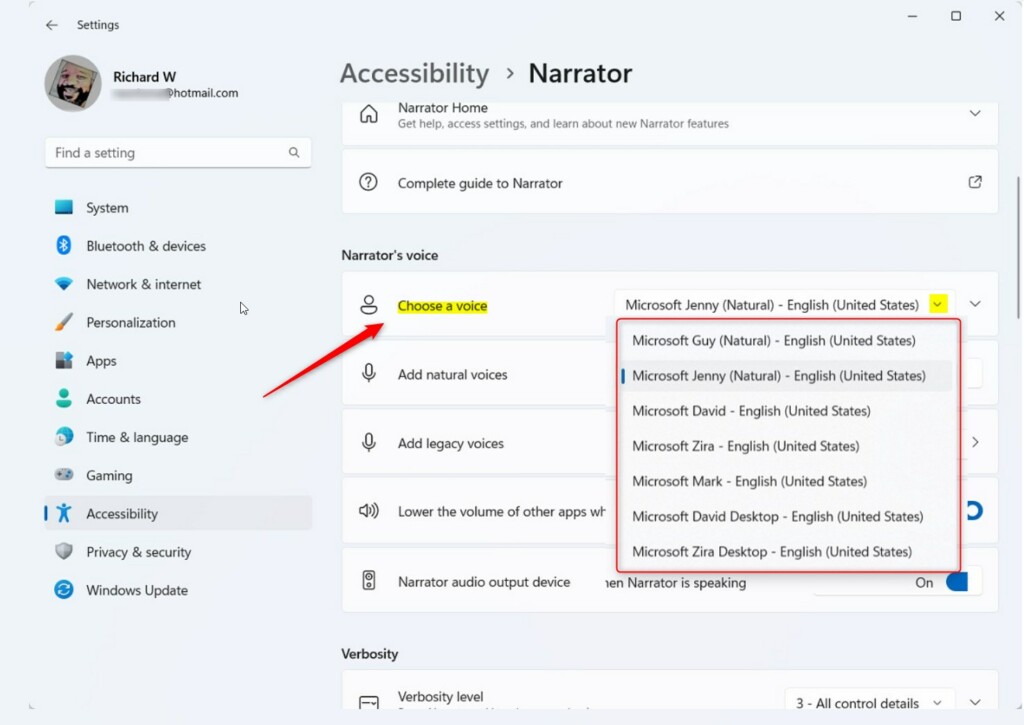
Choose Narrator voice in Windows 11 - Adjust speed, pitch, and volume: Click the arrow next to Choose a voice to open more settings. Then you can:
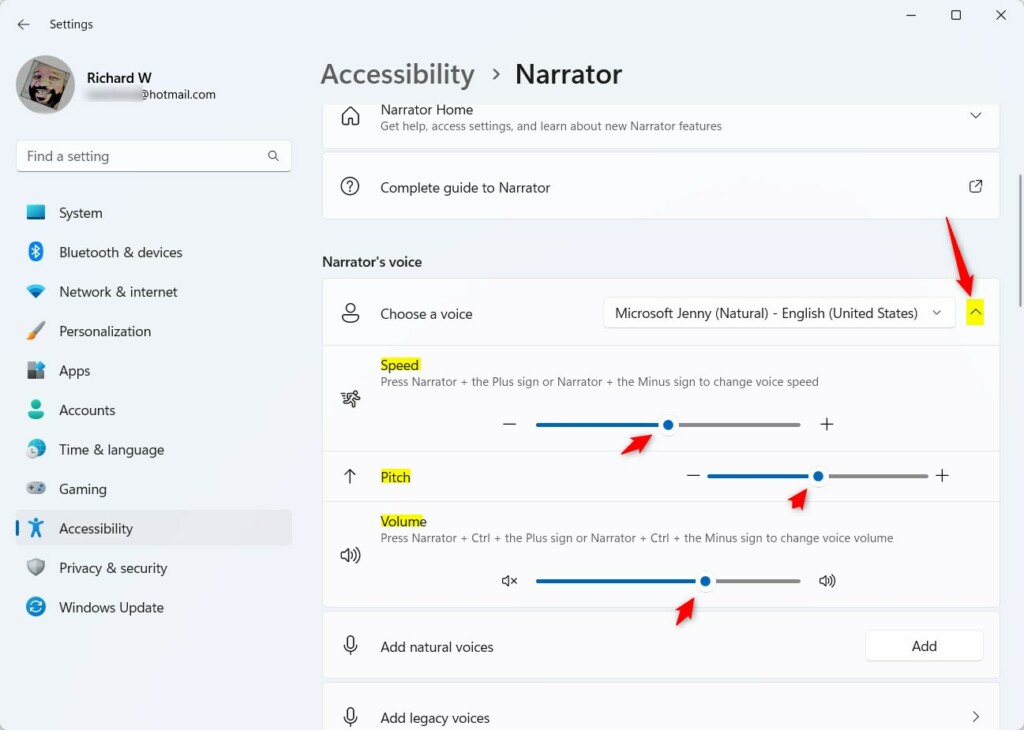
Adjust Narrator voice speed, pitch and volume - Speed: Move the slider left or right to make the voice talk slower or faster. You can also press Narrator key + Plus (+) or Narrator key + Minus (-) to change speed.
- Pitch: Use the slider to make the voice sound higher or lower.
- Volume: Adjust the slider to make the voice louder or quieter. You can also press Narrator key + Ctrl + Plus (+) or Narrator key + Ctrl + Minus (-) to change volume.
- Close Settings: When you are happy with the voice and settings, just close the Settings window.
That’s it! You have now changed the Narrator voice and how it sounds on your Windows 11 PC.
Summary
- You learned how to open Narrator settings in Windows 11.
- You can pick a new voice and adjust the speed, pitch, and volume to your liking.
- This makes using Narrator easier and more enjoyable, especially if you rely on it to read your screen.
If you have questions or want to share your experience, please leave a comment below!
How do I change the Narrator voice on 🪟 Windows 11?
Open Settings > Accessibility > Narrator. Navigate to the Add a natural voice button. Download your preferred HD voice. Switch voices or adjust speed anytime in Narrator settings.
Was this guide helpful?

About the Author
Richard
Tech Writer, IT Professional
Richard, a writer for Geek Rewind, is a tech enthusiast who loves breaking down complex IT topics into simple, easy-to-understand ideas. With years of hands-on experience in system administration and enterprise IT operations, he’s developed a knack for offering practical tips and solutions. Richard aims to make technology more accessible and actionable. He's deeply committed to the Geek Rewind community, always ready to answer questions and engage in discussions.




No comments yet — be the first to share your thoughts!