
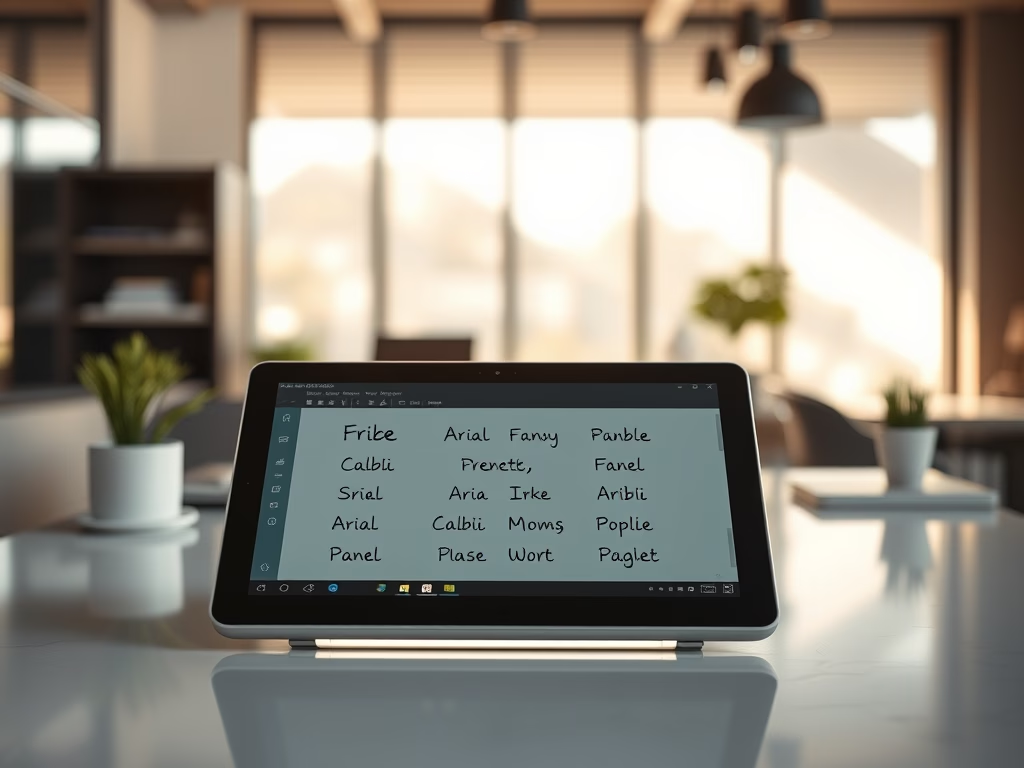
If you use a Windows 11 tablet or a device with a touchscreen, you can write text using the Handwriting Panel. This lets you write with your finger or a pen, and Windows will turn your handwriting into typed text.
By default, the handwriting panel turns your writing into text using the Ink Free font. But if you want to use a different font, this guide will show you two easy ways to change it:
1. Change the Handwriting Panel Font Using Windows Settings
Open the Settings app:
You can click the Start menu button and choose Settings, or press Windows key + I on your keyboard.
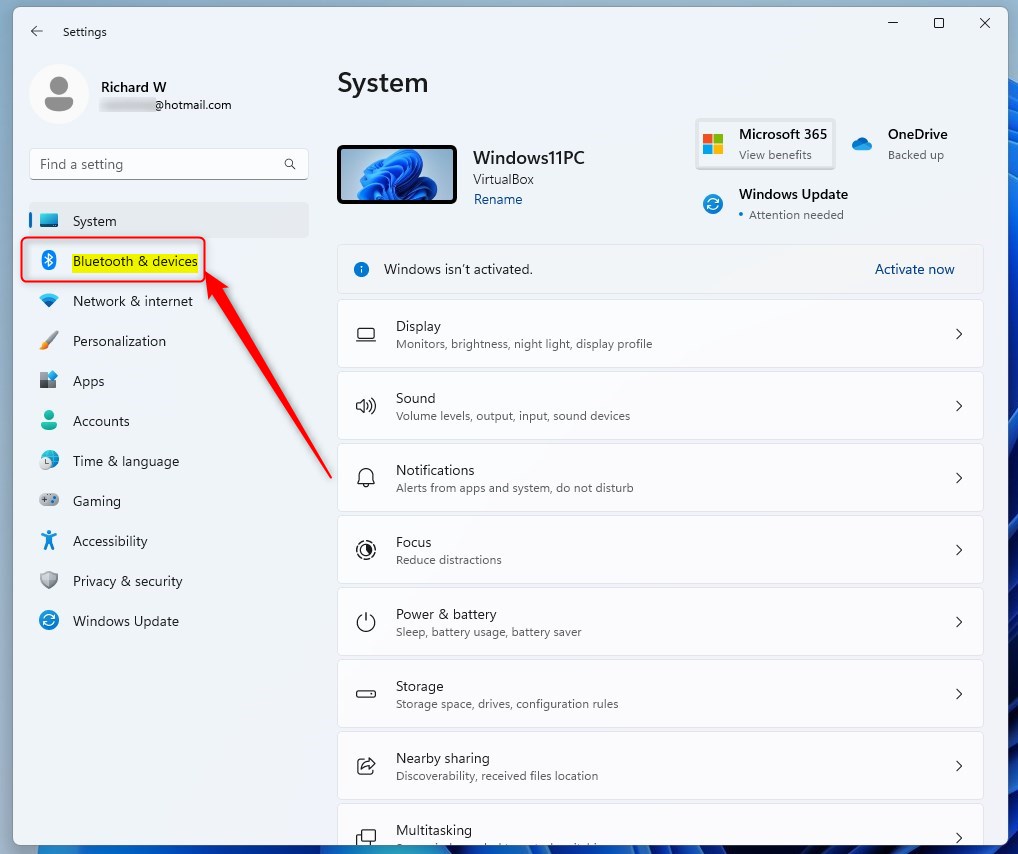
In Settings, click Bluetooth & devices on the left side menu.
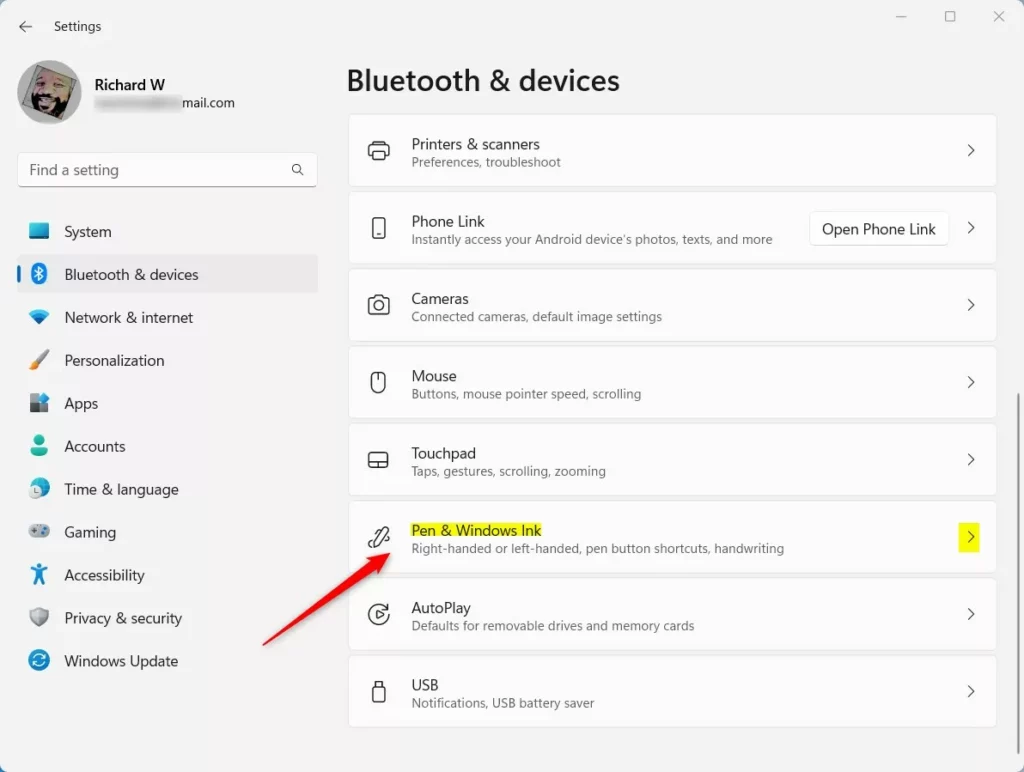
On the right side, find and click Pen & Windows Ink.
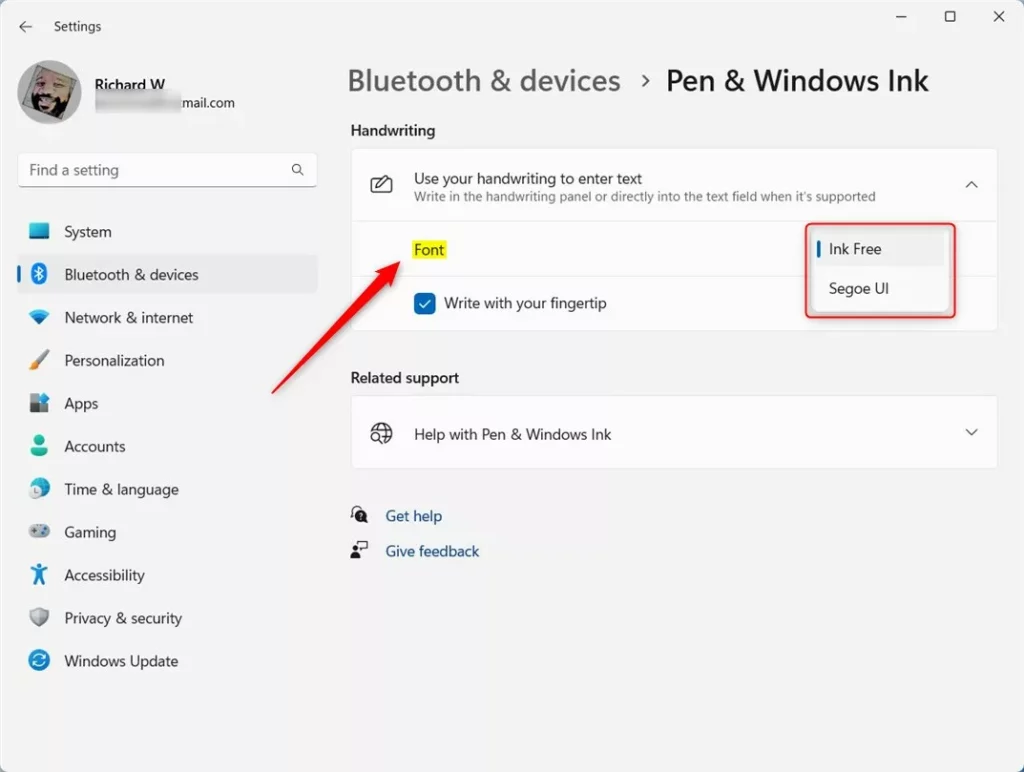
Under the Handwriting section, click to expand the option called “Use your handwriting to enter text”.
Now, select the font you want Windows to use when converting your handwriting to text.
- Close the Settings app when you’re finished.
2. Change the Font Using Windows Registry Editor (Advanced)
If you’re comfortable making advanced changes, you can also change the handwriting font by editing the Windows Registry. Be careful when editing the registry — making the wrong changes can cause problems.
- Open the Registry Editor:
- Press Windows key + R, type
regedit, and press Enter. - If prompted by User Account Control, click Yes to allow it.
- Press Windows key + R, type
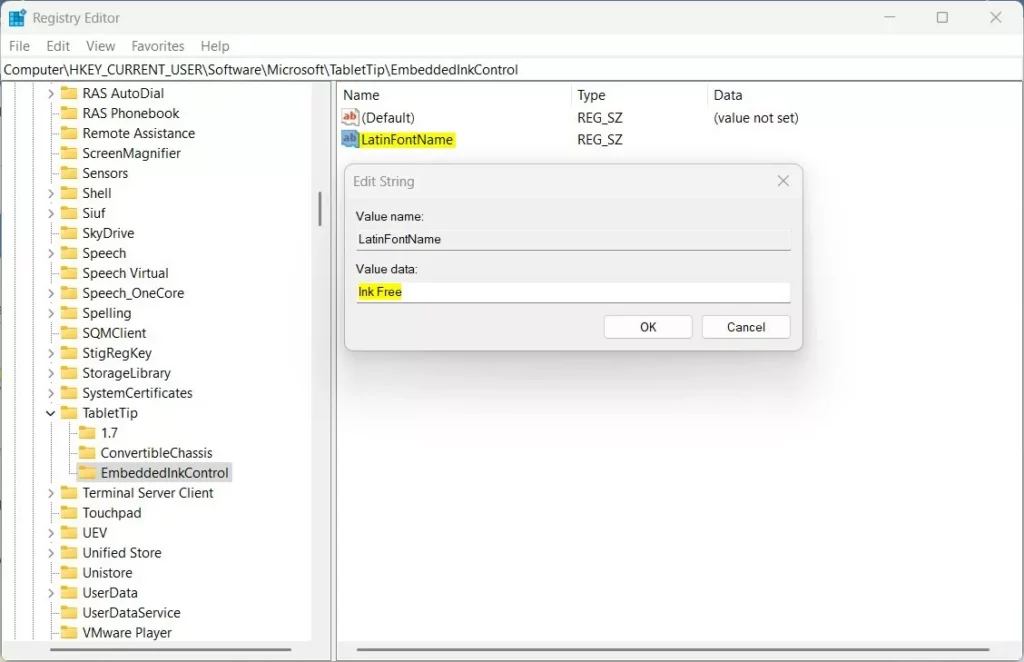
- In Registry Editor, go to this folder path:
HKEY_CURRENT_USERSoftwareMicrosoftTabletTipEmbeddedInkControl
- If the EmbeddedInkControl folder (key) does not exist:
- Right-click on TabletTip, choose New > Key, and name it EmbeddedInkControl.
Click on the EmbeddedInkControl folder. In the right pane, right-click and select New > String Value.
Name this new string value: LatinFontName.
Double-click LatinFontName and set the Value data to the name of the font you want to use.
For example, type
Arial,Calibri, or any font installed on your PC.- Close the Registry Editor and restart your computer to apply the changes.
Where to find font names: Windows fonts are stored in C:WindowsFonts. You can open this folder to see all fonts available on your computer. Use the exact font name when entering the value in the registry.
Summary
- You can change the handwriting panel font in Windows 11 to better suit your style.
- The easiest way is through the Settings app under Bluetooth & devices > Pen & Windows Ink.
- If you want more control, you can edit the font using the Windows Registry Editor (advanced users only).
- Changing fonts helps personalize your device and can make handwriting recognition more comfortable for you.
- If you have questions or want to share your experience, feel free to leave a comment below!

Leave a Reply