How to Change System Product Name in Windows 11

Want to give your Windows 11 PC a custom name? This guide shows you how to change its System Product Name.
Open Registry Editor by pressing Windows key + R, typing regedit, and pressing Enter. Navigate to the OEMInformation folder, find or create the “Model” string value, and enter your desired system product name. Restart your computer for the changes to apply.
What is the System Product Name?
It’s a name that tells Windows what model your computer is. If you built your own PC, this name might be generic or missing, showing something like ‘System Product Name’ instead. You can change this to whatever name you like!
Why Change It?
Why Change It? Perhaps you want to give your PC a cool, unique name that reflects your style. Or maybe you have a pre-built PC and would prefer a name that’s easier to remember. It’s a great way to personalize your computer.
How to Change the System Product Name in 🪟 Windows 11
Changing the system product name in Windows 11 is a straightforward process using the Registry Editor. You can update this detail to reflect your PC’s specific model or a custom name you prefer, especially if you built your own computer.
- Open the Windows Registry Editor:
Press Windows key + R on your keyboard. Type
regeditand press Enter.If you want a quick tutorial on opening Registry Editor, check this guide: How to Open Registry Editor in Windows 11.
⚠️ Admin privileges required
- Find the registry folder:
In Registry Editor, find this folder (also called a “key”) by clicking through the folders on the left:
Computer\HKEY_LOCAL_MACHINE\SOFTWARE\Microsoft\Windows\CurrentVersion\OEMInformation - Look for the Model entry:
Look for an entry called Model on the right side.
- If it’s there, double-click it to open.
- If you don’t see it, right-click on an empty space on the right. Select New > String Value and name it Model.
- Type your new name:
In the box that opens, type the name you want your computer to have. For example: My Custom PC. Then click OK.
- Close Registry Editor:
Close the Registry Editor window.
- Restart your computer:
Restart your computer to make sure the change takes effect.
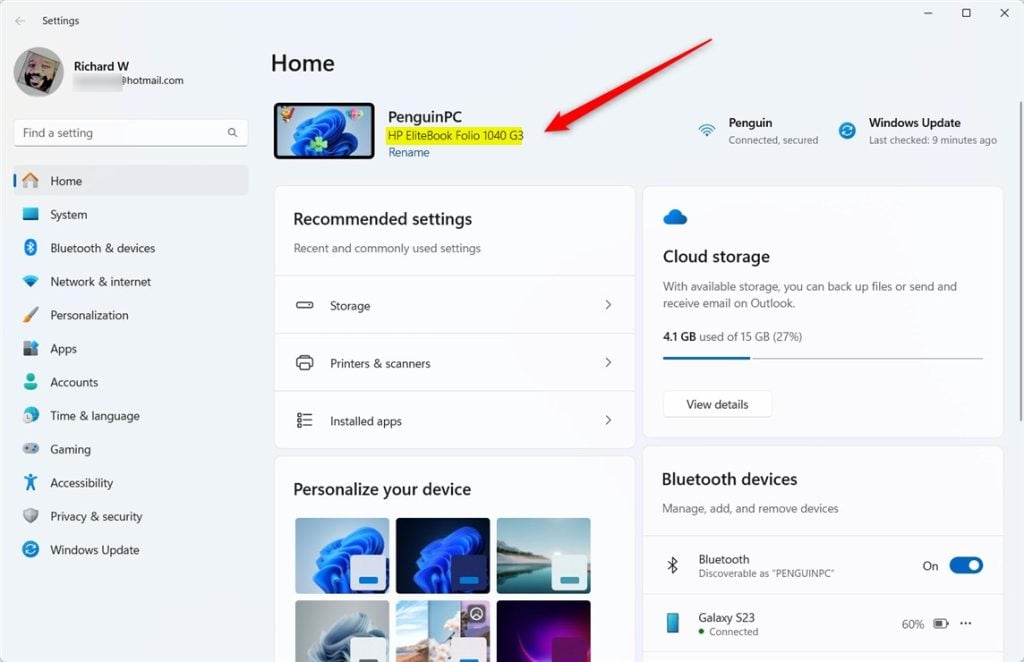
After restarting, you can check your new System Product Name here:
- Open Settings. Press Windows key + I.
- Go to System > About.
- Look for the Device name or System model section to see your new name.
Summary
Changing the system product name in Windows 11 lets you personalize your PC with a name you choose, which is especially useful for custom-built machines. This simple registry edit is easy to do, but always remember to back up your registry first to stay safe.- Changing the System Product Name lets you personalize your PC with a name you like.
- This works best on custom-built PCs or devices without a fixed manufacturer name.
- It’s an easy process using Windows Registry Editor. But be careful when editing the registry!
- Tip: Always back up your registry before making changes. You can do this inside Registry Editor by clicking File > Export and saving a copy.
How to rename a PC model?
To rename your PC in Windows 11, the first thing you want to do is open Settings. I’m going to go down to my taskbar, to the little Start icon, and I’m going to click that.
Was this guide helpful?

About the Author
Richard
Tech Writer, IT Professional
Richard, a writer for Geek Rewind, is a tech enthusiast who loves breaking down complex IT topics into simple, easy-to-understand ideas. With years of hands-on experience in system administration and enterprise IT operations, he’s developed a knack for offering practical tips and solutions. Richard aims to make technology more accessible and actionable. He's deeply committed to the Geek Rewind community, always ready to answer questions and engage in discussions.



No comments yet — be the first to share your thoughts!