How to Change Remote Desktop Port in Windows 11

Here’s how you can change the Remote Desktop listening port in Windows 11.
Open Registry Editor and navigate to 🗝️HKEY_LOCAL_MACHINE\System\CurrentControlSet\Control\Terminal Server\WinStations\RDP-Tcp. Modify the PortNumber value to your desired custom port. Then, update Windows Firewall by creating a new inbound rule for your chosen TCP port.
Why change the Remote Desktop port?
Changing your Remote Desktop port from the default 3389 makes it harder for hackers to find and attack your computer.
What happens when done?
Once you change the port and update your firewall, your computer will stop listening on the default port 3389. It will only accept incoming remote connections on your new custom port. You must include this new port number when connecting from other devices.
Step 1Back Up Your Registry (Required)
Warning: This step requires administrator privileges. Be careful when editing the registry; mistakes can cause system issues. Always create a backup first by going to File > Export in the Registry Editor.
Step 2Change the Port in Registry Editor
Changing the Remote Desktop port involves editing the Windows Registry, which requires administrator rights.
- Click the Search icon and type
regeditto open the Registry Editor. - Navigate to this path:
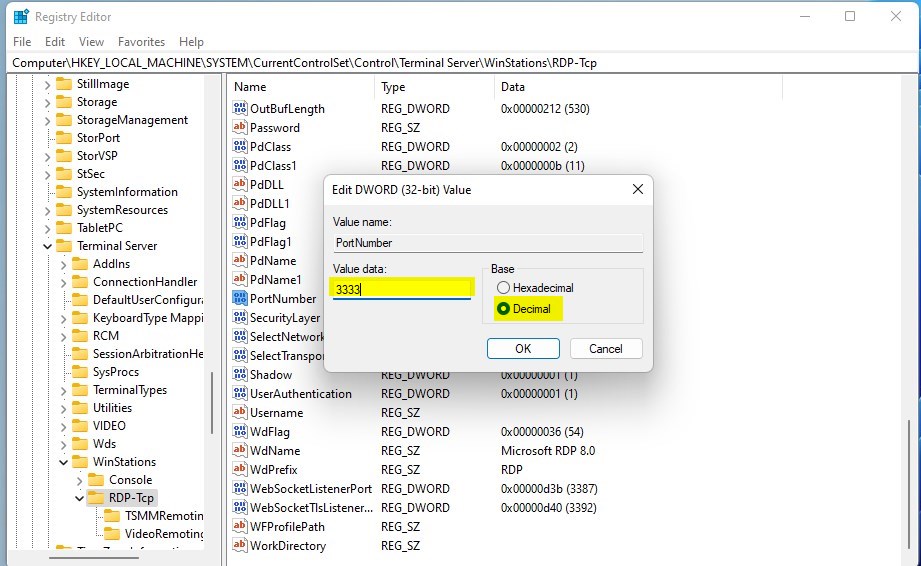
HKEY_LOCAL_MACHINE\System\CurrentControlSet\Control\Terminal Server\WinStations\RDP-Tcp
- Find the
PortNumberentry on the right side. - Right-click it and select Modify.
- Select the Decimal option.
- Type your new port number (e.g., 5555) and click OK.
Step 3Update Windows Firewall
After changing the Remote Desktop port, you need to update Windows Firewall to allow connections on the new port number.
- Open Windows Firewall with Advanced Security.
- Click Inbound Rules and then New Rule on the right.
- Select Port, click Next, and choose TCP.
- Enter your new port number in Specific local ports.
- Follow the prompts to Allow the connection for all profiles.
Step 4Verify and Connect
Restart your computer to apply changes. To verify it is working, open PowerShell as an administrator and run: netstat -ano | findstr :YOUR_NEW_PORT. To connect from a client, format your connection string as: 192.168.1.50:5555.
Summary
Changing your Remote Desktop port is a smart security move that stops bots from finding your computer easily.
Does changing the RDP port improve security?
Yes, it improves security by reducing “noise” from automated bots. While it is not a complete security solution, it hides your service from common port scanners that only look for the default 3389 port, effectively reducing the number of brute-force login attempts your system receives.
What happens if I forget the new RDP port?
If you forget your new Remote Desktop port, you won’t be able to connect remotely and will need to check the registry to find it again.
Was this guide helpful?

About the Author
Richard
Tech Writer, IT Professional
Richard, a writer for Geek Rewind, is a tech enthusiast who loves breaking down complex IT topics into simple, easy-to-understand ideas. With years of hands-on experience in system administration and enterprise IT operations, he’s developed a knack for offering practical tips and solutions. Richard aims to make technology more accessible and actionable. He's deeply committed to the Geek Rewind community, always ready to answer questions and engage in discussions.




No comments yet — be the first to share your thoughts!