How to Change Purchase Sign-in Settings in Microsoft Store

You can change your Microsoft Store purchase sign-in settings right from the app on your PC. It’s all about adjusting the password requirement for transactions.
This setting decides if you need to enter your Microsoft account password every time you buy something or download a paid app from the Store.
The Microsoft Store usually asks for your password by default. This helps stop accidental or unauthorized purchases and adds a security layer to your account.
You can turn this prompt off to make buying quicker. This means you’ll complete purchases faster on your Windows 11 or Windows 10 PC.
Remember, changing this setting only affects the specific device you’re currently using; other devices linked to your Microsoft account won’t be updated automatically.
You change Microsoft Store purchase sign-in settings by opening the Microsoft Store app, clicking your Profile icon, selecting Settings, and then toggling “Purchase without passcode.” This allows you to require or skip password prompts for purchases on that device.
How to Turn On or Off Purchase Sign-in on Microsoft Store
You can easily change your Microsoft Store purchase sign-in settings right from the app on your Windows 11 PC to decide if you need to enter a password for every purchase.
- Open Microsoft Store on your Windows 11 PC. Type
Microsoft Storein the Start menu search to find it. - Click on your Profile icon at the top right, next to the search box.
- From the menu, select
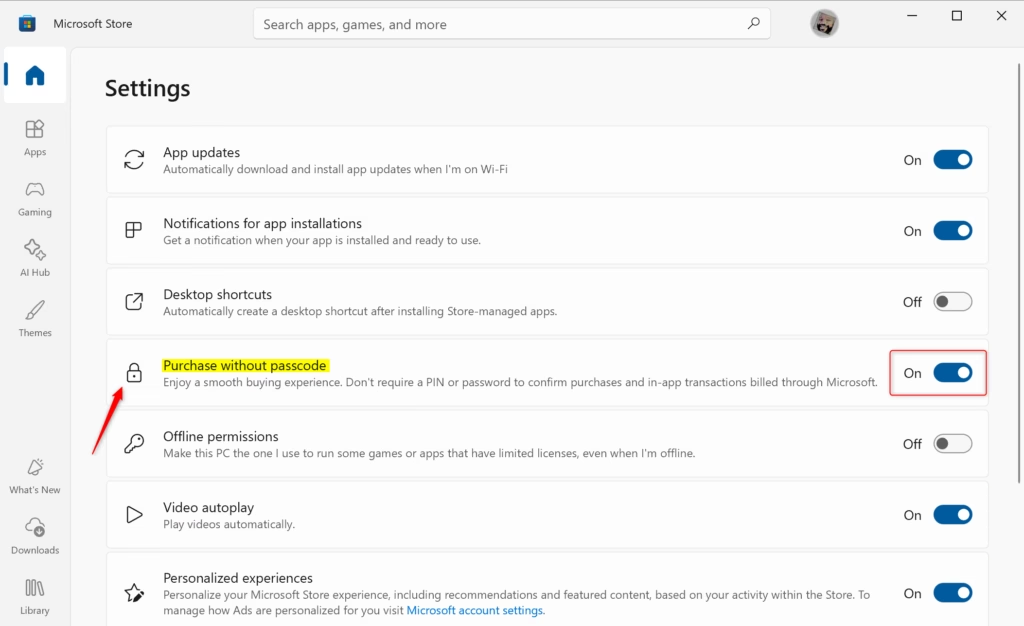
Settings. - In the Settings panel, find and click on
Purchase without passcode. - Use the switch to turn
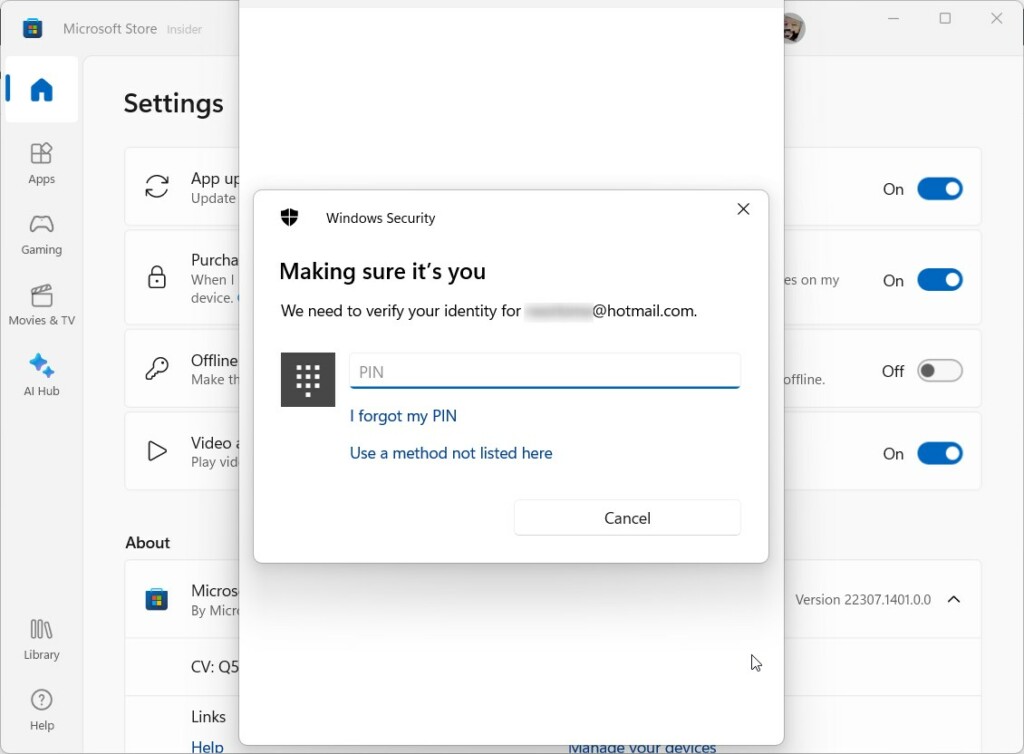
On(to require password for purchases) orOff(to skip password prompts). - ⚙️ Admin Privileges Required: Windows may ask you to enter your
PINor password to confirm this change.
What Happens Next?
If you turn off the Purchase sign-in requirement, you can buy from the Microsoft Store without typing your password on that specific device.
To bring the password prompt back, go back to the same setting and switch it on again.
That’s it! You’ve changed your purchase sign-in settings.
More Help and Information
If you want to learn more or need official support, visit the Microsoft Support page about changing purchase sign-in settings.
Summary
In short, you control whether the Microsoft Store asks for your password before you buy things, and this setting only applies to the computer you’re using.- You can choose whether Microsoft Store asks for your password when buying items.
- Changing this setting only affects the device you’re using.
- Follow easy steps inside the Microsoft Store app to turn this feature on or off.
- Always keep your device secure, especially if you turn off the password prompt.
- If you found this useful, feel free to share your thoughts or questions below!
How to purchase from Microsoft Store?
You can use a credit card, debit card, PayPal, or other available payment options. Learn how to Add a new bank or credit card to your Microsoft account. Review and Confirm Purchase. Review your order details, including the items, shipping information, and payment method.
Was this guide helpful?

About the Author
Richard
Tech Writer, IT Professional
Richard, a writer for Geek Rewind, is a tech enthusiast who loves breaking down complex IT topics into simple, easy-to-understand ideas. With years of hands-on experience in system administration and enterprise IT operations, he’s developed a knack for offering practical tips and solutions. Richard aims to make technology more accessible and actionable. He's deeply committed to the Geek Rewind community, always ready to answer questions and engage in discussions.



I want to delete the last email address and sign in new address in Microsoft.