
What is Narrator?
Narrator is a built-in Windows tool that reads text out loud on your screen. It helps people who have trouble seeing or reading text. You can customize many things in Narrator, like the voice, speed, volume, and keyboard shortcuts. One useful setting is how the Narrator pauses when it reads punctuation marks like commas or periods.
Why Change Narrator’s Pause for Punctuation?
When Narrator reads punctuation, it pauses slightly. This pause can help you:
- Understand where sentences or phrases end
- Make the reading sound natural and clear
- Improve your overall listening experience
Some people like a little pause. Others prefer no pause for faster reading. You can choose what works best for you.
How to Turn On or Off Pause for Punctuation
- Open Settings: Click the Start menu (Windows icon at the bottom-left) and then click Settings. Or, press
Windows key + Ion your keyboard to open Settings directly. - Go to Accessibility: In the Settings window, click Accessibility on the left side.
- Open Narrator settings: On the right side, find and click Narrator to open its settings.
- Find Verbosity Settings: Scroll down to the Verbosity section and click to expand Verbosity level.
- Toggle Pause for Punctuation: Find the option called “Pause slightly when reading punctuation”. Switch it On if you want Narrator to pause a little at punctuation, or Off if you want it to read without pausing.
When you’re done, you can close the Settings app.
Visual Guide
Here is what you will see in the Settings app:

Open Narrator settings inside Accessibility.
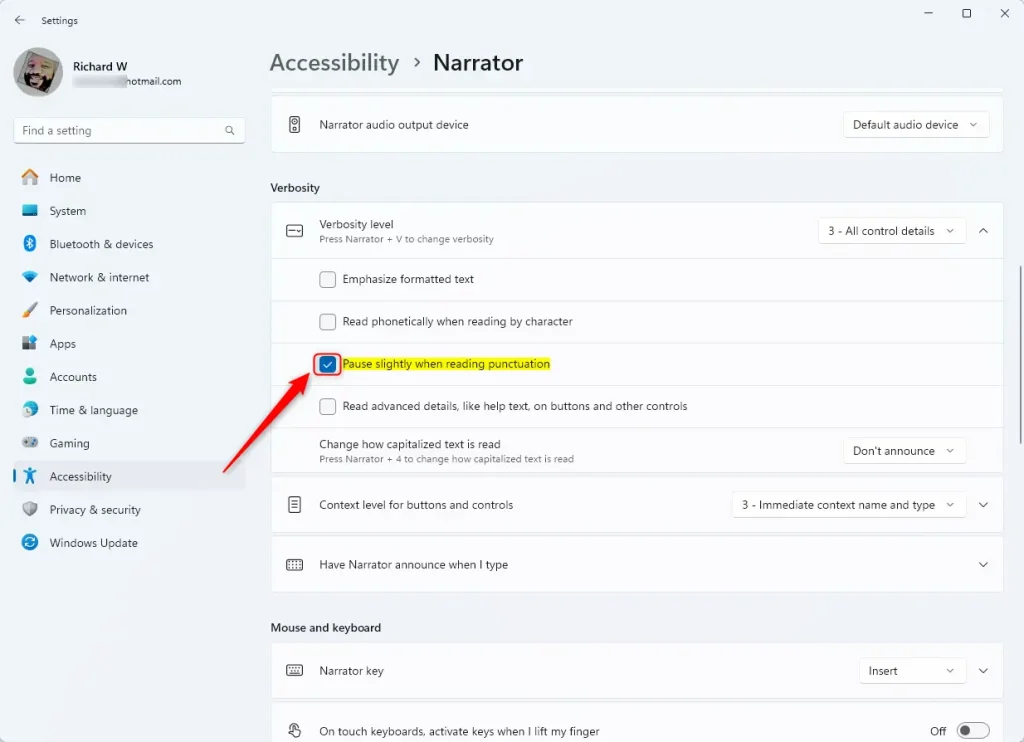
Toggle the “Pause slightly when reading punctuation” option On or Off.
Summary
You can make Narrator pause a little when it reads punctuation to make listening easier. This setting helps you follow the text better, especially when reading long or complex sentences. It’s easy to turn this pause On or Off in the Windows 11 Settings under Accessibility > Narrator > Verbosity level. Give it a try and see what works best for you!



Leave a Reply