
What is Narrator?
Narrator is a built-in tool in Windows 11 that reads the text on your screen out loud. It helps people who have trouble seeing or reading by speaking what’s happening on the computer.
Why Change Narrator Verbosity?
You can change how much information Narrator reads to you. This is called the verbosity level. If you want to hear only the most important parts, you can set it to a low level. If you want to hear more details about what’s on the screen, you can set it higher.
Understanding Verbosity Levels
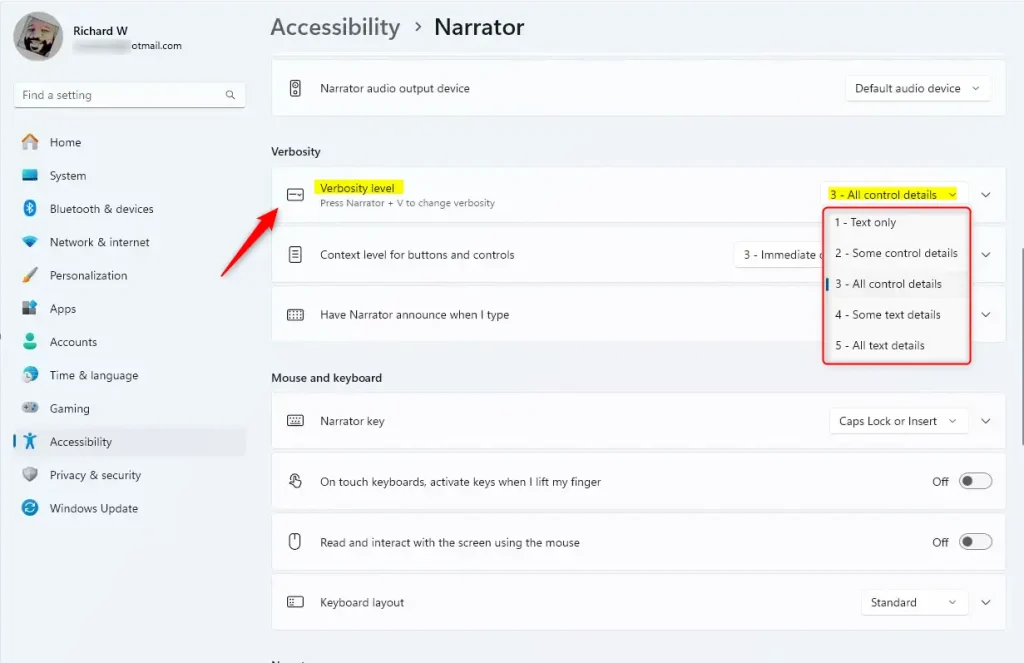
The verbosity level controls how much detail Narrator says. Here are the choices:
- Text only: Narrator reads just the text.
- Some control details: Reads text and some info about buttons or controls.
- All control details: Reads all info about buttons, menus, and controls.
- Some text details: Reads text with a bit more description.
- All text details: Reads everything with full descriptions.
Choosing the right level can make Narrator easier to use for you.
How to Change the Narrator Verbosity Level
Follow these simple steps to change how much Narrator talks:
- Open the Settings app by clicking the Start button (Windows icon) and selecting Settings, or press
Windows key + Ion your keyboard to open Settings directly. - In Settings, click Accessibility on the left side.
- On the right, find and click on Narrator.

- Scroll down to the Verbosity section.
- Click on the Verbosity level dropdown menu.
- Pick the verbosity level you want from the list (Text only, Some control details, etc.).
Quick Keyboard Shortcut
You can also press Narrator key + V on your keyboard to quickly change the verbosity level. The Narrator key is usually the Caps Lock or Insert key, depending on your settings.
Summary
- Narrator reads the screen out loud to help people with vision problems.
- You can adjust how much detail Narrator reads by changing the verbosity level.
- Setting a higher verbosity gives more information; a lower level gives less.
- Changing verbosity helps make Narrator work just the way you want.
- For more help with Narrator and other Windows 11 features, visit this guide.
Leave a Reply