Switch Primary Mouse Button in Ubuntu

You switch the primary mouse button in Ubuntu to make the right button perform standard clicks and selections, a common adjustment for left-handed users.
Your primary mouse button is the one your system recognizes for clicking, dragging, and selecting. By default, Ubuntu uses the left button, which works well for most right-handed individuals.
If you’re left-handed, or simply prefer it this way, you can easily swap this functionality. This change means your right mouse button will then initiate clicks and selections, while the left button opens context menus.
Open Settings, then click Mouse & Touchpad. Under General, select Right as the primary button to make your right mouse button the default for clicking and selecting.
How to switch the primary mouse button in Ubuntu Linux
Here’s how to swap the left and right mouse buttons in Ubuntu, making it more comfortable for left-handed users.
Ubuntu keeps most of its settings organized in one spot. You can handle everything from system configurations to creating new users and updating your system from the System Settings panel.
Alternatively, click on the System menu at the top-right corner of your desktop’s top bar.
Select Settings from the System menu, as highlighted below.

Click on the Mouse & Touchpad tile in the Settings app to open the panel.
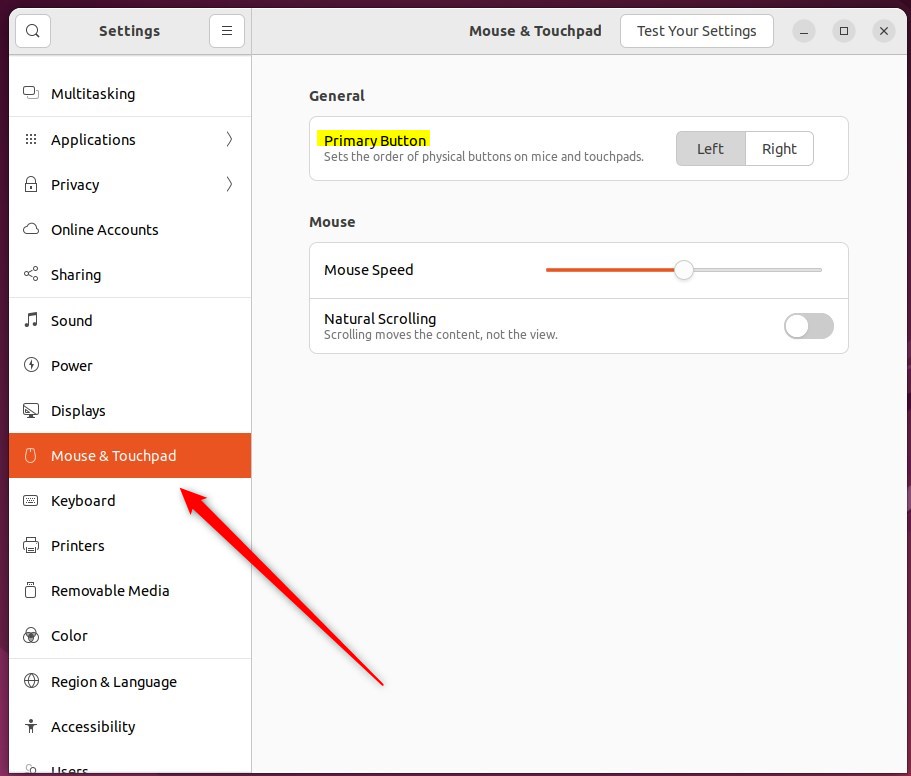
Within the System Settings -> Mouse & Touchpad panel, under the General section, choose Right or Left to switch the primary button.
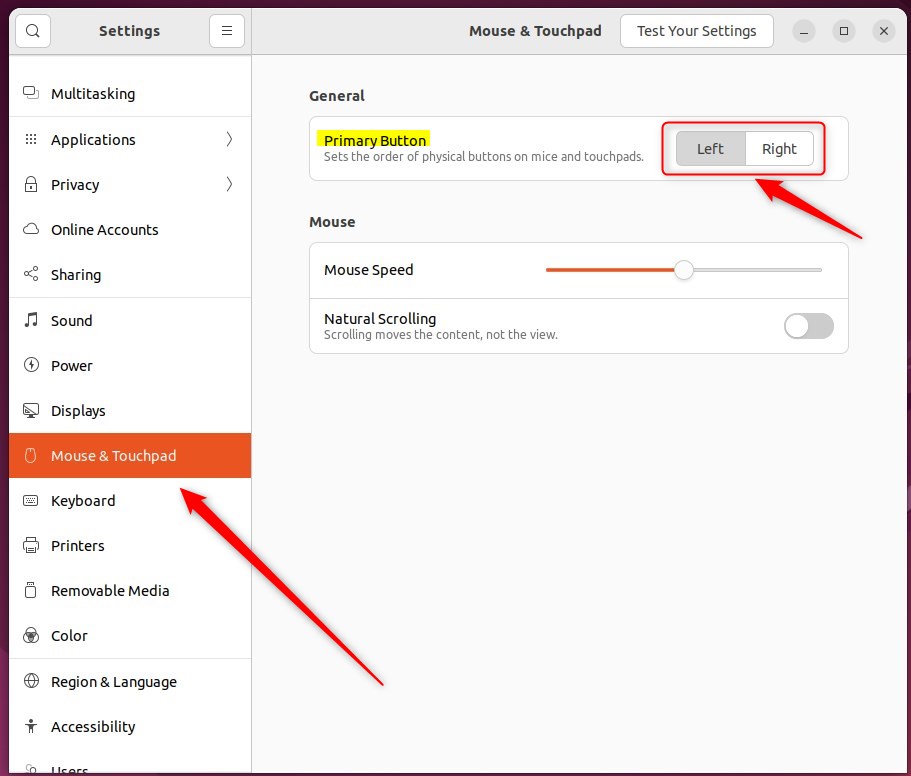
This setting applies to your mouse, touchpad, and any other pointing devices.
And that’s it! You can close the Settings app now.
Conclusion:
- Changing the primary mouse button in Ubuntu Linux can greatly improve the experience for left-handed users.
- By following the simple steps outlined in this post, users can comfortably swap the behavior of the left and right mouse buttons.
- Accessing the System Settings panel and navigating to the Mouse & Touchpad section allows a quick adjustment to the primary button setting.
- This guide provides an accessible solution for customizing the mouse behavior in Ubuntu Linux, catering to diverse user preferences.
Was this guide helpful?

About the Author
Richard
Tech Writer, IT Professional
Richard, a writer for Geek Rewind, is a tech enthusiast who loves breaking down complex IT topics into simple, easy-to-understand ideas. With years of hands-on experience in system administration and enterprise IT operations, he’s developed a knack for offering practical tips and solutions. Richard aims to make technology more accessible and actionable. He's deeply committed to the Geek Rewind community, always ready to answer questions and engage in discussions.


[…] and background, opening and closing tabs, refreshing a page, and more, simply by holding down the right mouse button and drawing patterns on the […]