How to Change Maximum Disk Usage for Point-in-time Restore in Windows 11

Point-in-time restore is a powerful tool in Windows 11 that helps you recover your system to a previous state. It uses the Volume Shadow Copy Service (VSS) to save snapshots of your files and settings. By managing your disk space, you ensure that your computer has enough room for these recovery points without running out of storage.
Why manage disk usage for restore points?
Windows needs a specific amount of space to store these snapshots. If you do not set a limit, VSS might use more space than you want. Setting a limit helps you balance between having enough recovery options and keeping your hard drive free for your own files.
What happens when you change the limit?
When you set a maximum limit, Windows will stop creating new restore points once that space is full. It will then delete the oldest points to make room for new ones. If you set the limit too low, you may find that you have no restore points available when you actually need them.
How to Change Maximum Disk Usage in Settings
Requires Admin Privileges: You must be logged in as an administrator to change these settings.
1. Open Settings by pressing Win + I on your keyboard.
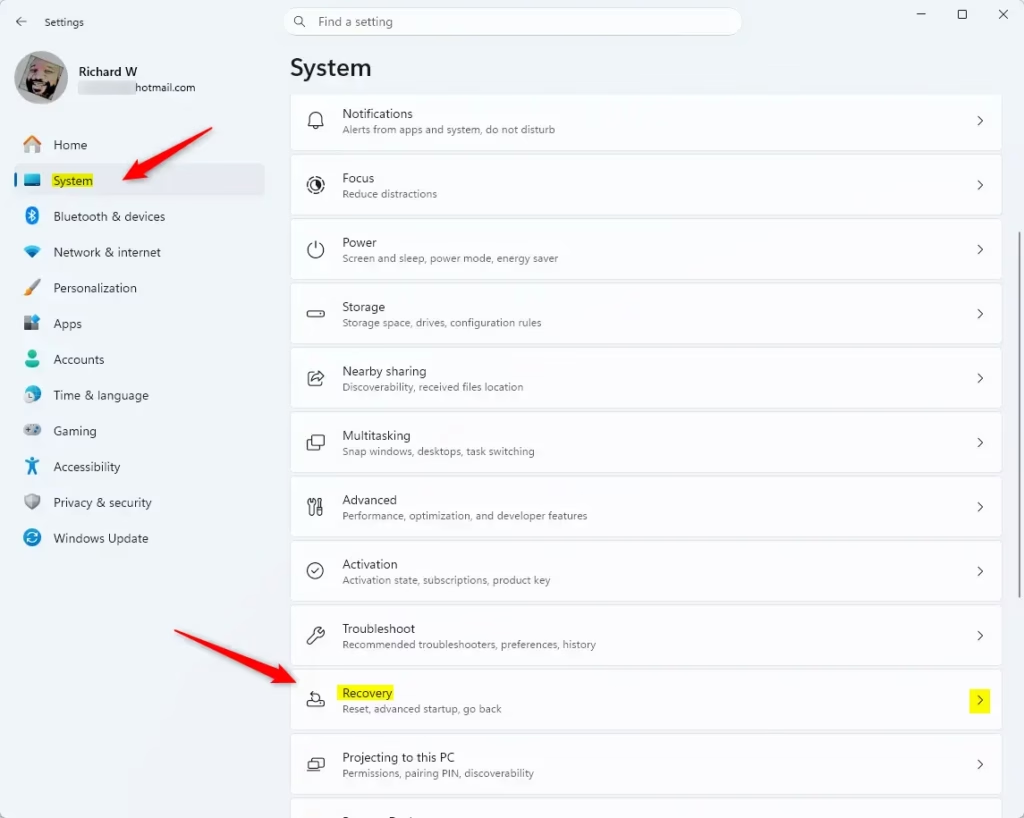
2. Click System on the left, then select Recovery on the right.
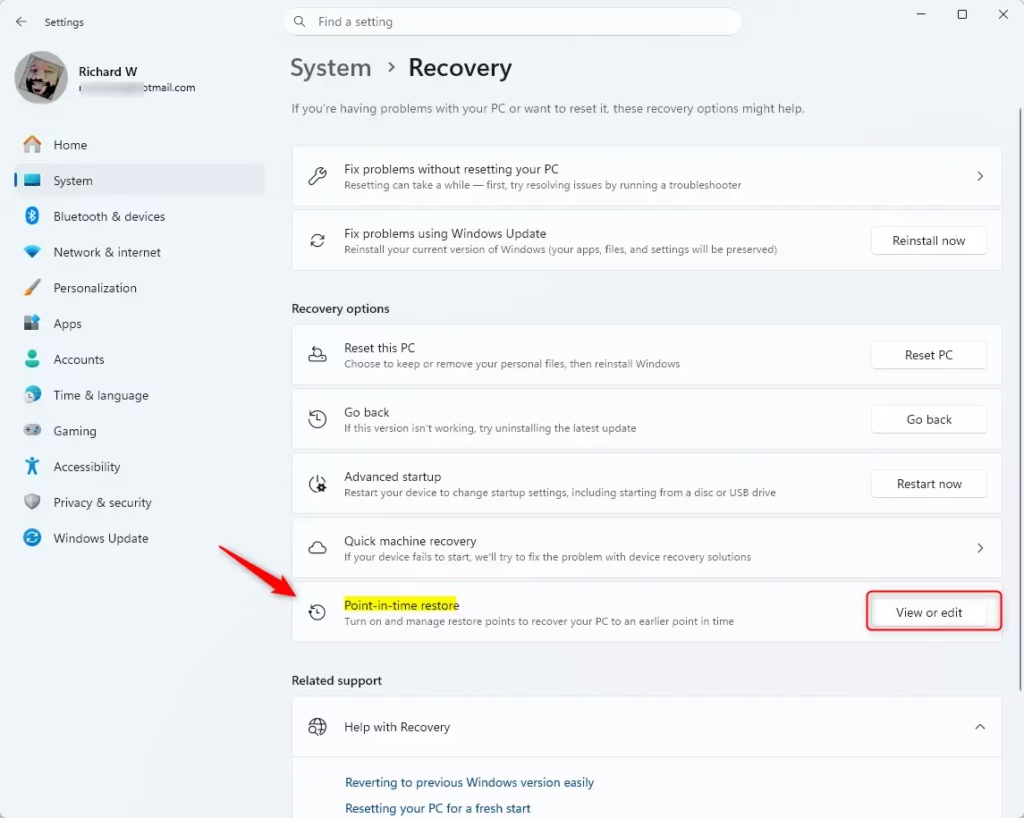
3. Under Recovery options, click Point-in-time restore or the View or edit button.
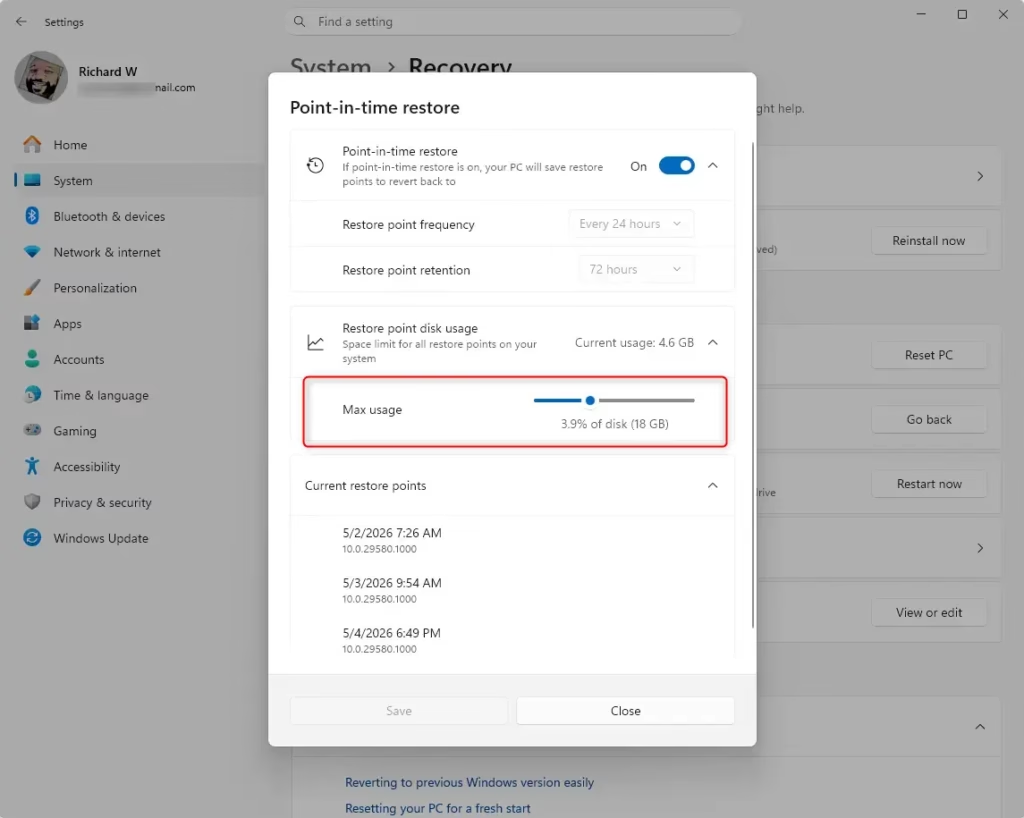
4. Move the Maximum usage limit slider to choose between 2 GB and 50 GB.
Advanced Configuration via Registry Editor
Requires Admin Privileges: Modifying the registry can affect system stability. Proceed with caution.
1. Press Win + R, type regedit, and press Enter to open the Registry Editor.
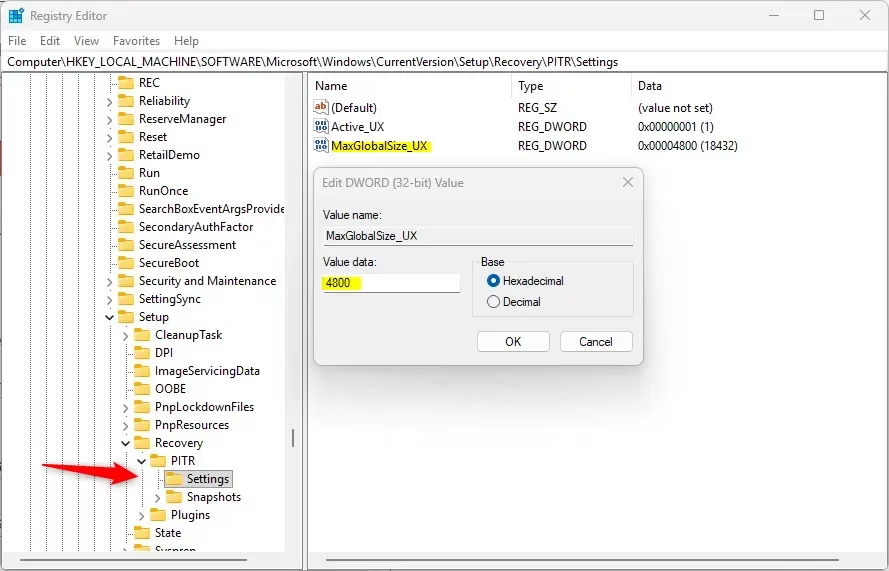
2. Navigate to: HKEY_LOCAL_MACHINE\SOFTWARE\Microsoft\Windows\CurrentVersion\Setup\Recovery\PITR\Settings
3. Double-click MaxGlobalSize_UX in the right pane.
4. Select Decimal and enter your desired size in MB (e.g., 10240 for 10 GB). Click OK.
Troubleshooting: Volsnap Event ID 36
If you see Volsnap Event ID 36 in your Event Viewer, it means the shadow copy storage is running out of space or is being aborted. To fix this, increase your Maximum usage limit using the steps above. Ensure your drive has at least 15% free space to prevent VSS from failing.
Best Practices for Storage
For most users, a limit of 10 GB to 20 GB is sufficient. If you have a small SSD, keep the limit lower to save space. If you have a large drive, you can increase it to keep more history. Remember, these points are not a replacement for a full system backup.
Summary
Managing your Point-in-time restore storage is a simple way to keep your Windows 11 system healthy. By using the Settings app or Registry Editor, you can control how much space VSS uses. Always keep an eye on your disk space to avoid Volsnap 36 errors and ensure you have enough recovery points for emergencies. For more technical details, visit the official Microsoft documentation.” }
What happens if the disk usage limit is set to 0?
If you set the limit to 0, the Volume Shadow Copy Service will be unable to allocate storage for snapshots. This effectively disables the creation of new restore points, meaning you will have no recovery options available if your system encounters a critical error or file corruption.
Does increasing the limit affect system performance?
Increasing the limit does not directly slow down your computer. However, if your disk is nearly full, the system may struggle to manage large shadow copy files. Always ensure you have plenty of free physical disk space to maintain optimal system performance and stability.
Was this guide helpful?


Leave a Reply Cancel reply