Increase Text Size in Ubuntu Linux: A Step-by-Step Guide

You increase text size in Ubuntu Linux by adjusting your system’s display settings to make all elements on your screen larger and easier to read.
This means modifying the scaling factor or font size within your Ubuntu desktop environment, often in the “Accessibility” or “Displays” settings panel, making text significantly more legible.
For instance, if you’re using Ubuntu 22.04 LTS and find the default font too small on a 4K monitor, you can easily scale the entire interface up.
This simple adjustment significantly improves readability, especially on high-resolution displays or if you experience visual strain.
Open Settings, then click Accessibility. Under Seeing, toggle the Large Text switch to On to increase the size of all text. You can also use CTRL + + in many applications to increase text size.
How to increase font size in Ubuntu Linux
If the text is too small, you can make it bigger to read more comfortably.
Here’s how to do that.
Ubuntu Linux keeps most of its settings in one place. You can manage everything from system tweaks to user accounts and updates within the System Settings panel.

Another way to get there is by clicking the System menu in the top-right corner of your desktop.
From the System menu, choose Settings, as shown below.

In the Settings app, click the Accessibility tile to open that section.
In the System Settings -> Privacy -> Accessibility settings pane, under Seeing, turn the Large Text switch to On to increase the text size in Ubuntu Linux.
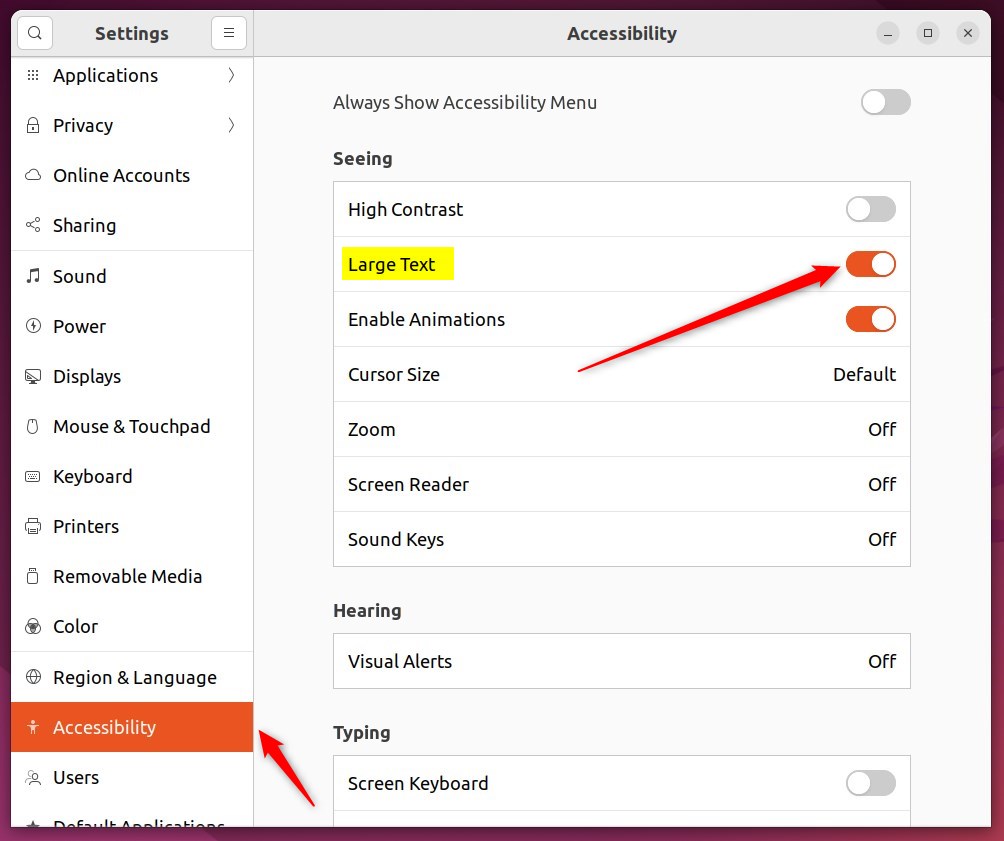
To go back to the default size, move the Large Text switch to Off.
Your Ubuntu fonts and text size should update automatically after these steps. For instance, ‘Large Text’ will scale the text by 1.2 times its original size.
You can increase the text size anytime within many applications by pressing CTRL + +. To make the text smaller, press CTRL + –.
How to increase font size in Ubuntu Linux from the command terminal
Prefer to use the command line? You can achieve the same results with a few commands. You’ll use the commands below to change the text size. For example, this will scale the text 1.5 times its original size.
gsettings set org.gnome.desktop.interface text-scaling-factor 1.5After running those commands, the font size in Ubuntu Linux should be much larger than the default. There might be more advanced ways to change this in Ubuntu Linux, but these steps should be enough to increase the font size.
That should do it!
Conclusion:
- Adjusting the font size in Ubuntu Linux is essential for improving readability, especially for users with poor vision or larger displays.
- By accessing the System Settings panel and toggling the Large Text switch under Accessibility, users can conveniently increase the text size.
- Alternatively, advanced users can utilize the command line to change the text size by a specific scaling factor.
- The ability to adjust text size in Ubuntu Linux ensures a more comfortable and customized user experience for all individuals, regardless of their visual requirements or display setups.
Was this guide helpful?

About the Author
Richard
Tech Writer, IT Professional
Richard, a writer for Geek Rewind, is a tech enthusiast who loves breaking down complex IT topics into simple, easy-to-understand ideas. With years of hands-on experience in system administration and enterprise IT operations, he’s developed a knack for offering practical tips and solutions. Richard aims to make technology more accessible and actionable. He's deeply committed to the Geek Rewind community, always ready to answer questions and engage in discussions.


No comments yet — be the first to share your thoughts!