

This post describes renaming a drive or volume label in Windows 11.
Windows and drive manufacturers assign user-friendly names to internal and external drives or volumes. For example, the default internal local drive (C:) will always be called Local Disk as its volume label.
A USB thumb or flash drive typically has a USB drive label or the brand name and model of the USB drive.
A volume formatted using NTFS can have a label with up to 32 characters in length, including spaces. A drive formatted using FAT32 can have a label with up to 11 characters in length.
We showed you how to mount a folder as a drive in Widows. You can use this method to rename the drive label.
Below is how to change or rename a volume label in Windows 11.
How to rename volume or drive label in Windows 11
As described above, Windows and drive manufacturers assign user-friendly names to internal and external drives or volumes.
Windows also allows users to change a drive or volume label. However, users must be members of the administrator’s group or equivalent.
You cannot change a CD/DVD drive label.
There are multiple ways to change a drive label. One such method is to use File Explorer.
Open File Explorer, select This PC from the left or press the Win+E keys on your keyboard.
In File Explorer, right-click on the drive, select the Rename command on the context menu or press F2.
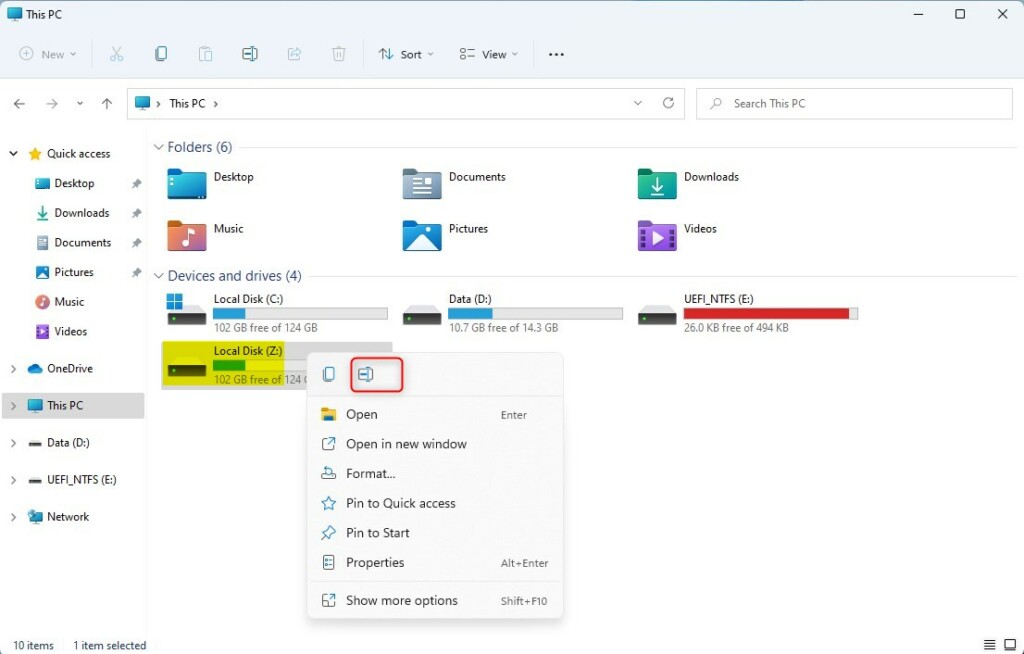
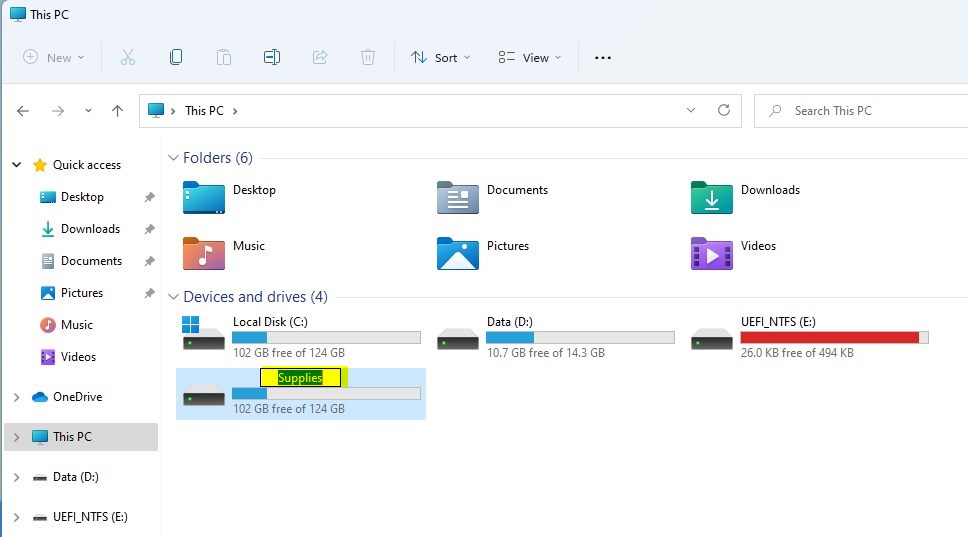
The Rename command opens a text box to type in a new name. Press Enter to complete the name change.
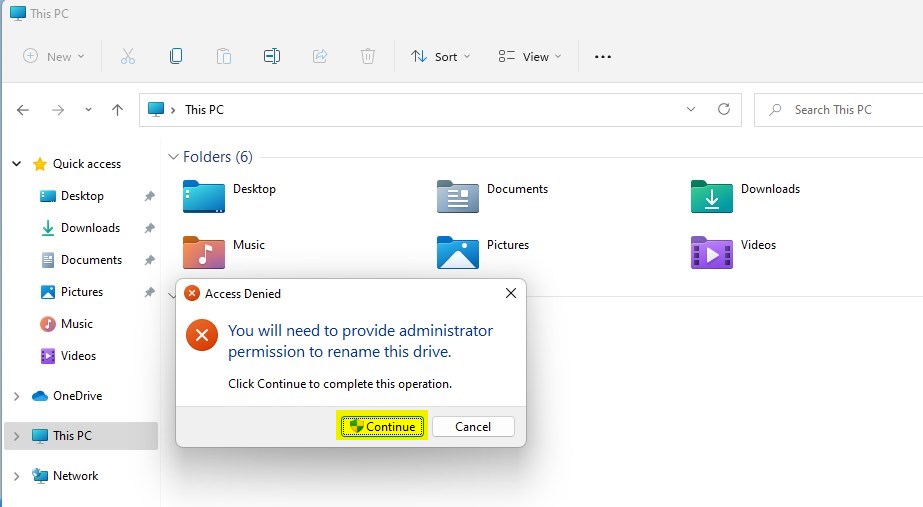
If prompted, click the Continue button.
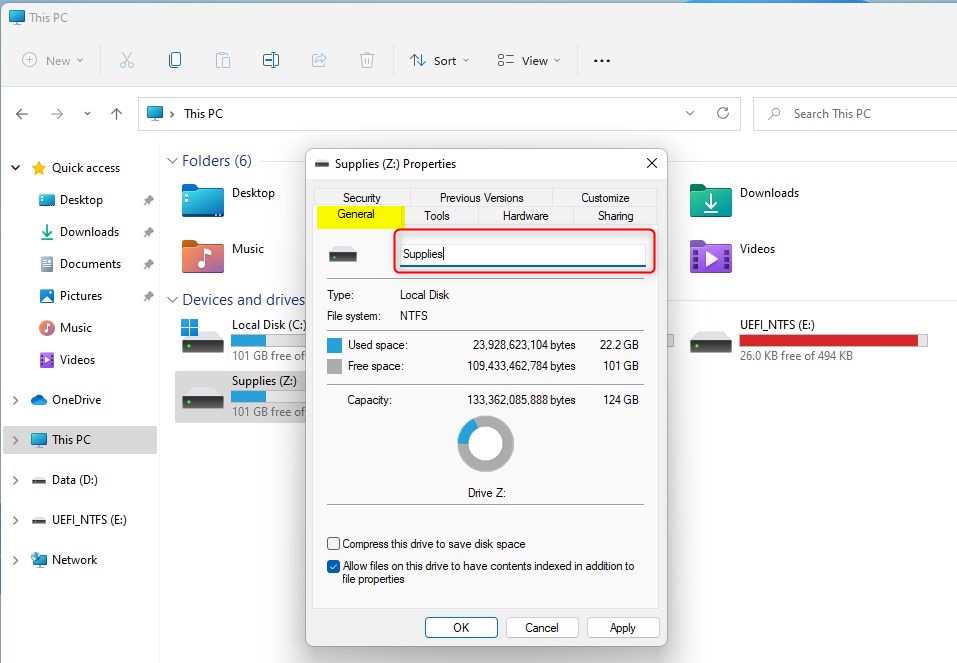
Alternatively, right-click on the volume or drive you to want to rename. Select Properties. On the Properties window, under General, type in a new name for the label and click OK to save.
How to rename volume or drive via Windows Settings app
Yet another way one can change or rename a volume in Windows 11 is via its Settings app.
To do that, select Start and select Windows Settings app.
Windows 11 has a centralized location for the majority of its settings. As a result, everything can be done, from system configurations to creating new users and updating Windows from its System Settings pane.
To get to System Settings, you can use the Windows key + I shortcut or click on Start ==> Settings, as shown in the image below:

Alternatively, you can use the search box on the taskbar and search for Settings. Then select to open it.
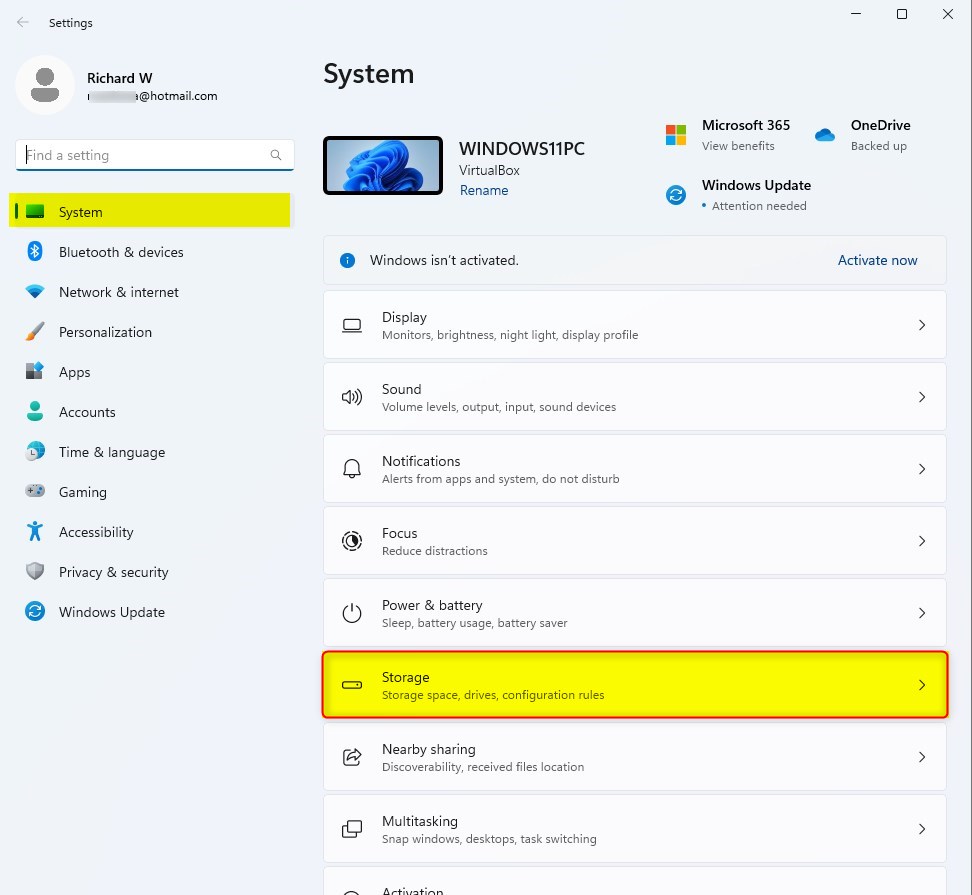
Windows Settings pane should look similar to the image below. On the Windows Settings app, click the System on the left, then select the Storage tile on the right pane, as highlighted in the image below.
Select the Advanced storage settings tile on the System > Storage settings pane to expand.

Next, select Disk & volumes tile as highlighted below.

On System => Storage => Disk & volumes settings pane, select the drive you want to change its label to expand. Then click the Properties button for the drive.

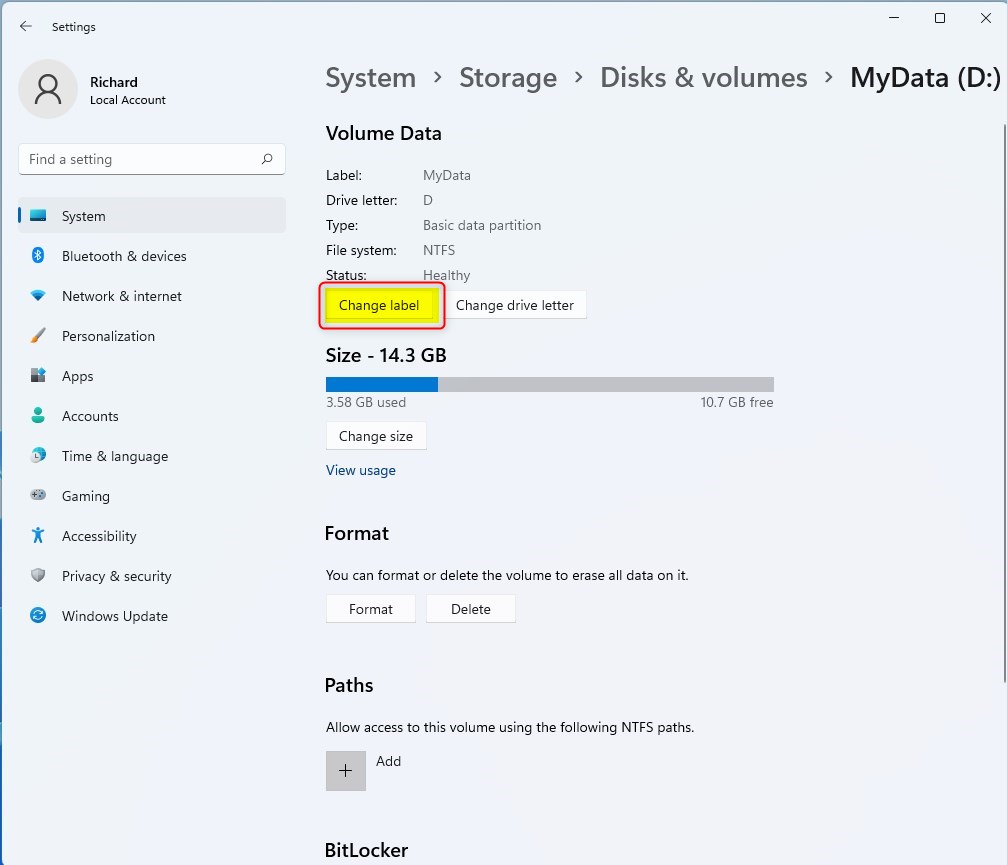
On the Properties window, click on the Change label button under Volume Data.
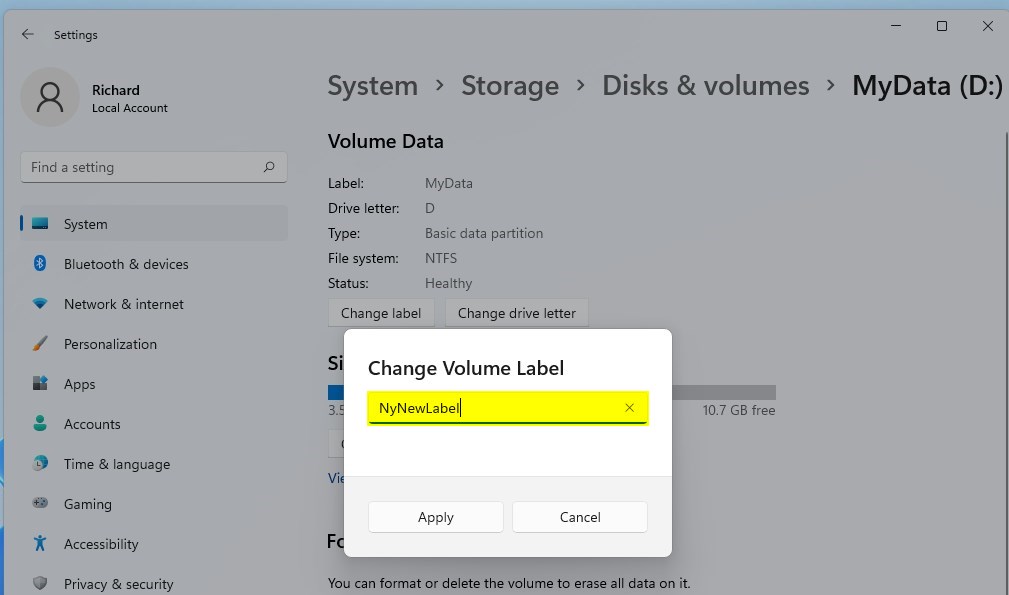
Type in a new volume label name on the pop-up window and click Apply.
That should do it!
Conclusion:
- Renaming a drive or volume label in Windows 11 is a straightforward process that allows users to assign custom names to internal and external drives or volumes.
- With up to 32 characters in length for NTFS and 11 characters for FAT32, users can create meaningful drive labels.
- Utilizing methods like File Explorer and the Windows Settings app provides users with convenient options for renaming drive labels.
- The ability to rename drive labels enhances organization and simplifies navigation, contributing to a more personalized user experience within the Windows 11 operating system.



Leave a Reply Cancel reply